Chapter 3
Create your account and sign in
Create an Autoworklet account with Google or with an email address and password, verify your email and sign in. Know what to do when sign-in does not work.
3.1Create your account
You need one account per person. You can sign up with a Google account, or with any email address and a password. Creating an account is free and needs no credit card.
- Go to autoworklet.com.
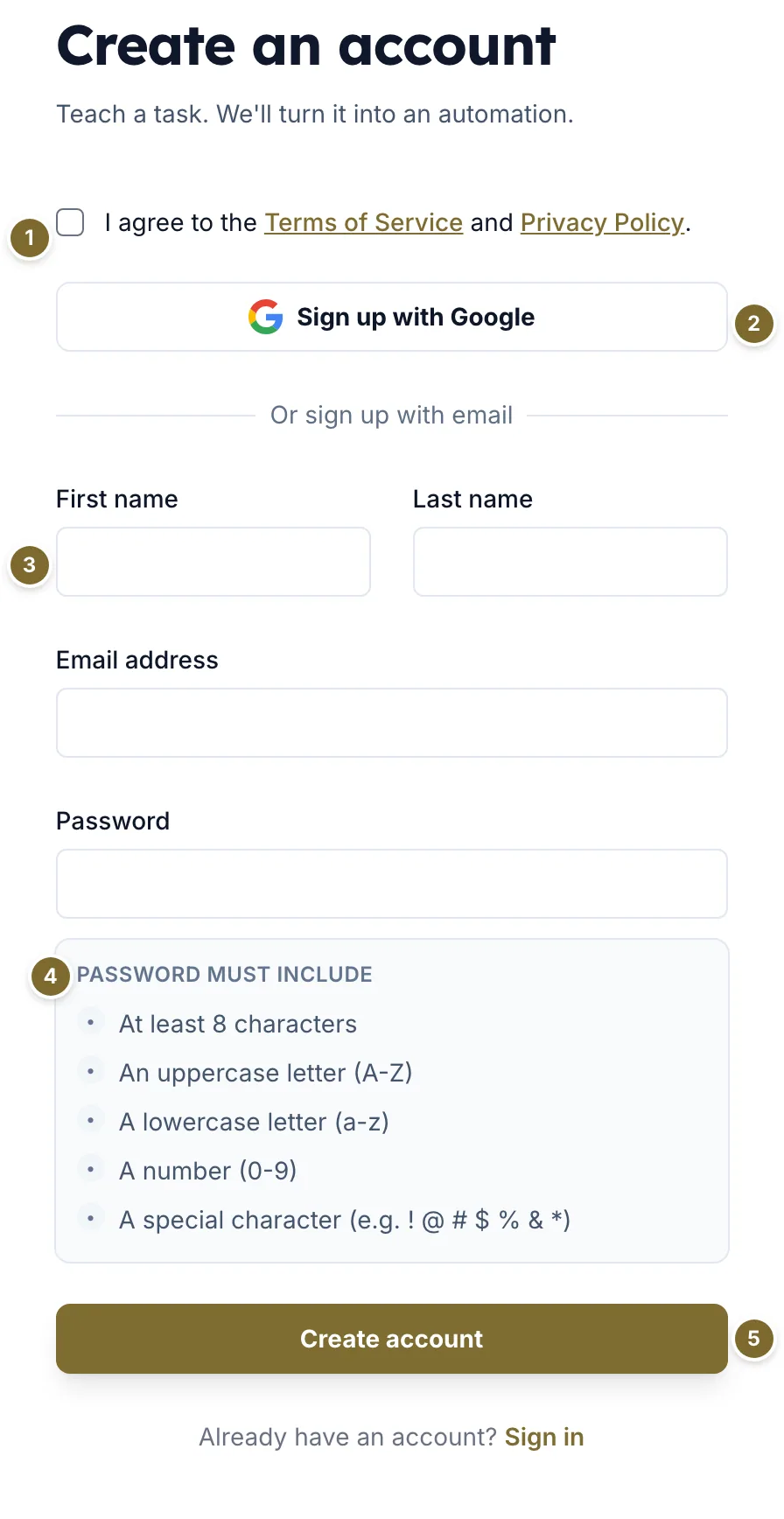
- Click Try Teach. You can also click Sign in on the website, then click Sign up at the bottom of the sign-in form. The page Create an account opens.
- Select I agree to the Terms of Service and Privacy Policy. 1 Select it before you use Google or email. Both need it. The two links open the terms and the policy in a new tab.
- Sign up in one of these ways:
- To use a Google account, click Sign up with Google 2 and finish in the Google window that opens.
- To use an email address, fill in First name, Last name and Email address 3. Then type a Password.
- If you use email, watch the checklist titled Password must include 4 under the password.
Each item turns green when your password meets it:
- At least 8 characters
- An uppercase letter (A-Z)
- A lowercase letter (a-z)
- A number (0-9)
- A special character (e.g. ! @ # $ % & *)
- Click Create account 5. The button reads Creating your workspace... while it works.
When it finishes, Autoworklet creates your workspace and opens it. Most new accounts land on the Teach a task page, under a line with a green check mark that starts "Your account is ready." See Your workspace for what you get.
If something goes wrong
The form shows one of these messages when it cannot create the account.
| Message | What to do |
|---|---|
| "Please agree to the Terms of Service and Privacy Policy to continue." | Select the checkbox at the top of the form, then try again. |
| The checklist heading changes to Please fix the items in red | Your password misses a rule. Change it until every red item turns green, then click Create account again. |
| "An account with this email already exists. Try signing in instead." | Click Sign in and use that account. If you forgot its password, see If you cannot sign in. |
| "That email address does not look right. Check it and try again." | Correct the typing in Email address. |
| "Your browser blocked the Google sign-in window. Allow pop-ups for this site and try again." | Allow pop-ups for autoworklet.com in your browser, then click Sign up with Google again. |
| "Sign up was cancelled." | The Google window was closed before it finished. Click Sign up with Google again. |
| "Too many attempts from this device. Wait a minute, then try again." | Wait one minute. |
| "We could not reach Autoworklet. Check your connection and try again." | Check your internet connection. |
| "We could not finish creating your account. Nothing was saved - please try again." | Try again. Nothing was created, so you can use the same email. |
If a message names [email protected], email that address.
3.2Verify your email
If you signed up with an email address, Autoworklet sends you a verification email. Accounts that sign up with Google are already verified and skip this section.
You can use Autoworklet before you verify. Some things wait for a verified address, because they are sent to or tied to your email:
- Turning on two-factor authentication.
- Accepting an invitation to an organization.
- Seeing automations that other organizations shared with your email address, on Shared with me.
To verify:
- Open the email from Autoworklet in your inbox. If you cannot find it, check your spam folder.
- Click the link in the email.
- Back in Autoworklet, open Menu.
- Click Profile. Email Status reads Verified. If it still reads Not verified, reload the page.
To send the email again:
- Open Menu.
- Click Profile.
- Next to Email Status, click Send verification email. A line under it says "Sent to" your address, followed by "Open the link, then reload this page."
- Open the new email.
- Click its link.
- Reload Profile.
If the line reads "A verification email was sent recently. Check your inbox and spam folder.", one is already on its way. Wait a few minutes before you ask for another.
3.3Sign in
- Go to autoworklet.com.
- On a phone or a narrow window, open the menu (three lines) at the top right.
- Click Sign in. The page Welcome back opens.
- Sign in the same way you signed up:
- With Google: click Sign in with Google 1. Then select your account in the Google window.
- With email: type your Email address and Password 2. Then click Sign in → 4.
- If you turned on two-factor authentication, a dialog titled Two-factor authentication opens. Type the 6-digit code from your authenticator app. Then click Verify.
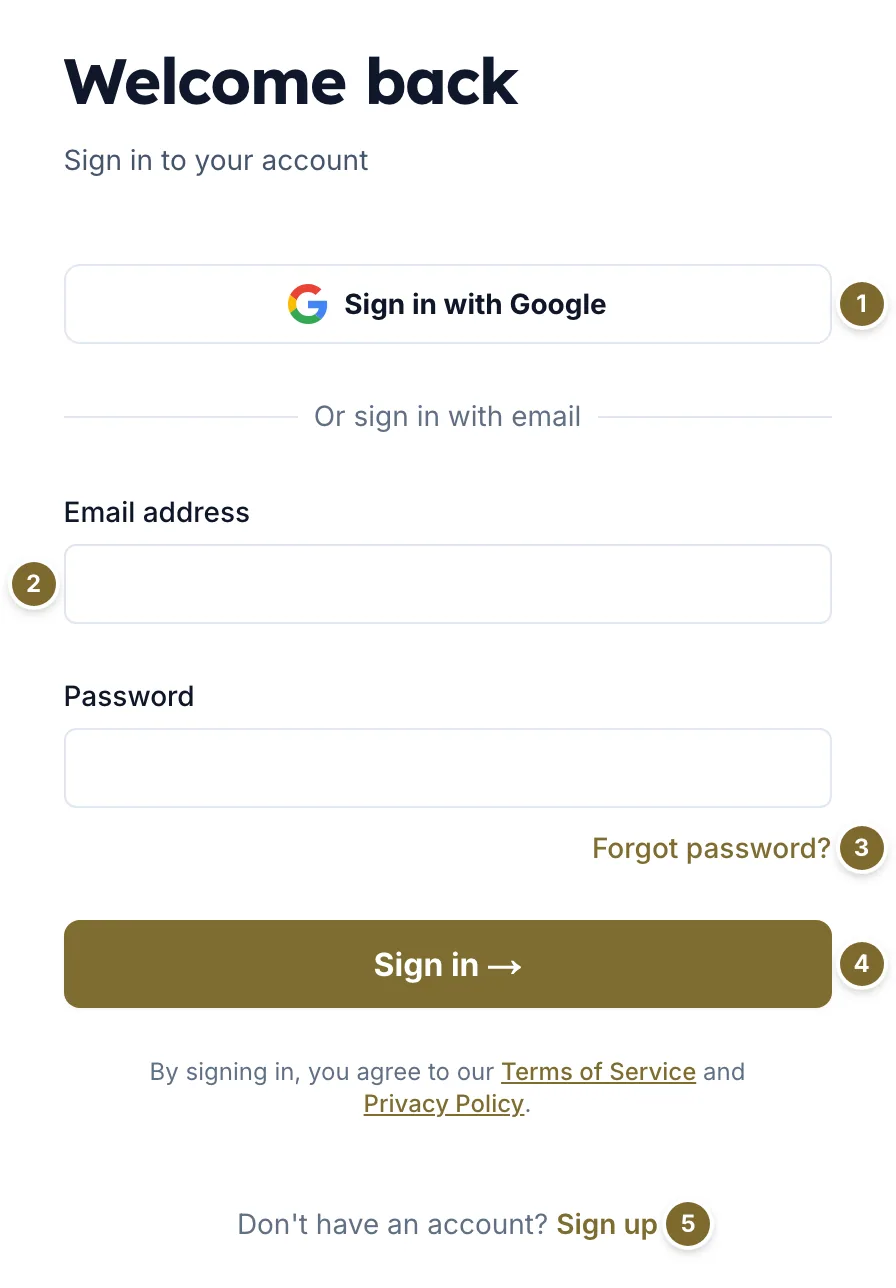
Forgot password? 3 under the password field starts a password reset. See If you cannot sign in. Sign up 5, after "Don't have an account?" at the bottom, opens the sign-up form.
After you sign in, you land on the Home page of the workspace you used last. If that workspace has no automations and no teaches yet, the Teach a task page opens instead. If you followed a link to a page before you signed in, you go to that page instead.
Note
For your security, Autoworklet signs you out of a browser after 2 hours without activity, with a one-minute warning first. It also asks you to sign in again 24 hours after you signed in. Sign Out in the header signs you out on every device. See Sessions and signing out.
3.4Your workspace
Every new account gets a personal workspace. It is where your automations, runs, data and saved logins live. The product also calls a workspace an organization.
While it is being set up, you might see a short screen that reads "Setting up" followed by the workspace name. Your workspace starts like this:
| Setting | Value |
|---|---|
| Name | Your first name and "workspace", for example "Morgan's workspace". It can read "My workspace" for a moment, or for good if there was no first name. |
| Plan | Free: 30 execution minutes a month, 3 Teach sessions a month and 1 run at a time. |
| Members | Only you. |
| Your role | Admin, so you can change everything in it. |
You can rename the workspace later in Organization settings. See Organization settings.
To get results first without teaching anything, follow the Quick start.
Each account has one free organization, and your personal workspace uses it. To work with a team:
- Ask an admin or manager of your team's organization to invite you. See Add people and manage invitations.
- Or create a new organization for your team on a paid plan. See Create an organization.
Note
If someone invited you only to view their dashboard site, Autoworklet does not create a workspace for you. After you sign in, you see Sites shared with you with a link to each site. To automate your own work as well, click Create a workspace on that page. See What your clients see.
3.5If you cannot sign in
Reset a forgotten password
If you signed up with an email address and forgot the password, use this section. If you sign in with Google, reset your password with Google instead.
- On the sign-in page, click Forgot password?. The page Reset your password opens.
- Type your Email address.
- Click Reset password →.
- The page says "Password reset email sent. Please check your inbox." It says this for any address, so it never reveals whether an address has an account.
- Open the email.
- Click the link. A page titled Set new password opens.
- Type the new password in New password. It must meet the same rules as when you signed up.
- Type it again in Confirm new password.
- Click Reset password →.
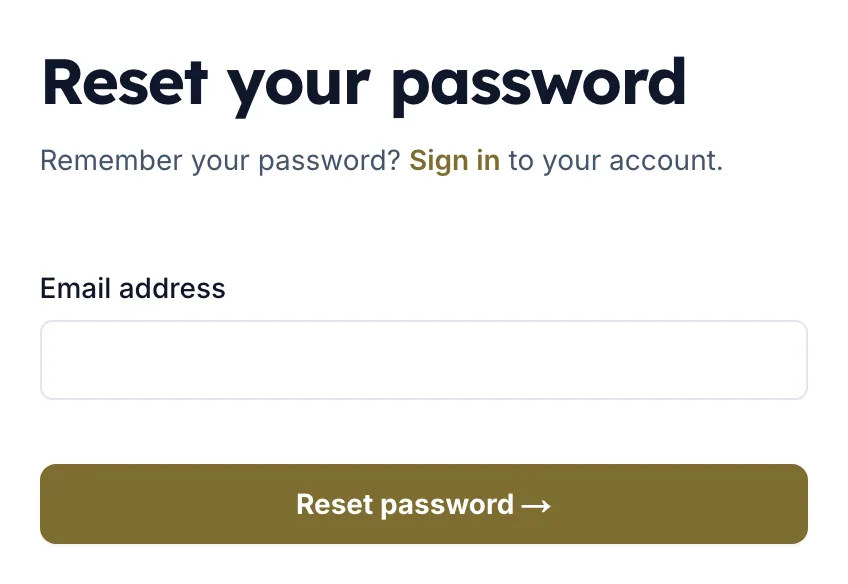
After the reset, Autoworklet signs you in with the new password. If it cannot, it opens the sign-in page. Sign in there with the new password. A reset signs you out on your other devices. If the page says the reset link is invalid or has expired, ask for a new email from Forgot password?.
Messages on the sign-in page
| Message | What it means and what to do |
|---|---|
| "Invalid email or password" | The email or the password is wrong. Autoworklet does not say which, for your security. Check both, or reset the password. |
| "This account is temporarily locked after too many failed sign-in attempts. Try again in N minutes, or reset your password to unlock it now." | After 5 failed tries within 15 minutes, the account locks for 30 minutes. Wait, or reset your password, which unlocks it immediately. |
| "Too many failed attempts. Please try again later" | Too many tries in a short time. Wait a few minutes. |
| "Sign in was cancelled" | The Google window was closed before it finished. Try again. |
| "Failed to sign in with Google. Please try again." | Try again. A locked account that signs in with Google also sees this message, so if it keeps happening, wait 30 minutes or contact [email protected]. |
| "Your account has not been approved yet. Please wait for an approval email before trying to log in." | The account is disabled. Contact [email protected]. |
| "You were signed out after a period of inactivity." | You were idle for 2 hours. Sign in again. |
| "Your session ended after 24 hours. Please sign in again." | Sign in again. |
| "Your sign-in details changed, so every device was signed out. Please sign in again." | Your password changed or two-factor was turned off. If you did not do this, reset your password and contact support. |
If a dialog titled Password update required appears, your password does not meet the current rules. Click Send password reset email. Then set a new password from the email.
Lost your authenticator app
If you turned on two-factor authentication and no longer have the app:
- In the Two-factor authentication dialog, click Use a recovery code. The page Use a recovery code opens.
- Fill in these fields:
- Email address
- Password
- Recovery code: use one of the codes you saved when you turned two-factor on
- Click Turn off two-factor and sign in.
- Sign in.
- Set up two-factor again from Profile.
See Recover access for the full steps and what to do if you have no codes left.
The workspace does not open
| What you see | What to do |
|---|---|
| "This is taking longer than usual" | Your account exists and the workspace is still being prepared. Click Check again, or click Choose a workspace. |
| "You don't have access to this organization." | You are not a member of that workspace. Ask one of its admins to invite you, or click Go to Dashboard to open a workspace you belong to. |
| "We could not reach the server. Retrying..." | Check your internet connection. The page opens when the server answers, or click Try again. |
| "Taking longer than expected" | The workspace is slow to load, often because of the network. Click Try again. If it still does not open, click Go to Dashboard. |
If none of this helps, email [email protected]. See Report a security concern if you think someone else used your account.