Chapter 27
Connect an AI agent (MCP)
Connect an AI agent such as Claude Code, Cursor, claude.ai or ChatGPT to one automation or to your whole organization. The agent can then read, run, fix and publish automations for you. You will also know what each tool lets the agent do.
27.1What MCP gives an agent
MCP (Model Context Protocol) is a standard way for an AI agent to use outside tools. Every automation in Autoworklet is an MCP server, and so is every organization. An agent connected to one can:
- Read the automation's script, its inputs and outputs, and its run history.
- Start runs and read the results. A dry run stops at each point where the script marks a real-world action.
- Diagnose a failed run.
- With the Script permission, edit the draft and publish it as a new version.
MCP works on every plan, Free included.
Runs an agent starts use execution minutes like any other run (How minutes are counted).
The tools and the API call an automation a "worklet", as in run_worklet.
There are two ways to connect. Which one you use depends on the agent:
| Agent | How it connects | Section |
|---|---|---|
| claude.ai, ChatGPT, Claude Desktop | You paste the server address and sign in to Autoworklet. No key. | Connect with a sign-in |
| Claude Code, Cursor, VS Code | You create an API key, and the agent sends it with each call. | Connect with an API key |
There are also two kinds of server:
| Server | Address | Reaches |
|---|---|---|
| One automation | https://api.autoworklet.com/v1/worklets/YOUR_AUTOMATION_ID/mcp |
That automation only |
| The whole organization | https://api.autoworklet.com/v1/orgs/YOUR_ORG_ID/mcp |
Every automation, workflow, dataset and dashboard in the organization (The organization server) |
Important
An agent's script edits land in the draft, and its runs use the draft by default. Schedules, triggers, widgets and the External Run API keep running the published version until the agent publishes. On an automation that was never published there is only one copy, so every run uses the agent's edits immediately. On an automation whose engine is older than 0.72.4, an agent's runs use the published version instead. The agent can still test its draft by running it on a newer engine. The Runtime image card on the Settings tab shows the automation's engine version (Settings).
27.2Connect with a sign-in
claude.ai, ChatGPT and Claude Desktop connect by signing in. You give them the server address, sign in to Autoworklet, and approve what they can do. There is no key to copy.
Open the automation.
Click the Triggers tab.
Scroll to API access.
In Connect an AI agent (MCP), step 1, "Fastest route: hand the connector this URL and sign in", shows the automation's MCP address. Copy it with the copy button. It looks like this:
https://api.autoworklet.com/v1/worklets/YOUR_AUTOMATION_ID/mcpIf you are not signed in to Autoworklet in your browser already, sign in.
In the AI app, add a custom connector. For example, in claude.ai open Customize, then Connectors, and click Add, then Add custom connector. Other apps put it under a similar name, such as connectors, apps or plugins.
Paste the address. The app then opens an Autoworklet consent page in your browser.
Read the consent page. It starts with "Connect" and the app's name, then "It wants to access the worklet" and the automation's name.
Check the line "Approving sends access to" and an address. If you do not recognize that address as the app you are connecting, do not continue.
Under Permissions, clear anything the app should not do:
Permission What it allows Read "View this worklet, its script, runs and context docs, and every file in the organization's sandbox folders (my_worklet_files and shared_files), which all of its worklets share." Run "Trigger and stop runs of this worklet, and add, replace or delete any file in the organization's sandbox folders (my_worklet_files and shared_files)." Edit scripts "Change and publish the automation script for this worklet." Click Allow. To refuse, click Deny.
A connected app cannot add, list or change the automation's run-completion webhooks, whatever you select.
Those calls answer 403 oauth_forbidden, because a webhook keeps sending after you disconnect the app.
Use an API key for them (Create a key).
The app is now connected. In API access, it appears in your key list with a Connected app badge and the app's name (Read the key list). To disconnect it, click the unplug icon on that row (Revoke a key or disconnect an app). Then confirm "Disconnect app name (app ID)? It loses access to this worklet immediately and has to be connected again to get it back." The consent page's footer says the same: "Access lasts until you disconnect the app from the API keys page for this worklet."
For an automation someone shared with you, there is no Triggers tab to open. Copy the address from Connect an AI agent on its card on Shared with me (Automations shared with you). The consent page then adds three things:
- The app can run it and read every run you start with this share.
- The app can never read the script or the owner's files.
- Those runs are billed to your workspace.
Its Permissions list only Read ("View this worklet and every run you start with this share, from this app or any other app or API key.") and Run ("Trigger runs of this worklet, and stop the runs you start with this share."). Its footer reads "Access lasts until you disconnect the app under Your keys on the Shared with me page, or leave the share." On that card, the app appears under Your keys with a Connected app badge. To disconnect it, click Disconnect on its row and confirm. To end the share and everything connected through it, click Leave.
To connect the whole organization instead, paste the organization address in step 7 (The organization server). The consent page then says the app wants "every worklet, workflow, dataset and dashboard in this organization", and only an admin or manager can approve it.
If something goes wrong
| Page heading | What it means | What to do |
|---|---|---|
| "You do not have access to this worklet" | Your account cannot reach the automation. It is not in the automation's organization, and the automation was not shared with you or the share you had no longer works. | Click Sign in with another account and use the right one, or ask someone who has access to connect it. |
| "Only an admin or manager can connect the whole organization" | You are a member of the organization, but connecting an app to all of it needs an admin or manager. | Ask an admin or manager to connect it, or connect a single automation instead. |
| "You are not a member of this organization" | The account you signed in with does not belong to the organization the app asked to connect. | Click Sign in with another account and use one that does, or ask one of its admins or managers to connect it. |
| "You cannot connect this organization" | Autoworklet could not check which organizations you belong to, and only an admin or manager can connect a whole organization. | Click Sign in with another account and use an admin or manager account, or ask one of them to connect it. |
| "This application is not set up correctly" | The app is not registered, or asked to send you somewhere it never registered. Nothing was shared. | Connect again from the app. |
| "Invalid authorization request" | The link the app opened is broken. Nothing was shared. | Start the connection again from the app. |
| "Something went wrong" | Autoworklet could not load or finish the request. | Try again. |
| "Select at least one permission, or choose Deny." | Every permission is cleared, so Allow is grayed out. | Select at least one permission. |
The first four pages have two buttons. Sign in with another account signs you out of every device, then brings you back to the same consent page after you sign in. Back to the app gives the app the same answer as Deny, so it stops waiting for you.
27.3Connect with an API key
Claude Code, Cursor and VS Code send an API key with each call. The Connect an AI agent (MCP) box in API access walks you through it, with every snippet filled in for the automation.
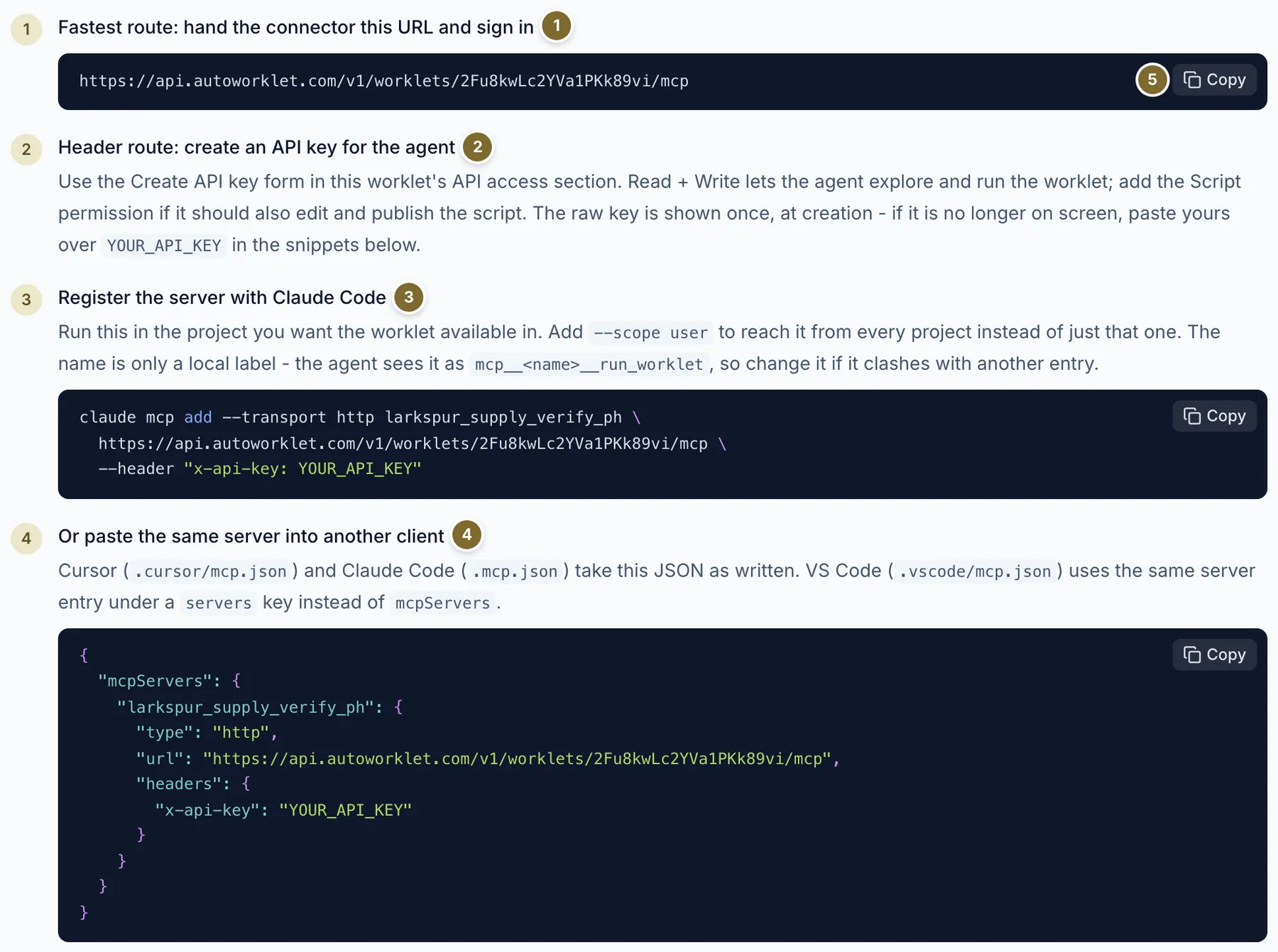
- Open the automation.
- Click the Triggers tab.
- Scroll to API access.
- Find Connect an AI agent (MCP). The card at its top, "Working on your own worklets? Connect the whole organization instead", is for The organization server. Skip it here. Below that card, step 1 1 is the sign-in route from Connect with a sign-in. Skip it too.
- Step 2 2 asks you to create a key. Use the Create API key form at the top of API access (Create a key). Write and Read let the agent explore and run the automation. If the agent should edit and publish the script, select Script as well.
- Right after you create the key, the snippets in this box carry it.
Copy them before you leave the page.
If the key is no longer on screen, paste yours over
YOUR_API_KEY. - For Claude Code, copy the step 3 command 3 and run it in your project folder.
- For Cursor or VS Code, copy the step 4 JSON 4 into the client's settings file. Each code block has its own copy button 5.
Claude Code
Run this in the folder of the project where you want the automation available:
claude mcp add --transport http your_workspace_verify_pharma \
  https://api.autoworklet.com/v1/worklets/YOUR_AUTOMATION_ID/mcp \
--header "x-api-key: YOUR_API_KEY"- Replace
YOUR_AUTOMATION_IDandYOUR_API_KEY, or copy the command from the app where they are filled in. - Add
--scope userto reach the server from every project, not only this one. - The name after
httpis a local label. The agent sees the tools asmcp__<name>__run_workletand so on. Change the name if it clashes with another server.
Cursor, VS Code and a shared .mcp.json
Other clients take the same server as JSON:
{
  "mcpServers": {
    "your_workspace_verify_pharma": {
      "type": "http",
      "url": "https://api.autoworklet.com/v1/worklets/YOUR_AUTOMATION_ID/mcp",
      "headers": {
        "x-api-key": "YOUR_API_KEY"
      }
    }
  }
}| Client | Where the JSON goes |
|---|---|
| Cursor | .cursor/mcp.json in the project, or ~/.cursor/mcp.json for every project. |
| Claude Code, shared with a team | .mcp.json in the project. |
| VS Code | .vscode/mcp.json in the project, with the same entry under a servers key instead of mcpServers. |
Warning
Do not put the real key in a JSON file you commit to a repository. Anyone who can read the repository can then use it. Keep the key out of shared files, and give each person their own key.
Check that it connected
claude mcp listclaude mcp list should show the server as connected.
Inside a Claude Code session, /mcp shows the same.
In Cursor, the server appears under Customize in the sidebar, and the MCP Logs output panel shows the connection.
Start the agent
Paste this as your first message. It points the agent at the server's own instructions:
Use the your_workspace_verify_pharma MCP server to help me manage this worklet.

Start with get_worklet, then follow the server's own instructions - they
carry the full loop, and its worklet-authoring prompt has the editing
playbook. Look methods up with read_context_doc rather than guessing them.
Tell me what each run returned.
The server sends its instructions when the agent connects.
It also has a worklet-authoring prompt with the full editing playbook.
In Claude Code it is the command /mcp__<server name>__worklet-authoring.
If something goes wrong
| What the agent reports | What it means | What to do |
|---|---|---|
401 invalid_api_key |
The key is wrong. | Copy the whole key, starting with ak_, and register the server again. |
401 revoked_api_key |
The key was revoked. | Create a new key and register the server again. |
401 expired_token |
The key passed the expiry set when it was created. | Create a new key and register the server again. |
403 not_org_member |
The person who created the key left the organization. | Create a new key as a current member. |
403 worklet_mismatch |
The key belongs to a different automation, or it is an organization key used on one automation's address. | Create a key in this automation's API access section, or use the organization address (The organization server). |
403 org_mismatch |
On the organization address, the key is a key for one automation, or an organization key for another organization. | Use an organization key for this organization (Create an organization key). |
insufficient_permission: this key lacks 'script' (or 'read', 'write', 'read' or 'script') |
The key does not have that permission. | Create a key with the permission. An existing key cannot gain one. |
Another insufficient_permission reason |
The reason says what is wrong. Usually the key's creator lacks the role the tool needs: the automation's owner, or an admin or manager. | Ask the owner, an admin or a manager to do it, or to create the key. |
27.4The organization server
The organization server gives an agent every automation, workflow, dataset and dashboard in the organization through one connection.
The agent finds an automation with list_worklets, then passes its id to each tool.
It can also read and change how workflows link automations, and read and write dataset records.
Use it for an agent that works for you across your own automations. To hand one automation to a contractor, a build pipeline or an agent you do not fully trust, use that automation's own server instead.
To connect with a key:
- An admin or manager creates an organization key (Create an organization key).
- Copy the
claude mcp addcommand from the organization card in API access. It carries your organization id and, right after you create the key, the key itself.
The command looks like this:
claude mcp add --transport http your_workspace \
  https://api.autoworklet.com/v1/orgs/YOUR_ORG_ID/mcp \
  --header "x-api-key: YOUR_ORG_API_KEY"
Replace YOUR_ORG_ID with your organization's id and YOUR_ORG_API_KEY with the organization key (Find the ids you need).
Other clients take the same server as JSON, in the files listed in Connect with an API key:
{
  "mcpServers": {
    "your_workspace": {
      "type": "http",
      "url": "https://api.autoworklet.com/v1/orgs/YOUR_ORG_ID/mcp",
      "headers": {
        "x-api-key": "YOUR_ORG_API_KEY"
      }
    }
  }
}
To connect claude.ai, ChatGPT or Claude Desktop to the whole organization, give the app this address and sign in as an admin or manager (Connect with a sign-in):
https://api.autoworklet.com/v1/orgs/YOUR_ORG_ID/mcpAdmins and managers revoke organization keys, and disconnect apps connected to the whole organization, under Organization credentials (Create an organization key).
Important
The organization key created in the app can read, run and change every automation, workflow, dataset and dashboard in the organization. Some tools on this server also need the key's creator to be an admin or manager. For example:
- Linking automations.
- Changing grid columns.
- Deleting records.
- Saving dashboard drafts.
Dashboards
On the organization server an agent can also do these things with dashboards (Dashboards and client sites):
- Read dashboards.
- Save a new draft.
- Change what a dashboard can use, and its colors, logo and fonts.
Reading needs no special role. Saving a draft or changing a dashboard needs a key whose creator is an admin or manager. The agent cannot publish a dashboard. A person previews the draft in the dashboard editor and publishes it there.
27.5Tools reference
Each tool checks a permission on the key, so one connection can mix reading, running and editing.
list_workflows and get_workflow take either read or script, so a key with only Script can find the link it changes.
A tool the key cannot use answers insufficient_permission: this key lacks '<permission>'.
The descriptions in the tables below are the ones the agent itself reads, so they use developer terms. You do not need them to connect an agent. To see what a key lets the agent do, read each tool's name and the permission it needs.
Tools on every server
On the organization server, these tools also take a workletId.
The three file tools (list_sandbox_files, get_sandbox_file_link and upload_sandbox_file_link) take none, because they act on the organization's files, and it is optional on read_context_doc.
| Tool | Permission | What it does |
|---|---|---|
get_worklet | read | Worklet metadata, project manifest, gated API families, org connections, login names, saved details (name, kind, field keys and tiers, never values; usable says whether this worklet can read each) and the Secrets page link, legacy identity profile names, grid columns, and Teach intake status when this worklet is still in /teach. Start here. |
list_script_files | read | List the project script files (main.py first). Pass includeContents=true to read every helper in one call. |
read_script_file | read | Read one script file. |
read_context_doc | read | The AutomationAPI signature catalog or the authoring guide. The signature catalog is cut to the worklet's engine - a method that engine lacks is left out, and engine names the engine and what was withheld (or why the list is not cut). Optional query searches signatures by method name. |
list_image_versions | read | Released sandbox image tags (X.Y.Z) from the live registry, newest first, plus newest (the highest tag returned), promoted (the engine a new worklet gets, and what set_image_version pins when version is omitted) and the worklet's current pin. Optional filter (e.g. "0.76") and limit. latest is not listed, and neither is a withdrawn engine; currentWithdrawn gives the reason when the worklet's own pin is withdrawn. |
write_script_file | script | Create/update one script file in the DRAFT project. A warning in the result means publish_worklet will refuse the draft on the current pin. |
delete_script_file | script | Delete a helper script (the entry script is protected). |
publish_worklet | script | Publish the draft as the next immutable version. Refused when the draft calls an engine helper the worklet's pin lacks - change the script, or trial a newer engine with dry_run_worklet({ imageVersion }) and pin it with set_image_version. |
set_image_version | script | Pin the worklet to a concrete sandbox image (X.Y.Z from the live registry). Omit version to pin the promoted engine, or pass newest for the highest release. Never writes latest or a withdrawn engine. Owner or org admin/manager only. Refused when the live scripts (the published version, or a never-published worklet's project) call an engine helper the new pin lacks; a warning in the result means publish_worklet will refuse the current draft on that pin. Clears any snapshot pin. |
run_worklet | write | Queue a run; defaults to useDraft=true so the sandbox loads the draft (engine 0.72.4 and newer; an older one loads the published version). Optional imageVersion (newest or X.Y.Z) trials that engine on this run only. waitSeconds (1-110) long-polls for the result. |
dry_run_worklet | write | Queue a dry-run (dryRun=true); defaults to useDraft=true. The script must call dry_run_stop before each real-world act. Refuses unless the effective image ships dry-run. Optional imageVersion trials that engine on this run only. Always strict: every barrier stops, including ones marked duplicate_tolerant=True; the tolerant policy is only set by the website's engine-upgrade trial. |
list_runs | read | Paginated run history, newest first, including the tries Teach made while building the worklet (intakePhase set). |
get_run | read | One run - status, output_vars, error, report URL, failure-probe URL, supervisor summary, intakeId when it is a Teach run, intakePhase when Teach made it while building, dryRun when it is a dry-run. |
get_repair_context | read | Repair bundle: newest terminal run (or a given runId), newest finished run, text-only report timeline, failure-page listing, full supervisor write-up, Teach intake status and its attempt budget (maxAttempts, 1-5; attemptsRemaining) when they exist, and the image pin plus gated API families. Call this before editing a failing script. |
list_sandbox_files | read | List the org sandbox folders this worklet sees. Percent-encode each /-separated segment of path, including a name this listing returns: shared_files/Q3 100%.pdf is sent as shared_files/Q3%20100%25.pdf. |
get_sandbox_file_link | read | Mint a signed download URL for a sandbox file. Encode each segment of path as for list_sandbox_files. |
upload_sandbox_file_link | write | Mint a signed PUT URL to upload a sandbox file. Encode each segment of path as for list_sandbox_files. |
Tools on the organization server only
| Tool | Permission | What it does |
|---|---|---|
list_worklets | read | The org's worklets, newest first, paged (20 by default, up to 100; pass nextCursor back as cursor), with an optional filter by name or state. The ONLY supported source of workletId - ids are never guessed and a slug is not accepted. |
list_workflows | read or script | Every workflow in the org, with its member count. |
get_workflow | read or script | One workflow: member worklets plus the edges between them, each edge carrying the columnMap that moves values from an upstream output column to a downstream input column, its filter when it passes on only matching rows, and autoRun: true when the link starts the fed rows by itself after the upstream run succeeds. A key with only script may call it too, to find the link id the link tools take. |
dispatch_grid_rows | write | Run the rows already queued and ready on a worklet's grid - one batch per call, at most the worklet's rows per run times its parallelism (5 rows by default); the rest stay ready. Takes an idempotency token you choose - resend the SAME one on a retry or the rows dispatch twice, and use a new one for the next batch. |
create_grid_link | script | Wire one worklet's grid into another's so its rows feed the next step. A link made here does not auto-run: the rows it feeds wait for Run ready, a schedule or dispatch_grid_rows. Send a filter to pass on only matching rows, for example only finished ones. Without one, every row whose mapped fields are filled is passed on. Org admin or manager. |
update_grid_link | script | Change an existing link's column map or filter. A sent map replaces the stored one and keeps its Status mapping; omit it and the stored map stays whole. A sent filter replaces the stored one, null clears it, and an omitted one stays. A map that moves Status off the field a filter compares needs a new filter too. The reply says updated: false when the link already matched, so nothing changed. A result field the new map stops reading or filling, and that nothing else fills or reads, is removed. One that stays because a link out of the target reads it is named in keptFields. Org admin or manager. |
delete_grid_link | script | Stop a source grid feeding a target. Org admin or manager. |
configure_grid_columns | script | Set a grid's full column list and roles. A new OUTPUT column usually needs no tool at all - it appears by itself on the next run of a script that calls set_output. Org admin or manager. |
add_workflow_member | script | Put a worklet on a workflow's canvas. Membership only - call create_grid_link to make data flow. Paired with remove_workflow_member, which leaves existing links standing. Org admin or manager. |
remove_workflow_member | script | Take a worklet off a workflow's canvas. Its grid links stay - call delete_grid_link to stop the data flowing. Org admin or manager. |
list_datasets | read | The org's datasets with their columns, paged; a worklet's grid also names its workletId and each column's role. The ONLY supported source of datasetId. |
list_records | read | Records of one dataset, newest first. Pass nextCursor back as cursor for the next page. |
get_record | read | One record by id. |
create_record | write | Add one record. Pass your own id to make a retry safe - a retry of a create that landed answers record_exists. On a worklet's grid only input columns are accepted, and a filled row waits for Run ready or a schedule. |
create_records | write | Add up to 500 records in one all-or-nothing write, each with an optional id. One invalid row or taken id refuses the whole call. |
update_record | write | Change some columns of one record. Merges: only the keys you pass change. |
delete_record | write | Delete one record. Cannot be undone. The key's owner must still be an org admin or manager. |
Dashboard tools on the organization server
| Tool | Permission | What it does |
|---|---|---|
list_dashboards | read | Every dashboard in the organization, with its access mode and, once published, its site address. |
get_dashboard | read | One dashboard: its bindings, brand, access mode, site status and newest revisions. |
get_dashboard_api | read | What dashboard code may import and call, and what the frame forbids. The agent reads it before it writes code. |
get_dashboard_source | read | Every file of a revision. The draft by default. |
save_dashboard_draft | script | Compiles all the files and saves them as the new draft. Clients see nothing until a person publishes. Refused on a drop box. Org admin or manager. |
set_dashboard_bindings | script | Sets which automations, file areas and tables the dashboard may use. Org admin or manager. |
set_dashboard_brand | script | Sets the colors, logo and fonts. Org admin or manager. |
get_dashboard_editor_url | read | The editor page where a person previews the draft and publishes it. |
How an agent changes an automation safely
The server's own instructions tell the agent to work in this order. It helps to know it when you review what the agent did.
- Diagnose first.
get_repair_contextreturns the latest runs, a text-only timeline of the report and the failure details. It never returns screenshots, transcripts, saved logins or answers. - Edit the draft.
write_script_filechanges the draft only. - Test with a dry run.
dry_run_workletruns the draft and stops at eachdry_run_stopthe script places before a real-world action. An action the script does not mark still happens: a click still clicks.run_workletalways runs for real. - Publish only after a clean run.
publish_workletmakes the draft the next version. The key's creator must be the automation's owner, or an admin or manager.
Your saved logins and HTTP connections are never handed to the agent.
get_worklet lists which ones exist, without their secrets, so the agent can write a script that uses them by name (Use saved logins and one-time codes, Call other APIs from a script).
An agent can also work on an automation that is still being built in Teach. Its runs do not count against the Teach build's tries.
Limits and special cases
An agent can make at most 240 calls a minute per key, apart from the External Run API's 60.
A key created by a partner you shared an automation with gets a server with these four tools:
get_workletrun_workletlist_runsget_run
Its runs always use the published version and are billed to the partner's workspace.
In a HIPAA organization, runs come back without report or failure links.
get_repair_contextalso leaves out the report timeline and failure details. Listing or downloading files is refused. Outputs, errors and uploads still work. Do not send health information through MCP (HIPAA organizations).
The public page autoworklet.com/mcp has the same setup steps and tool lists, for people who do not have an account yet.