Chapter 8
Fix problems with AI repair
Ask AI to write a fix from a run, test the fix, and apply it to the draft only when you are happy with it. You will also see how background repair and self-healing deal with failures for you.
8.1When to use AI repair
AI repair reads a run that went wrong and writes a changed script for you. You review a fix before you apply it, except a fix written during an engine upgrade, which goes straight into the draft. Nothing is published until you decide to publish, approve or promote.
Use it when:
- A run failed because the website changed, for example a button moved or a page has a new layout.
- A run finished but recorded the wrong thing, for example the total came from the wrong place on the page.
Do not use it when:
- The run failed for a reason outside the script, such as a site that was down for a moment. Run it again first.
- You want the automation to do a different task. Teach it again (Teach a new automation) or edit the script (Read and edit the script).
A fix always goes into the draft, never into a published version. After you apply it, you publish the draft yourself (see Publish, review and restore versions). If the automation has never been published, its next run uses the fix as soon as you apply it.
There are three ways to ask for a fix:
| Where | Use it when |
|---|---|
| Repair script on a run in the Runs tab | You know which run went wrong and can say what to change in a sentence. |
| Apply notes and repair on the Results tab | You want to point at the exact steps in the run report that need to change. |
| Fix for a version during an engine upgrade | The automation's test failed on a newer engine. The fix goes straight into the draft (see Runtime image and engine upgrades). |
Background repair can also draft a fix by itself after a failed run (see Background repair and self-healing).
Important
The automation's owner, admins and managers can use AI repair. AI repair is not available in a HIPAA organization. There, the message Script repair is not available in a HIPAA organization appears, and you edit the script by hand.
Limits
| What | Limit |
|---|---|
| Fixes per automation | 10 in any 24 hours, counting revised fixes, background repair and engine upgrade fixes (including Prepare for dry runs) |
| Tests of one fix | 3 |
| Notes in one repair | 20 |
| Length of one note | 2,000 characters |
8.2Ask AI to fix a run
Start from the run that went wrong. The run must have ended. A run that is still going cannot be repaired.
From a run on the Runs tab
- Open the automation.
- Click the Runs tab.
- Find the run.
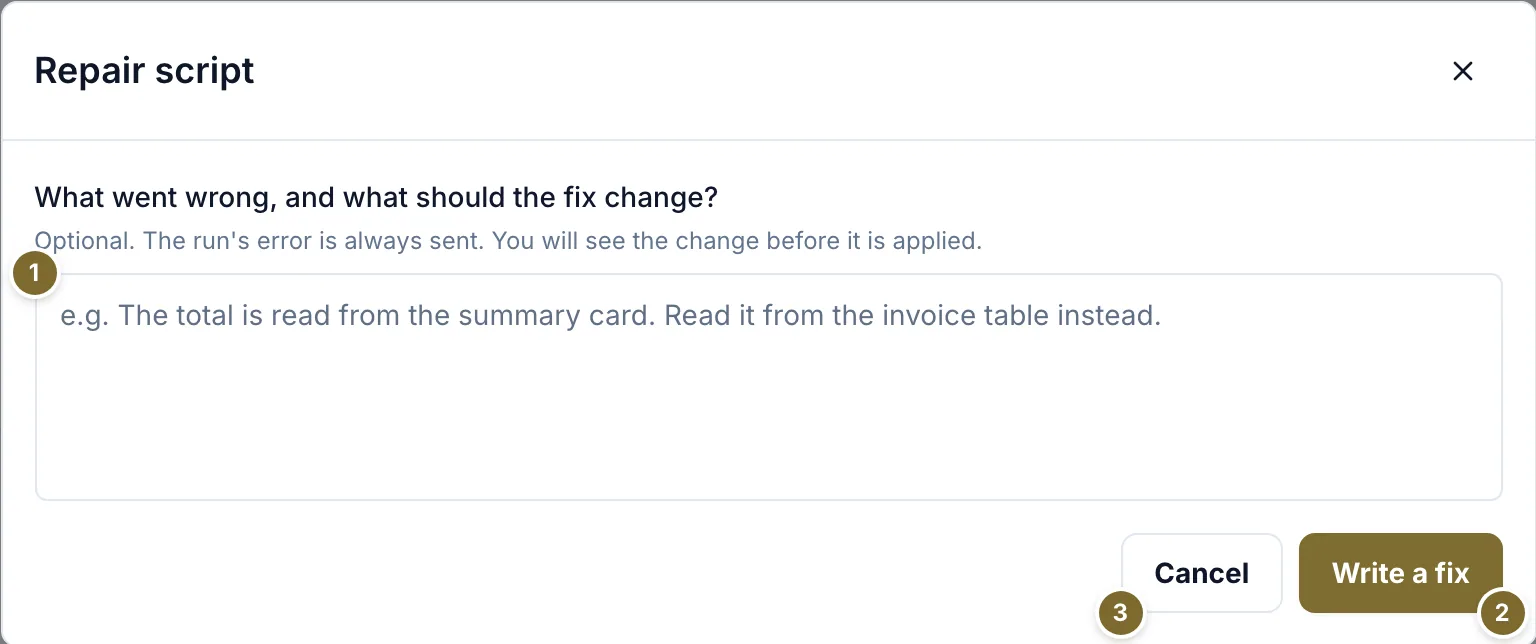
- Under the run, click the amber Repair script link. A dialog titled Repair script opens. For a failed run, it shows the error under This run failed with.
- Optional: in What went wrong, and what should the fix change? 1, say what is wrong and what you want instead. For example: "The total is read from the summary card. Read it from the invoice table instead." The run's error is always sent, so you do not need to copy it.
- Click Write a fix 2. To close without asking for a fix, click Cancel 3.
- The dialog shows Writing a fix. This usually takes about a minute. You can close it. The fix keeps waiting for you in the Fix for review card on the Run tab.
When the fix is ready, review it (see Review a suggested fix).
Tip
Name the exact value and where it should come from. "Read the price from the plan card, not the banner" gives a better fix than "the price is wrong".
If a run has no Repair script link, open the run's page (see One run in detail). When the run's page says Why it broke: our engine, a script fix is unlikely to help, so the link is hidden. If you still want to try, the run page offers Repair anyway.
From the run report on the Results tab
This way lets you attach a note to each step that needs to change. It is offered for automations that were not built in Teach.
- Open the Results tab. It shows the newest run report as a list of steps. To select a different run, see The run report.
- Under Tell the next edit what to change, select a step that needs to change.
- Type in What should change here?.
- Optional: drag on the step's screenshot to mark the area your note is about. To remove the mark, click Clear pin.
- Optional: on a step that is right, select This step already works - do not rewrite it.
- Repeat for other steps.
- Optional: add A rule for the whole automation (optional), for example "always read the total from the invoice, never from the summary".
- Click Apply notes and repair. A message such as Repair started with 2 note(s) appears, and the fix appears under The fix on the same tab.
If you have not written a note yet, the tab shows Write at least one note to start a repair.
For an automation built in Teach, the Results tab shows Teach's own report view instead of this form. Use Repair script on the Runs tab for those.
8.3Review a suggested fix
A fix waits for your decision. You can test it, apply it to the draft, ask for changes, or discard it.
You can review a fix in three places:
- Inside the Repair script dialog.
- In the Fix for review card on the Run tab.
- Under The fix on the Results tab.
They all show the same fix.
- At the top, You asked for repeats your notes.
- A comparison shows the draft against the fix, line by line.
- Read the line under it: Apply writes this fix into the draft script. In the Fix for review card on the Run tab, the line also says what keeps running, for example v2 keeps running until you publish. On an automation that was never published, it says This automation is not published, so its next run uses the fix.
- To test the fix (recommended), click Test this fix. The test runs one time on the inputs of the run you are repairing. It is a dry run that writes no grid rows. If Test this fix is missing, a short note under the comparison says why. For example, the note can say that the automation must be published first.
- While it runs, the card shows Testing the fix on the inputs of the run you are repairing. To watch it, click Open the test run. To end it, click Stop the test. The test takes about as long as the original run.
- Read the result (see the table below). Open the test run and Open the run you are repairing let you compare the two.
- Decide:
- Apply to draft puts the fix into the draft. If the fix has not been tested, the button reads Apply without testing. If a test did not pass, it reads Apply anyway.
- Discard throws the fix away. A Fix discarded message confirms that the draft script was not changed.
- Run the test again tests it one more time.
- After you apply, a Fix applied to the draft script message appears. The Fix for review card on the Run tab closes. In the Repair script dialog and under The fix on the Results tab, the review says The fix is in the draft script. On a published automation, publish the draft when you are ready (see Publish, review and restore versions). Until then, the published version keeps running.
| Test result | What it means |
|---|---|
| The test ran to the end. Compare its outputs with the run you are repairing before you apply it. | The fix ran without an error. Check its outputs before you apply. |
| The test ran up to the dry-run barrier "..." and stopped there, as a test should. Everything before it ran. | The fix worked up to a step that is not repeated in a test, such as a submit. |
| The test failed: followed by the error, then This fix is not ready. | The fix does not work yet. Ask for changes or discard it. |
| The test finished without publishing some outputs which the run you are repairing published. | The fix lost outputs that the original run recorded. Ask for changes. |
Warning
Select Run the test anyway. It does what this run did, once more, for real. only if doing the run's actions again is harmless.
A test acts for real unless the script has a dry-run barrier.
A dry-run barrier is a marked line that stops a test before a step that sends, pays, submits or deletes.
Without one, Test this fix works only after you select that checkbox, and the card shows This script has no dry-run barrier, so the test does everything the script does - clicks, form submits, emails - for real.
If doing the actions again is not harmless, apply without testing, or add barriers first.
To add a barrier, put dry_run_stop("...") on the line above each step that sends, pays, submits or deletes (see Read and edit the script).
Note
A test run uses minutes like any run. While a test runs, the draft holds the fix, so Publish waits until the test ends. When the test ends, the draft goes back to what it was until you apply.
Ask for a different fix
- In Ask for changes to this fix, say what to change. For example: "Keep the output name page_title, and drop the retry loop." After a test that did not pass, Use the test result fills the box with the test's result.
- Click Revise fix. A new fix is written from this one. It counts toward the daily limit of 10 fixes.
- When the new fix is ready, Compare with lets you switch between The previous fix and The draft.
If something goes wrong
| Message | What to do |
|---|---|
| This run is still going. Wait for it to finish, then repair it. | Wait until the run ends. |
| This worklet has used all 10 repairs for today. | Wait. The limit counts the last 24 hours. |
| A repair is already running for this worklet. | Wait for that fix, then review it. |
| A fix is being tested for this worklet. Wait for the test to end, or stop it. | Decide on the fix under test first. |
| The draft script changed after this fix was written. Discard it and repair again. | Someone edited the draft. Discard and ask for a new fix. |
| Someone edited the draft during the test. Their edit was kept, so this fix no longer applies to the draft. | Discard and ask for a new fix. |
| Publish this automation before testing a fix. Until it is published, every run executes the draft, so a test would change what runs. | Publish a known-good version first, or apply without testing. |
| This fix has been tested 3 times. Apply it, discard it, or ask for changes. | Decide, or click Revise fix. |
| Only the worklet owner or an org admin/manager can change this worklet. | Ask the owner, an admin or a manager. |
8.4Background repair and self-healing
Two features deal with failures without you asking. Self-healing works inside a run, at the step that fails. Background repair works after a run has failed, and drafts a tested fix for you to approve.
Turn on background repair
Background repair watches the real runs of a published automation. After a run fails, it runs the published version again as a dry run. If that fails too, it writes a fix and tests it in a dry run. Nothing is published until you approve it.
- Open the Run tab.
- Scroll to the Background repair card. The owner, admins and managers see it.
- Turn on the switch 1. It reads On, and a Background repair is on message says The next failed run gets a proposed fix to review here.
- If the switch is greyed out, the note under the text 2 says why. If the switch is On and a note shows, failed runs get no proposal until you do what it says.

| Note | What to do |
|---|---|
| Publish this automation first. A proposal repairs a draft while the published version keeps running. | Publish the automation (Publish, review and restore versions). |
| Not available yet: main.py has no dry-run barrier, so testing a fix would act for real. | Put dry_run_stop("...") on the line above each step that sends, pays, submits or deletes, then publish (Read and edit the script). |
| Not available below engine 0.83.4. with Go to Engine upgrade | Click Go to Engine upgrade, then upgrade the engine on the Engine upgrade card (Runtime image and engine upgrades). Background repair starts to work after you promote the new engine. |
| Not available below engine 0.83.4. ... no engine the Engine upgrade card offers is 0.83.4 or newer yet. | Nothing to do on this automation yet. Background repair becomes available when a newer engine is offered on the Engine upgrade card. |
| Not available on a snapshot engine. Pin a released engine to use background repair. | Select a released engine version on the Runtime image card. |
| An engine upgrade is in progress. Failed runs get no proposal until you promote or cancel it. | Finish or cancel the upgrade. |
Even with the switch On, a failed run gets no proposal when:
- The draft has unpublished changes. A proposal starts only when the draft is the same as the published version, so publish your draft changes to keep background repair working.
- The automation has used its 10 fixes for the last 24 hours (see When to use AI repair).
- Another proposal is open, or another fix is being written or tested.
- The run failed before it started, or it failed inside our engine, where a script fix cannot help.
Decide on a proposed repair
After a real run fails, the card shows Proposed repair and Open the failed run. It shows these stages in turn, each with a link to its dry run:
- Checking whether the failure happens again in a dry run of v2... To cancel, click Stop checking.
- Writing a fix for the failed run...
- Testing the fix in a dry run on the engine version.
When the fix passes, the card shows what the test did, for example Dry run passed. Tested up to: the end of the script. and Without the fix, the same dry run of v2 failed. Changes against v2 shows the change line by line.
- To use the fix, click Approve and publish v3.
- A dialog titled Publish v3 from the proposed repair? explains that the tested draft becomes the published version, and that v2 stays in History. Click Approve and publish, or Not yet.
- A Published v3 message says Every schedule, API caller, embed and share now runs the repaired script.
To refuse the fix, click Discard. A Proposal discarded message appears, and the draft is put back if the fix had changed it.
A proposal you leave alone shows Expires with a date and time. It expires 24 hours after it was made, and the draft is put back as if you had discarded it.
The owner gets an email when a proposal is ready, or when a fix could not be drafted or did not pass. Its subject is A fix is ready for review, or A proposed fix could not be verified when the fix did not pass or was not tested. The message starts with A run of and the automation's name, and links to the Run tab.
If the failure did not happen again in the dry run, no fix is drafted. The card says so, for example The last failed run did not fail again in a dry run, so no fix was drafted. The dry run ran to the end, so the failure looks like a one-off.
Important
While a proposal is open, Publish on the Script tab waits. Approve or discard the proposal first. Background repair dry runs use minutes like any run. In a HIPAA organization, background repair never starts a proposal.
Self-healing
Turn self-healing and its two stronger options on or off for each automation in Settings. Admins and managers set the organization's defaults in Organization settings.
The Maintenance, last 30 days card on the Run tab shows how much upkeep the automation needed, with rows such as Runs, Healed for free and Repair tests. Under Learned controls, it lists page controls the engine learned to find. The owner, admins and managers can click Forget next to one to make the next run look for that control again. A Forgotten message confirms it.
To retry a failed row or a whole failed run, see Retries.