Chapter 25
For developers: overview and API keys
See every way your own code, services and AI agents can work with an automation, then create, store and revoke the API keys they use. You will also know which version each kind of call runs and whose minutes it uses.
25.1What you can build
This part of the guide is for engineers. It explains how other systems can start an automation, read its results and change it. If you only use Autoworklet in the browser, you can skip it.
Autoworklet gives developers five tools:
| Tool | Use it to | Where you set it up | Plan |
|---|---|---|---|
| External Run API | Start an automation from your own server, wait for the result, read run history, and move files in and out | Automation page, Triggers tab, API access | Pro and above |
| MCP (Model Context Protocol) | Let an AI agent such as Claude Code, Cursor, VS Code, claude.ai, ChatGPT or Claude Desktop read, run, fix and publish an automation | Automation page, Triggers tab, API access | Every plan |
| Embed widget | Put a form on a web page that starts the automation | Automation page, Triggers tab, Widget triggers | Pro and above for the embed code |
| Webhook | Let another service start a run with one HTTP request | Automation page, Triggers tab, External connections | Every plan |
| HTTP connection | Let a script call another company's API without the script holding its key | Menu, then Organization, then Integrations | Every plan |
The chapters that follow cover each tool: The External Run API, Connect an AI agent (MCP), and Widgets, webhooks and HTTP calls.
Note
The developer pages, the API and scripts call an automation a "worklet".
It is the same thing.
You will see the word in addresses such as /v1/worklets/..., in page text such as "Run this worklet from your own server", and in tool names such as run_worklet.
One address for every call
Every developer call goes to one host: https://api.autoworklet.com.
The External Run API, both MCP servers and webhooks all live there.
Find the ids you need
The code samples in this guide use three placeholders. Replace each one with your own value.
| Placeholder | What it is | Where to find it |
|---|---|---|
YOUR_AUTOMATION_ID |
The automation's id | Open the automation. The address bar reads /organization/<workspace>/v2/worklets/<automation id>. The id is the part after worklets/, before any ?. |
YOUR_API_KEY |
A key you create for that automation | Triggers tab, API access, Create API key. See Create a key below. |
YOUR_ORG_ID |
Your organization's id, used only by the organization server and the organization data API | Triggers tab, API access, in the claude mcp add command of the organization card. It is the part between /v1/orgs/ and /mcp. |
The part after /organization/ in the address bar is your workspace's short name, not the organization id.
The API does not accept the short name where it asks for YOUR_ORG_ID.
Tip
You rarely need to copy ids by hand. The in-app API guide and the snippets in API access already have your automation's id, and your organization's id, filled in.
Which version runs, and who pays
An automation has a draft and a published version (Draft and published versions). The External Run API, embed widgets and webhooks run the published version. An AI agent over MCP runs the draft, unless it asks for the published version. Before the first publish, every tool runs the draft.
All of them use your organization's minutes. A partner's key for an automation you shared with them runs the published version only, and uses the partner's own minutes. Every way to start a run, with the version it runs and whose minutes it uses, is in Ways to start a run.
On an automation whose engine is older than 0.72.4, an agent's runs use the published version instead.
Every run uses execution minutes, whichever tool starts it (How minutes are counted). On the Free plan, when the month's minutes are used up, each new run is refused with "Minutes limit reached".
Important
In a HIPAA organization, do not send health information through any of these:
- the External Run API
- MCP
- webhook requests
- run inputs and outputs
- dataset records
- HTTP connections
- embedded widgets
- the awl command line
In a HIPAA organization the API also returns no run report links. It also does not list or hand out download links for your organization's files (HIPAA organizations).
25.2API keys
An API key lets a program act on one automation. The same key works for the External Run API and for an AI agent over MCP. Any member of the organization can create a key, on every plan. Calls to the External Run API with that key need the Pro plan or above.
Create a key
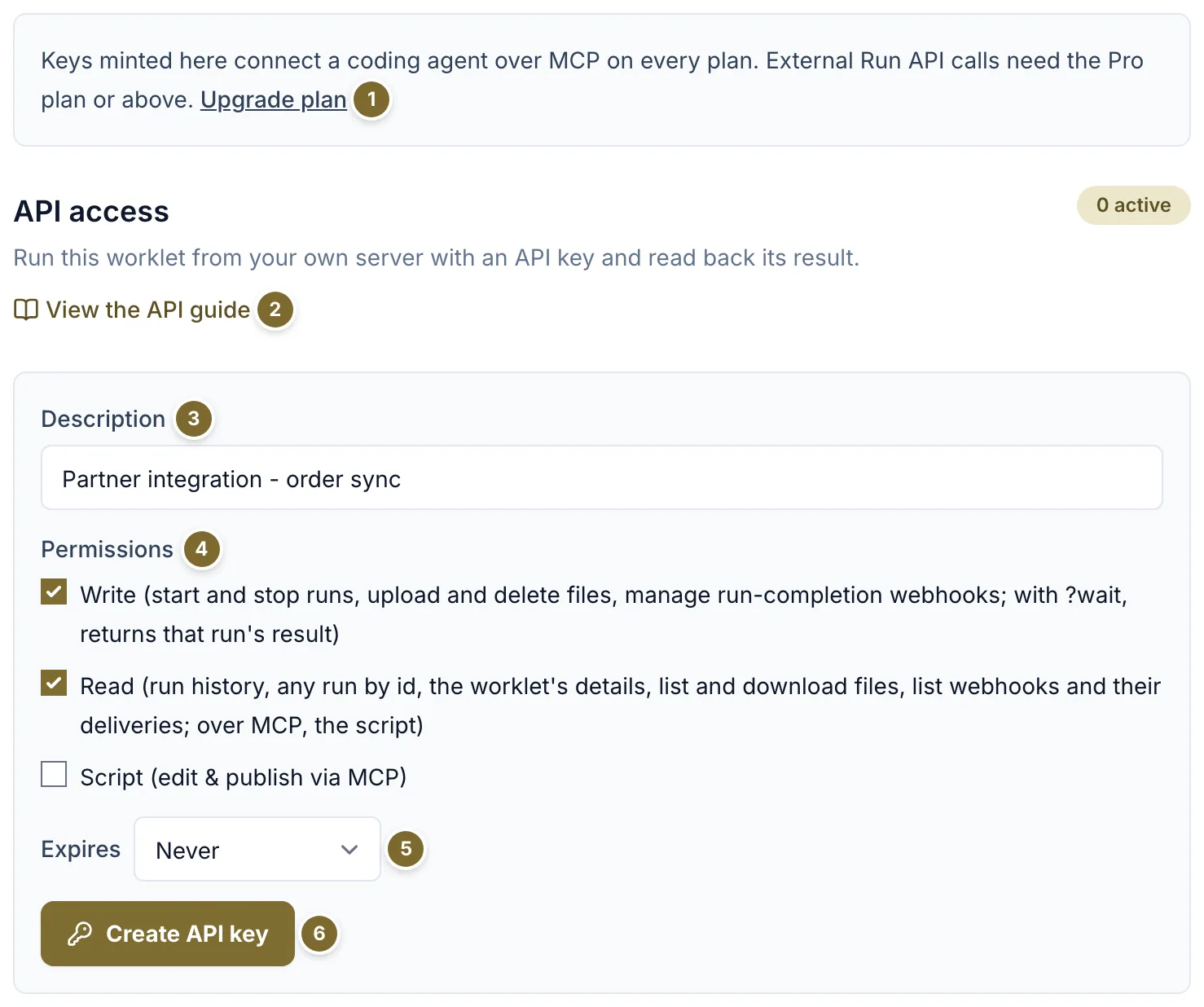
On a plan without the External Run API, a grey notice 1 sits at the top of API access. This includes Free, Starter, and a Starter or Pro organization whose first payment has not gone through. The notice says the key connects an AI agent on every plan, and that External Run API calls need Pro or above. Upgrade plan opens the plan page. Under the API access heading, View the API guide 2 opens the in-app guide with every example filled in for this automation (Quick start).
Click Automations in the top bar.
Click the automation.
Click the Triggers tab.
Scroll down to API access. Under the heading it says "Run this worklet from your own server with an API key and read back its result." The badge on the right shows how many of your keys for this automation are active.
In Description 3, type what the key is for, for example "Partner integration - order sync". The description is how you tell your keys apart later.
Under Permissions 4, select what the key needs. Write and Read are selected for you. Script is off until you select it.
In Expires 5, select when the key stops working:
- Never
- After 30 days
- After 90 days
- After 365 days
Never is selected for you.
Click Create API key 6. The button stays greyed out until you type a description.
| Permission | What the key can do |
|---|---|
| Write (start and stop runs, upload and delete files, manage run-completion webhooks; with ?wait, returns that run's result) | Start and stop runs, and upload and delete files in the automation's folders. Add, turn on and off, rotate and delete the webhooks that call an address when a run ends. This lets whoever holds the key send every later run's results to any address they want. Managing webhooks also needs the key's creator to be the automation's owner, an admin or a manager. A run started with ?wait (or an AI agent's waitSeconds) comes back with that run's result, even without Read. |
| Read (run history, any run by id, the worklet's details, list and download files, list webhooks and their deliveries; over MCP, the script) | Read the automation's details and inputs, including its saved default inputs (Read the automation's details). Read the run history, and any run and its result by id, and list and download files. List the automation's run-completion webhooks with their addresses, and each one's recent deliveries. Over MCP it also lets an AI agent read every script file. |
| Script (edit & publish via MCP) | Let an AI agent edit the script, publish it and change the engine version. Publishing and changing the engine version also need the key's creator to still be the automation's owner, an admin or a manager. It is used only over MCP. |
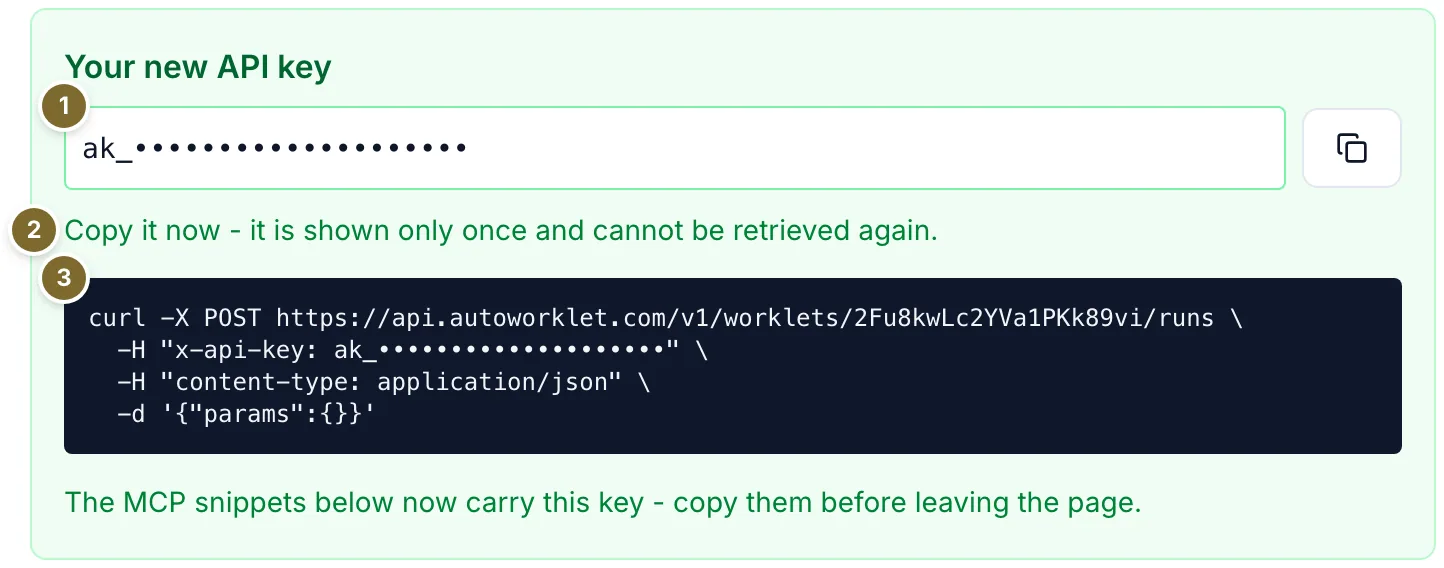
A green box titled Your new API key appears. It holds:
- The key itself 1, with a copy button at the right end of the box. Click the copy button and paste the key into your secret store.
- The line "Copy it now - it is shown only once and cannot be retrieved again." 2
- A ready-made
curlcommand with the key filled in 3. Run it in a terminal to start one run with no inputs. On the Free and Starter plans it answersplan_upgrade_required.
The box also says "The MCP snippets below now carry this key - copy them before leaving the page." If you are connecting an AI agent, copy those snippets now (Connect with an API key).
Warning
If you lose the key, create a new key and revoke the old one. Autoworklet stores only a fingerprint of the key, so nobody can show it to you again. A key created with Expires set to Never works until you revoke it. Anyone who holds it can start runs that use your organization's minutes.
A key starts with ak_.
You send it in the x-api-key header of each request.
Read the key list
The bottom of API access lists the keys you created for this automation. Each row shows:
- The description, or "Untitled key".
- Active in green, Expired in amber, or Revoked in red.
- The first 10 characters of the key, then "...".
- One chip per permission (
read,write,script). - Last used: with a date and time, or Never. It updates at most one time a minute.
- For a key created with an expiry, Expires: with the date and time it stops working. After that time passes, the line reads Expired: and the badge turns Expired. A revoked key has no such line, because it never works again.
- A Connected app badge when the row is an AI app you connected by signing in, not a key you pasted somewhere (Connect with a sign-in).
- For a connected app, App ID: with the first 12 characters of the app's ID, then "...". An app that does not give its own name is listed by an address, such as "127.0.0.1", so several apps can share a name. The ID tells them apart.
An expired key stays in the list, and you can still revoke it.
Calls with it answer 401 expired_token.
To keep going, create a new key.
The list shows only your own keys. Keys other members created for the same automation do not appear here. With no keys yet, it reads "No API keys yet. Create one to run this worklet from your own code."
Revoked keys and disconnected apps are folded under a button at the end of the list, such as Show 3 revoked. Click it to list them. Click Hide 3 revoked to fold them away again. When every key is revoked, the list reads "No active API keys. Create one to run this worklet from your own code."
Revoke a key or disconnect an app
- In the key list, click the trash icon on the key's row.
- Confirm "Revoke this API key? Requests using it will immediately start failing."
The key stops working immediately. Its row moves to the folded revoked rows at the end of the list, with a red Revoked badge. This way you can still see what the key was.
A Connected app row has an unplug icon instead of the trash icon.
- Click the unplug icon on the app's row.
- Confirm "Disconnect app name (app ID)? It loses access to this worklet immediately and has to be connected again to get it back."
The app stops working immediately, and it cannot sign back in quietly. Its row moves to the folded revoked rows with a red Revoked badge for a day or two, then leaves the list. To use the app again, connect it again (Connect with a sign-in).
To see every key you created, across all automations and organizations, go to autoworklet.com/api-keys while you are signed in.
The API Keys page has a Your API Keys list with every key you created, organization keys included.
Each row also names the automation the key reaches ("Worklet:" and the automation's id), or says "Scope: every worklet, workflow, dataset and dashboard in this organization".
Rows show Expires: or Expired: the same way, and a connected app's row shows its Connected app badge and App ID: line.
Revoked keys and disconnected apps are folded under a button such as Show 3 revoked here too. To revoke an active or expired key, click the trash icon on its row. To disconnect an app, click the unplug icon on its Connected app row. The page cannot create keys. Create them on the automation's API access section.
Create an organization key
An organization key reaches every automation, workflow, dataset and dashboard in the organization with one connection. Use it for an AI agent that works across your own automations. For a contractor, a build pipeline or an agent you do not fully trust, use a key for one automation instead.
Only admins and managers can create an organization key.
- In any automation's API access section, find the box Connect an AI agent (MCP).
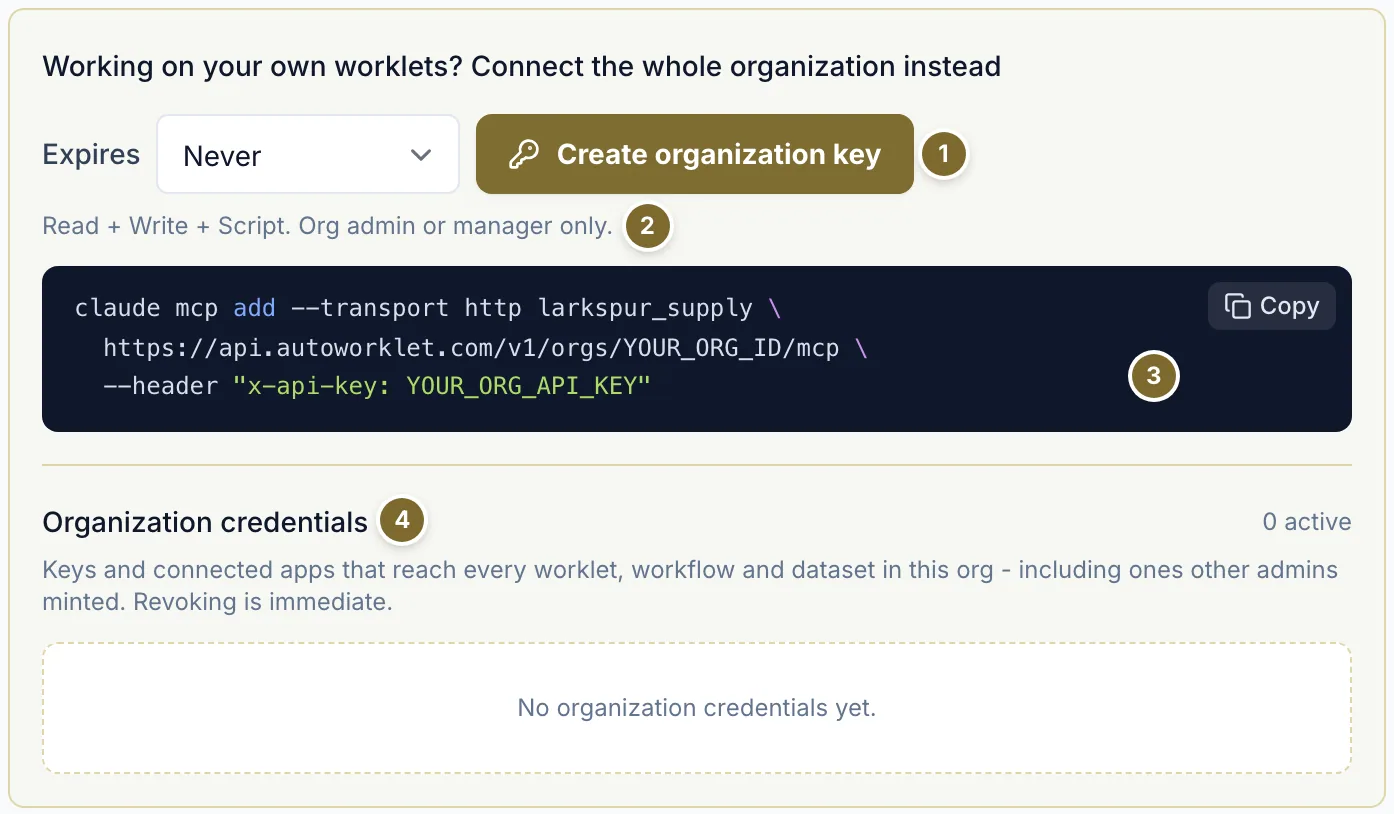
- Inside it, find the card "Working on your own worklets? Connect the whole organization instead".
- If you want the key to stop working after a while, select a time in Expires. Expires is to the left of Create organization key, and works as it does for a key for one automation.
- Click Create organization key 1. The caption 2 reads "Read + Write + Script. Org admin or manager only." An organization key created here always has all three permissions. It is always named "Org MCP server", so tell organization keys apart by Minted by, Last used and the first characters of the key.
- A green box shows the key one time, with a copy button. It says "Copy it now - shown once, and it reaches every worklet, workflow, dataset and dashboard in this organization." Copy the key and store it.
- The
claude mcp addcommand 3 under the button now carries the new key. Use it to connect an agent (The organization server).
Admins and managers also see Organization credentials 4 at the bottom of the card. It lists every organization key and every app connected to the whole organization, including ones other admins created. Each row shows Minted by and the person's name. An amber warning appears when that person is no longer an admin or manager, or no longer in the organization.
With nothing yet, the list reads "No organization credentials yet." Revoked keys and disconnected apps are folded under a button such as Show 3 revoked, as in the key list. When every one is revoked, the list reads "No active organization credentials."
To revoke an organization key, click its trash icon and confirm "Revoke this organization credential? It loses access to every worklet, workflow, dataset and dashboard in this organization immediately." An app connected to the whole organization has an unplug icon instead, and its row has an App ID: line. To disconnect it, click the unplug icon and confirm "Disconnect app name (app ID)? It loses access to every worklet, workflow, dataset and dashboard in this organization immediately and has to be connected again to get it back."
Important
An organization key works only on the organization addresses (/v1/orgs/...).
On an automation's own addresses (/v1/worklets/...) it is refused with worklet_mismatch.
A key for one automation is refused on the organization addresses with org_mismatch.
What a key can and cannot do
Autoworklet checks these rules on every request:
| Rule | If it is broken |
|---|---|
The request carries the key in x-api-key (or as Authorization: Bearer <key>). |
401 missing_api_key |
| The key exists and is not revoked. | 401 invalid_api_key or 401 revoked_api_key |
| The key has not passed the expiry it was created with. | 401 expired_token |
| The key is used on the automation it was created for. | 403 worklet_mismatch |
| The key has the permission the call needs. | 403 insufficient_permission |
| The person who created the key is still a member of the organization. | 403 not_org_member |
| The organization's plan includes the External Run API (Pro and above). | 403 plan_upgrade_required. The key still works over MCP. |
| A call that adds, lists or changes run-completion webhooks uses an API key, not an AI app connected by signing in. | 403 oauth_forbidden |
Two of these rules have effects you might not expect:
- When someone leaves the organization, every key they created stops working. The keys are not revoked, but each call answers
not_org_member. Create new keys as a current member. - When the organization moves to a plan without the External Run API, REST calls stop immediately. Keys are not revoked, and MCP keeps working.
Someone you shared an automation with creates their own key from Shared with me (Automations shared with you). That key:
- runs only the published version
- sees only the runs it started
- cannot reach your files
- bills the partner's workspace
If something goes wrong
| What you see | What to do |
|---|---|
| Create API key stays greyed out | Type a Description first. |
| "Select at least one permission." | Select Write, Read or Script. |
| "Only an org admin or manager can mint an organization-wide API key." | Ask an admin or manager to create the organization key, or use a key for one automation. |
| "Failed to create API key." or "Failed to create organization key." | Try again. If it keeps failing, contact [email protected]. |
A key that worked yesterday now answers not_org_member |
The person who created it left the organization. Create a new key. |
25.3The awl command line
awl is Autoworklet's command line for developers.
It works with the automations in your workspace from a terminal and runs them in the cloud.
It runs on macOS with Apple silicon, on Linux, and on Windows inside WSL.
Install it with this command in a terminal:
curl -fsSL https://autoworklet.com/awl/install.sh | bashThe command puts awl in ~/.local/bin and adds that folder to your PATH.
Open a new terminal when it is done.
The install options are on autoworklet.com/cli.
Note
To run an automation on your own computer, you need the Autoworklet desktop app.
The awl from the install command runs automations only in the cloud.
The desktop app is not offered as a download on the website, so ask your Autoworklet contact if you need it.
After awl is installed, sign in like this:
- In a terminal, run
awl login. Your browser opens the CLI Login page, and the terminal waits up to 5 minutes. - Fill in Email address and Password, or click Sign in with Google.
- If you filled in your email address and password, click Sign in →.
- If you belong to more than one organization, the page asks you to "Select your organization". Your personal workspace is selected at first. Select the organization in Organization.
- If the page asked you to select your organization, click Continue.
- The page says "Authentication successful!" and "You can close this window and return to your terminal." The terminal prints "Logged in as" and your email address.
- Under that message the page also shows "If your terminal didn't update, copy this code and paste it there:".
If the terminal is still waiting:
- Click Copy.
- Paste the code into the terminal.
- Press Enter.
On a computer where the browser cannot reach the terminal, sign in like this:
- Run
awl login --no-browser. The terminal prints a login address and waits. - Open that address in any browser.
- Sign in. The page shows "Copy this code and paste it into your terminal:".
- Click Copy.
- Paste the code into the terminal.
- Press Enter.
The page shows the same code screen when it cannot reach the terminal after a plain awl login.
Commands you are likely to use:
| Command | What it does |
|---|---|
awl whoami |
Shows who is signed in. |
awl logout |
Signs the command line out. |
awl worklet list |
Lists the automations in the organization you selected when you signed in. Pass --org <organization id> to list another organization's. |
awl worklet run <automation id> --wait |
Starts a run of an automation in your workspace and waits up to 10 minutes for it to finish. Change the wait with --wait-timeout <seconds>. Pass inputs with --args key=value. |
awl create <folder>/ |
Uploads a script folder as a new automation in your workspace and prints its id. |
awl run <folder>/ |
Runs a script folder on your computer. This needs the Autoworklet desktop app. Without it, awl stops and says that local runs need the desktop app. |
To get a script folder, click Download project on the automation's Script tab (Open and read the script).
The zip holds a RUN.md file with the exact commands for that folder: awl create and awl worklet run for the cloud, and awl run for the desktop app.
Saved logins, API keys and connections are not in the zip.
Anything the script reads from your organization's vault has to be set up on the computer where you run it.
25.4Developer security checklist
Go through this list when you connect a new system, and again from time to time.
Keep every key on a server. Store API keys, organization keys and webhook secrets in your server's secret store or environment. Never put them in any of these:
- a web page
- a mobile app
- a browser extension
- a shared document
- a code repository
In Next.js, never name the variable
NEXT_PUBLIC_..., and never read it in a Client Component.Create one key per system, with a clear description. Then you can revoke one system without breaking the others, and the Last used line tells you which systems are active.
Select only the permissions the system needs. A reporting job needs only Read. Leave Script off unless an AI agent must edit and publish the script. You cannot add a permission to an existing key. Create a new key instead.
Prefer a key for one automation over an organization key. An organization key can run, read and change everything in the organization. Give it only to an agent that works for you.
Revoke what nobody uses. Review the API access section of each automation, the Organization credentials list, and your
autoworklet.com/api-keyspage. Revoke keys that show Last used: Never or an old date.Plan for people leaving. Keys stop working when their creator leaves the organization. Create long-lived integration keys under a member who will stay, and replace them when that changes.
Check the address on the consent screen. When an AI app asks to connect, the screen says which address it sends access to. Continue only if you recognize it (Connect with a sign-in).
Let agents test before they publish. An agent's edits land in the draft. Have it test with a dry run and publish only after a clean draft run (Tools reference).
Treat the embed code and webhook secrets like keys. Anyone with a widget's embed code can start runs from any website when its Allowed origins is empty. Even when it is not empty, they can start runs from a program outside a browser. Anyone with a webhook address and its secret can start runs. Delete an unused widget. If you think a webhook has leaked, click Rotate secret on it (Widgets, webhooks and HTTP calls).
Keep third-party keys out of scripts and inputs. Store them as HTTP connections, and let the script call the connection by name (Call other APIs from a script).
Treat unfiltered outputs as sensitive. When a result says
"outputsSource": "output_vars", it holds every top-level variable of an older script, which might include private values (Run and wait for the result).Watch your minutes. Every run uses minutes, including runs started by code, agents, widgets and webhooks. Poll every few seconds, not in a tight loop. Send a delivery id with webhooks so a retry does not start a second run (Start runs from other services).