Chapter 13
Read results and run reports
Find what each run produced, replay its report step by step, look up earlier runs and download results and files. You will also learn how to share a Teach result with a public link.
Every run leaves a record behind. Its results go into the grid on the Run tab, and its report shows each step it took. This chapter shows where to find each part of that record.
13.1Results in the grid
The grid on the Run tab is the quickest place to read results. Each row holds one set of inputs and the results its run wrote.
Open the automation. It opens on the Run tab.
Find the row. Its result columns fill in when its run finishes.
Scroll right to the five columns at the end of the grid:
- Start
- Finish
- Duration
- Status
- Report
They always stay after the input and result columns. A "-" means there is no value yet.
To see what the run did, click View in the Report column. The Run report dialog opens.
To read the report in its own browser tab, click Open in new tab 1. Otherwise, read the report inside the dialog 2 and scroll it like a web page.
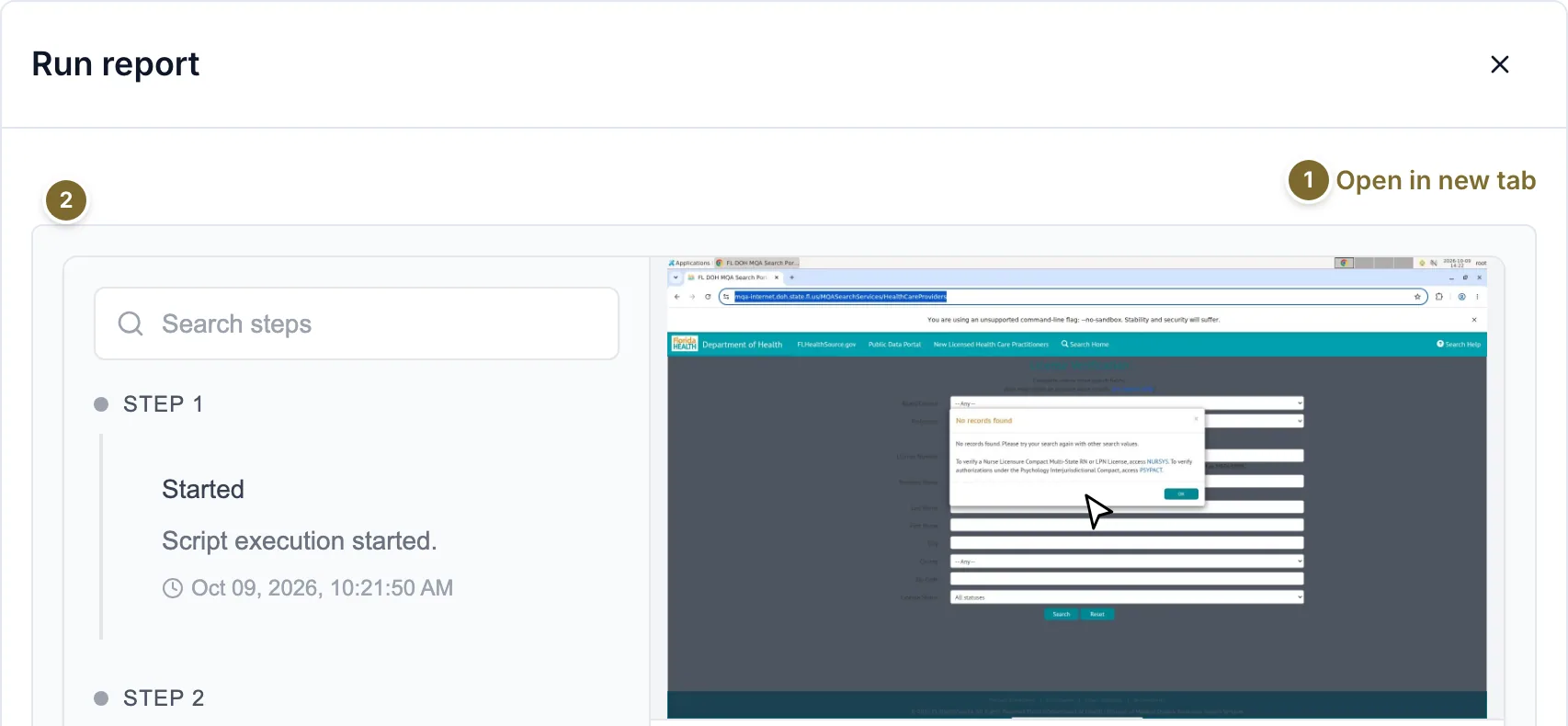
Above the grid, Latest completed results (collapsed) lists each result of the newest Done row. An empty result reads "No value recorded".
Change which columns you see
- Click Show / hide above the grid and select or clear columns. When some columns are hidden, the button reads like "2 hidden".
- Hover over a column header, click the small arrow at its right edge, and click Hide column.
- Drag a column header to move it, or drag its edge to change its width. The five columns at the end cannot be moved.
The column layout is saved for everyone in the workspace.
The grid shows the newest 1,000 rows. When there are more, the line above it adds "Showing the newest rows; older rows may also be ready." To get every row, download the grid as a file. See Download results and files.
If something goes wrong
| Message in the Run report dialog | What to do |
|---|---|
| "No run report was stored for this run." | The run ended without a report. Open the run on the Runs tab to read its error. |
| "Could not load the run report." | Close the dialog and click View again. |
| "Could not open the run report." | In a HIPAA organization, the short-lived report link could not be made. Close the dialog and click View again. |
| "This report URL is not from a known host, so it is not shown here." | Open the run on the Runs tab and use View report there. |
In a HIPAA organization, the report link in this dialog works for five minutes. Click View again to get a new one.
13.2The run report
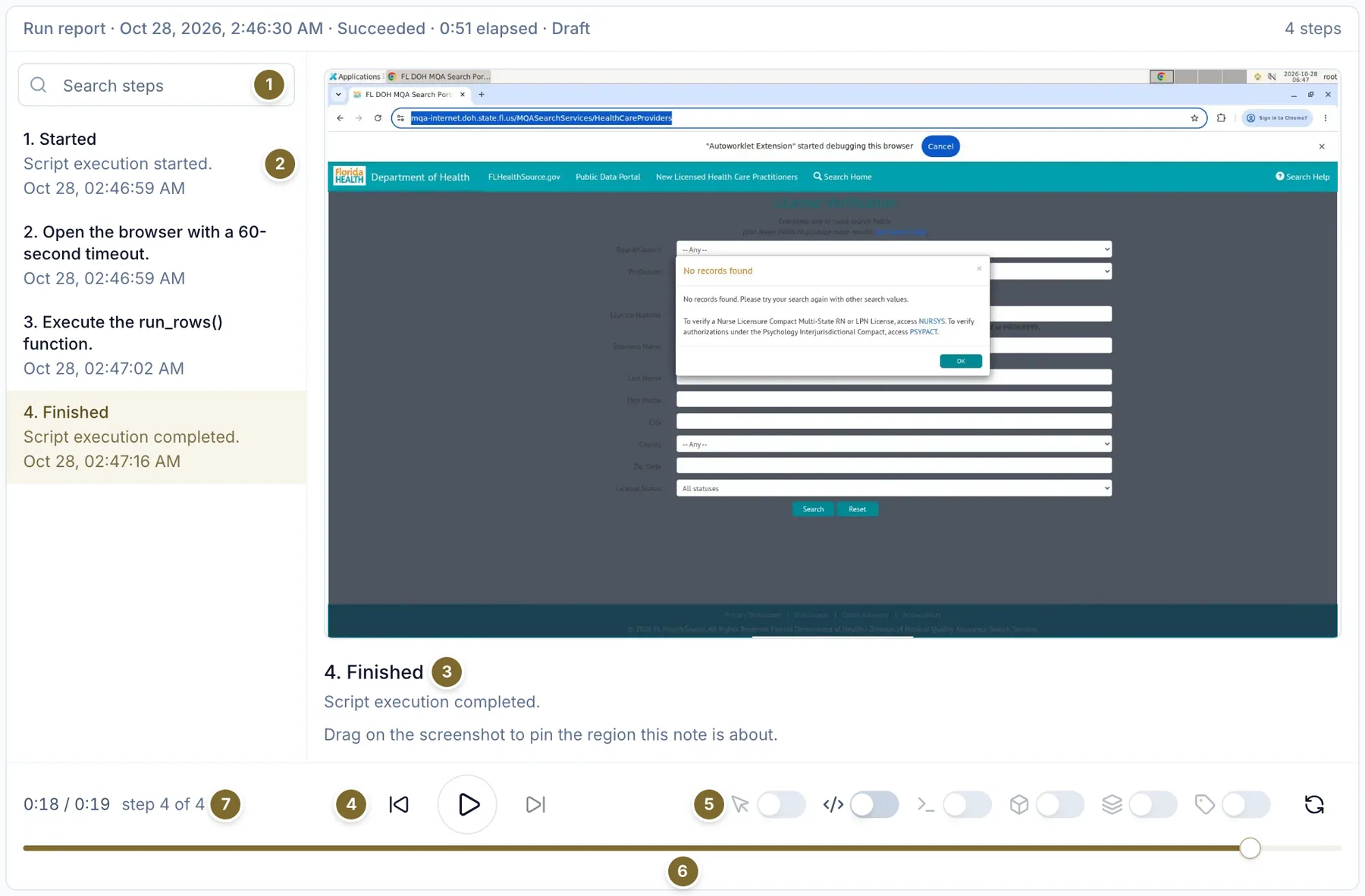
The Results tab replays a run step by step. For each step it shows a screenshot of what the computer saw, what the step was for, and the code that ran.
Open the automation.
Click the Results tab. The heading reads Run results.
Under the heading, read the run's label. It gives:
- The date and time.
- The result: Succeeded, Failed, Running, Queued, Paused or Cancelled.
- How long the run took.
- Which version of the script ran.
The tab shows the newest run that has a report, from the last 20 runs.
To find a step, type in Search steps 1.
Click a step in the step list 2. Each step shows its number, its title, what it was for and its time.
Read the screenshot and the step title 3.
To play the run like a video, click Play. Use Pause, Previous step and Next step 4 to move one step at a time.
Turn on the layers you want with the switches 5. Hover over a switch to read its name. The switches are:
- Show mouse cursor
- Show the code that ran
- Show step output
- Show matched elements
- Show all detected elements
- Show element labels
A grey switch cannot be turned on. Usually the report has nothing for that layer, and the switch's hover name ends with "(not in this report)". Show all detected elements and Show element labels also stay grey until you turn on Show matched elements.
Drag the slider 6 to move through the run. The counter 7 shows which step you are on, for example "step 3 of 12".
Note
The clock in the player is the playback position, not the real time of the run. Short steps are stretched so you can see them.
With Show the code that ran on, a panel shows the line of the script that ran in this step. To see the whole script, click the link under the code. When the script in the editor is still the one that ran, the link names the file and line, for example Open main.py at line 42. That link opens the editor at that line. Otherwise the link reads Open the script, with a note that the editor shows the current draft, which is not what ran. See Read and edit the script.
A label that starts with Dry run belongs to a test run, for example one made while testing a repair. A dry run does not write rows to the grid.
Compare two runs
- In Compare with, select another run.
- The two reports appear side by side. If the two runs used different scripts, the tab says "These runs executed different scripts."
- To stop comparing, select No comparison.
When you open a run from Home, the tab shows that run. Click Show newest report to go back to the newest one.
Tell AI what to change
The automation's owner, admins and managers see Tell the next edit what to change below the player. You write a note on the step that went wrong and click Apply notes and repair to start an AI repair. An automation built with Teach shows its Teach controls here instead. See Ask AI to fix a run.
If something goes wrong
- "Run this automation to get a report you can inspect here.": no run has a report yet. Start a run first.
- "This run has no report available. You can choose the newest report above.": click Show newest report.
- "Could not load the selected run. Refresh to try again.": reload the page.
- "This run report could not be read as steps.": click Open the original report to read it as a page. Only the automation's owner, admins and managers see this message, on an automation not built with Teach. Everyone else, including anyone comparing two runs, sees the original report in the tab instead. In a HIPAA organization they see "This run report could not be opened." or, on an automation built with Teach, "Could not open the run report."
13.3Run history
The Runs tab lists every run of the automation, newest first. Use it to find an earlier run, check its status and minutes, and open its details.
- Open the automation.
- Click the Runs tab. The section Automation queue opens: "Track recent runs, outputs, and live statuses."
- To find a run, type in Search runs... 1. Paste a full run ID to find that run. Other text is matched against the run ID, status and execution ID of the newest 25 runs.
- To see one kind of run, select it in the status filter 2.
The filter offers:
- All statuses
- Running
- Finished
- Stopped
- Error
- Queued
- Paused
- To save the list as a file, click Export CSV 3. See Download results and files. Admins and managers also see Clear history 4, which deletes old runs in one step. See Delete runs and clear run history.
- Read each row. It shows the status and how long ago the run happened 5. The Minutes column 6 shows the minutes the run was billed. Small labels show what started the run, such as "Schedule", "API", "Email" or "Webhook". Small labels also show which version of the script ran.
- Use the icons on the right of a row.
Hover over an icon to see its name.
- View details 7 (the eye) opens the run's details page in a new tab. See One run in detail.
- View report 8 opens the run's report.
- Download report bundle (.awlreport.zip) (the down arrow) saves the full report as a file.
- Restart worklet 9 runs it again. See Stop, pause, resume and restart.
- Delete run 10 deletes the run. Admins and managers see it on runs that ended at least 10 minutes ago. See Delete runs and clear run history.
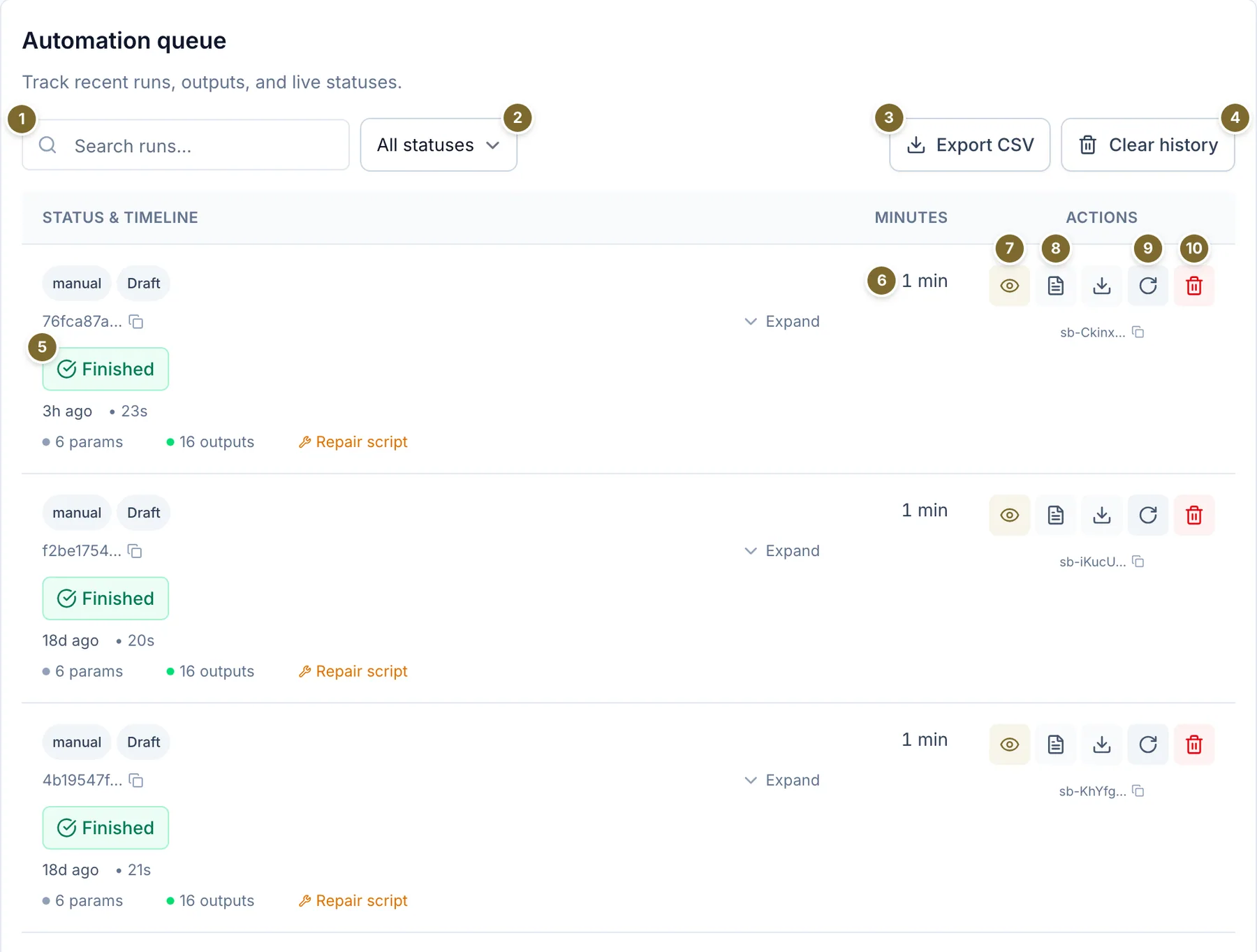
The list shows 5 runs per page. Use Previous and Next to move between pages.
Run statuses
| Status | What it means | What to do |
|---|---|---|
| Queued | The run is waiting for a computer. | Wait. If it stays queued, see Minutes and limits. |
| Running | The run is working now. | Watch it live, or stop it with Terminate sandbox. |
| Paused | The run is paused and its memory is saved. | Click Resume from memory snapshot within 7 days. |
| Finished | The run reached its end. | Read its results. Check them: finished does not always mean every result is right. |
| Stopped | Someone stopped the run. | Click Restart worklet if you still need it. |
| Error | The run failed. The error shows next to the status in red. | Click View details to read the full error. See When a row fails. |
More on each row
- Click Expand on a row, or its "params" or "outputs" count, to see the run's Parameters (its inputs) and Outputs (its results). Each list has a copy button and a search box.
- Recover outputs appears on a finished or failed run that saved no outputs. It reads the outputs back out of the run report and saves them.
- Repair script asks AI to fix the script using this run. See Ask AI to fix a run.
Below the list
The Runs tab has four more sections:
- Recent logs: the latest 50 log lines for the automation. Each line has an Email support link that opens an email to [email protected] with the details filled in.
- User callbacks: requests a run made for a person to act on its cloud computer, such as a dialog on its desktop. Each has Respond, which opens the run's screen. See When a run asks you something.
- Supervisor: "Automated post-run analysis. A report is generated after each run finishes."
- Storage management: the files this automation's runs saved. See Download results and files.
13.4One run in detail
The run's details page holds everything about one run:
- Its status, times and minutes.
- Its inputs and results.
- Its logs and files.
- The full error.
- On the Runs tab, click the eye icon View details on the run. The page opens in a new tab. You can also click Open run in a new tab on a live tile, or Open run details in a tile's large view.
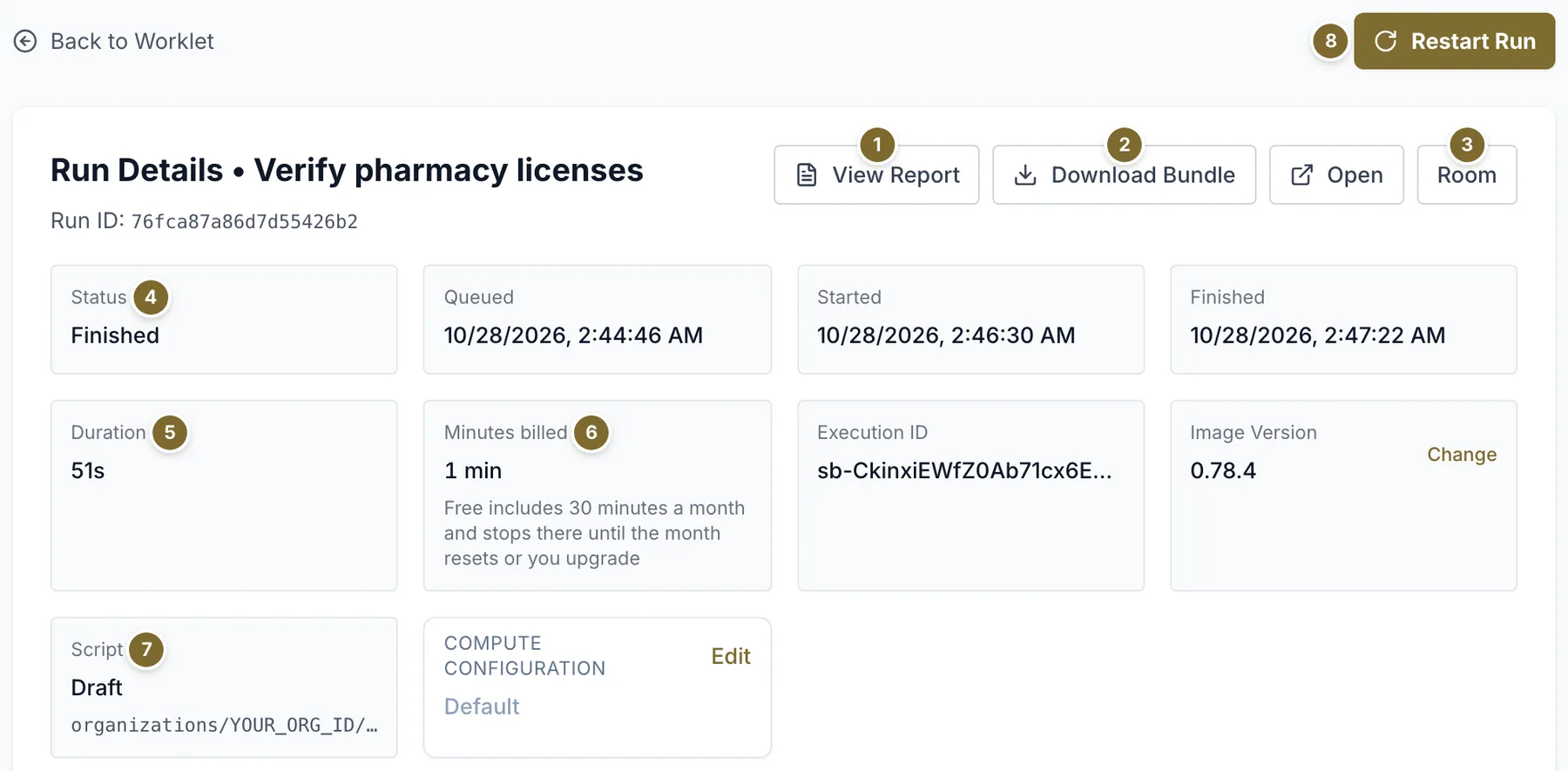
- Read the heading "Run Details • " followed by the automation's name, and the run ID under it.
- Use the buttons beside the heading:
- View Report 1 opens the full report in a new tab.
- Download Bundle 2 saves the report as an .awlreport.zip file.
- Room 3 opens the run's messages. The Room page is read-only.
- Open opens the run's screen, view-only. The button can stay after the run ends, but the screen is only there while the run is running.
- Read the boxes under the heading:
- Status 4, with the same words as the Runs tab.
- Queued, Started and Finished: when the run waited, started and ended.
- Duration 5: how long it ran, without paused time.
- Minutes billed 6: the minutes this run counted, and your plan's rate under it. After a restart it reads Minutes billed, this attempt.
- Script 7: which version of the script ran.
- Execution ID, Image Version and Compute configuration: details Autoworklet support might ask for.
- To run it again, click Restart Run 8. Only the automation's owner and admins see it. Back to Worklet on the left returns to the automation's page.
Further down the page:
- Params Used: the inputs the run received. For a grid run they include the rows it worked on.
- Results: the outputs the run saved. A long value might be cut, with the note "Some values were shortened to fit. The full data is in the run report bundle." Click Download Bundle to get the full values.
- User Callbacks: the requests the run made for a person to act on its cloud computer, each with Respond.
- Previous Attempts: earlier tries of this run, after a restart or a retry. Each one shows its time, its error, View Report, Download Bundle and its billed minutes.
- Run Logs: the run's log lines. Click Load More Logs for older lines.
- Run Files: the files the run saved. See Download results and files.
- Error: a red box with the full error text. When a plan limit caused the error, it also shows Upgrade plan or Manage billing.
A run started from Slack also shows Triggered from Slack, with the message, who sent it and the channel.
Notices on this page
- "This run finished, but its outputs could not be saved.": click Recover outputs on the run in the Runs tab.
- A Supervisor banner shows an automatic check of the run, rated Notice, Warning or Critical. Click Show details to read it.
- Run not restarted: your plan refused the restart. See Minutes and limits.
If something goes wrong
- "Run not found" - "The run you are looking for does not exist or was removed.": the run was deleted, or the link is wrong. Go back to the Runs tab.
- "You must be logged in to view this run.": sign in and open the link again.
13.5Download results and files
Results and files are kept in several places. Use this table to find the one you need.
| What you want | Where to get it |
|---|---|
| Every grid row, as a CSV file | Menu > Data & files > Data, the automation's grid, Download CSV |
| A list of runs, as a CSV file | The Runs tab, Export CSV |
| The full report of one run | The run's details page, Download Bundle |
| Files one run saved | The run's details page, Run Files |
| Files from all runs of the automation | The Runs tab, Storage management |
| Files that arrived by email | The Triggers tab, Email attachments |
Developers can fetch runs and files from code. See the API's run history and files sections.
Download the grid as a CSV file
The grid is stored as a dataset named after the automation, for example "Competitor price watch grid". The name is set when the grid is made. If you renamed the automation since, look for its old name.
- Click Menu.
- Click Data & files.
- Click Data.
- Click the dataset with your automation's name and the word "grid".
- Click Download CSV. The button reads "Exporting…" while it works.
The file holds each row's input and result columns. It does not include the Start, Finish, Duration, Status and Report columns. There is no Excel (.xlsx) export. Open the CSV file in your spreadsheet. See Datasets.
Export the list of runs
- Open the Runs tab.
- To export only some runs, select a status in the filter or type in Search runs....
- Click Export CSV.
The file holds every run that matches the filter, not only the page you see.
With a search, the export looks through all runs and the text of their inputs.
So it can include runs the list did not show.
Its columns are id, params, startTime, finishTime, runReportUrl, status, error and queueTime.
The file is named like worklet-runs-export-2026-10-28.csv.
A message confirms it, for example "Exported 42 run(s) to CSV".
Tip
Export the runs before you clear the run history. Deleted runs cannot be brought back.
Download the files a run saved
- Open the run's details page.
- Scroll to Run Files. It shows how many files there are and their total size.
- Click the download icon on a file. To download several, select them and click Download N files. They arrive as one zip file.
The automation's owner and admins can delete a file with its delete icon. The dialog asks "Are you sure you want to delete" the file and warns "This action cannot be undone."
In a HIPAA organization, Download N files is turned off with "Not available in a HIPAA organization". Download the files one at a time.
Files from all runs of the automation
- Open the Runs tab.
- Scroll to Storage management.
- Click Show file list.
- Select the files you want.
- Click Download selected. They arrive as one zip file. Delete selected removes them.
In a HIPAA organization, Download selected shows "Not available in a HIPAA organization". Download the files one at a time with each file's download icon.
Email attachments
Files that arrived by email are listed in the Email attachments section of the Triggers tab, oldest first (Start runs by email). Only the automation's owner and admins see this section. To find a recent one:
- Open Storage management on the Runs tab.
- Click Show file list.
- Type the date in Search files..., for example
2026/10/28.
13.6Share a result with a link
A share link is a public page about an automation that a Teach session built. The page shows the automation's name, how long the task took before and after, and the run report.
- Only the person who taught the task can create or remove the link. Other members, admins included, see the same buttons, but Create a share link and Make it private again fail for them.
- Only a Teach build that succeeded has a share link. An ordinary run has none.
- A HIPAA organization cannot create a share link.
- Open the automation.
- Click Teach session in the page header.
- Scroll to the card Everything else lives with the automation.
- Click Share this result to open it. It appears only when the build has a result to share.
- Read the note: "A share page shows the workflow name, those two times, and the run report. Your recording, your transcript and your answers are never part of it."
- Click Create a share link.
- The section now reads "Anyone with this link can see it." and shows the link. Click Copy to copy it, or Open to see the page.
Warning
Before you share the link, open the report and check it. Anyone with the link can open the page without signing in. The run report can show screenshots of the pages the run visited.
The public page shows:
- "Taught once, then automated" and the automation's name.
- The time By hand (or First attempt) next to the time Automated.
- How many minutes the run used, for example "Metered as 2 min of execution time." It never shows a price.
- A line such as "4:30 human time saved, every run." when you did the task by hand.
- The 15-second video, if you added one. See Add a short video.
- View the run report, which opens the report.
When the automated time is shorter than the time before it, the section also offers a ready-made post with Post on X, Share on LinkedIn and Copy post.
Add a short video
Under the link, click Add the video. It appears only when the build has one of these:
- A screen recording of the task.
- A video of the product's first attempt.
The note says "Add a 15-second video? It speeds your own recording up and puts those two times on the end card. Your narration is not included."
Wait while the button reads "Making the video...".
The section then reads "A 15-second video is attached to your share page." Use Download video to save it, or Remake the video to make it again.
Stop sharing
Click Make it private again. The link stops working immediately. Anyone who opens it sees the "Error 404" page: "The page you looked for has already been automated."
If something goes wrong
- "Could not create the share link. Please try again."
- "Could not make this private again. Please try again."
- "Could not make the video. Please try again."
- "Could not download the video. Please try again."
- "Could not copy. Select the text and copy it manually."
Each message means the action did not happen. Try it again. If "Could not create the share link" or "Could not make this private again" keeps appearing, check that you are the person who taught the task. In a HIPAA organization, "Could not create the share link" always appears.
Other ways to share results
- Publish a dashboard or client site that shows the grid's results. See Publish a client site.
- Share the automation with a person outside your workspace. See Share an automation with someone.
- Read Before you share first.