Chapter 15
Keep an eye on runs
Watch every live run on one screen, find the runs that failed, and get an email, Slack, Teams or phone alert when something needs you. Then work through a failed run from the first alert to the fix.
15.1Monitor: every live run
Monitor shows the live screen of every automation in your organization that is queued, running or paused. Use it to check that scheduled and triggered runs are moving, and to step in when one is stuck. It shows at most 12 runs at a time.
Click Monitor in the header. You can also click Watch the wall in the Running now section of Home.
The page says how many runs are live, for example "Showing 2 live automations". A green Live means the view is up to date. An amber "Reconnecting - this view may be out of date" means it is catching up.
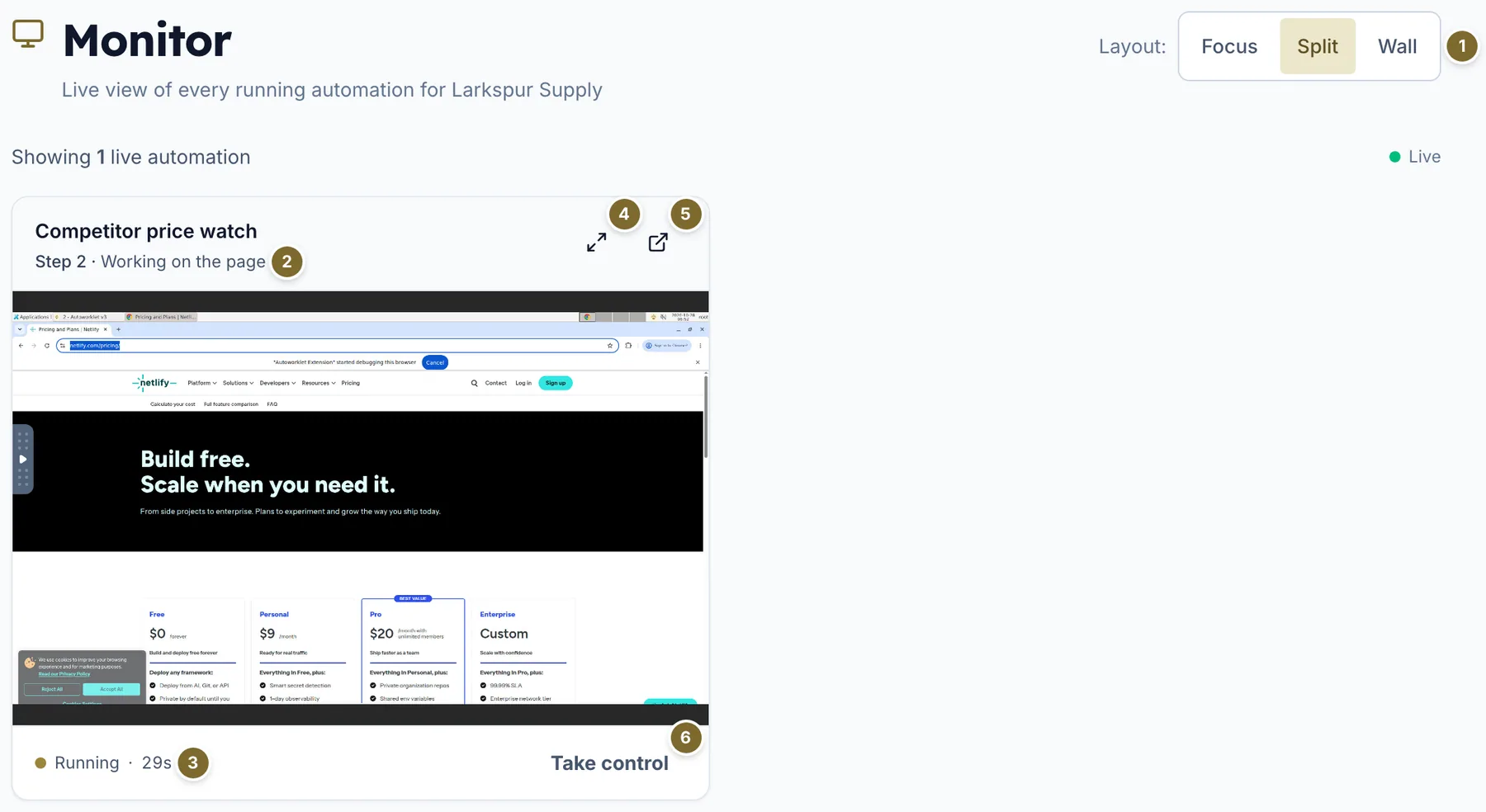
Select a Layout 1:
- Focus shows one column.
- Split shows two columns.
- Wall shows at most four columns on a wide screen.
The choice appears on tablet-sized screens and wider, and this browser remembers it for your organization.
Read the line under each automation's name 2. "Step 4 · Clicking" says what the machine is doing now. "Waiting for a machine" means the run is queued, and "Paused" means it is waiting.
Read the bottom line of the tile 3: the state (Queued, Running or Paused) and how long it has been going, for example
4m 12s.To see one run larger, click Expand view 4. The large view has an Open run details link.
To open the run's details page in a new tab, click Open run in a new tab 5.
Paused runs come first, because they wait for a person, then running runs, then queued runs. Within each group, the run that has been going longest comes first.
A tile that says "No screen yet" belongs to a run whose machine has not started. A tile that says "Screen paused" belongs to a paused run. A run that Teach is making while it builds an automation has a Teach build label.
When nothing is live, the page says "Nothing running right now" and offers Go to Home.
To watch only one automation, open it and click its Watch tab (Watch a run live).
Take control of a run
You can use your own keyboard and mouse on the machine that runs the automation. For example, you can get past a step it is stuck on.
- On the tile, click Take control 6.
- The dialog "Take control of this automation?" opens. Click Take control.
- The tile shows "You are controlling this run", and a bar at the bottom of the page counts down ("Reverts to view-only in 9:59").
- Work in the live screen.
- To start the 10 minutes again, click Extend. When you are done, click Release control.
Control ends by itself after 10 minutes, or when the run ends. Take control is not offered on a Teach build run.
Warning
Be careful in the live screen while you have control. Your keyboard and mouse reach the real machine. Anything you do there happens for real, such as submitting a form or deleting a record.
Note
In a HIPAA organization, a tile shows Show screen instead of the live screen. You open each screen on purpose, and each opening is recorded.
If something goes wrong
- "Could not load running automations". The page could not read the list. This does not mean nothing is running. Click Try again.
- "Reconnecting - this view may be out of date" stays for a long time. Reload the page.
15.2Home and the Issues page
Home shows what needs you right now, including runs that failed in the last 7 days. The Issues page keeps one card for each automation whose latest failure nobody has handled yet. For a tour of Home, see Home: your queue.
Failed runs on Home
On Home, the Needs you section groups items by kind. Failed runs appear under Run failed, one row for each failed run.
- Click Home in the header.
- Under Needs you, find the Run failed group. Each group shows 4 rows. To see the rest, click Show all followed by the count, for example Show all 7. Show less folds the group again.
- Read the second line of the row. It is a plain sentence about what went wrong, such as "The run could not reach a website or service it needed."
- Click See what happened to open the Results tab at that run's report. Click Run again to open the Run tab.
Other groups you might see are Looks wrong, for a finished run that an automatic check flagged, and Ready to run. Test runs, such as Teach build tries and draft tests, never appear as failed runs here.
To clear a row you have dealt with, dismiss it, one row or a whole group at a time (Home: your queue).
Note
Dismissing hides a row for you, in this browser, for 30 days. It does not fix the run, and other people still see the row. A failed run stays in Needs you for 7 days, even if a later run succeeds.
The Issues page
When a run fails for good, after any automatic retries, Autoworklet writes an issue card for that automation. Each automation has at most one card. A later failure replaces it, and a later successful run does not close it. Only Resolve or Ignore closes it. Unlike Home, this page also counts test runs. A failed test of the draft or a failed Teach build try writes or replaces the card too.
Click Menu.
Click Classic dashboard.
Click the Active issues card. The Issues & Errors page opens. The heading Active Issues shows how many cards are open.
To find one automation, type in Search issues... 1. It matches the automation's name and the message.
Each open issue is a card in the list under Active Issues. The card shows:
- the automation's name
- an "error" label
- the plain sentence about what went wrong (Show more shows all of it)
- the time
Technical details opens the full error, for whoever fixes it.
Click View Worklet to open the automation.
After the problem is handled, click Resolve. If it does not need a fix, click Ignore.
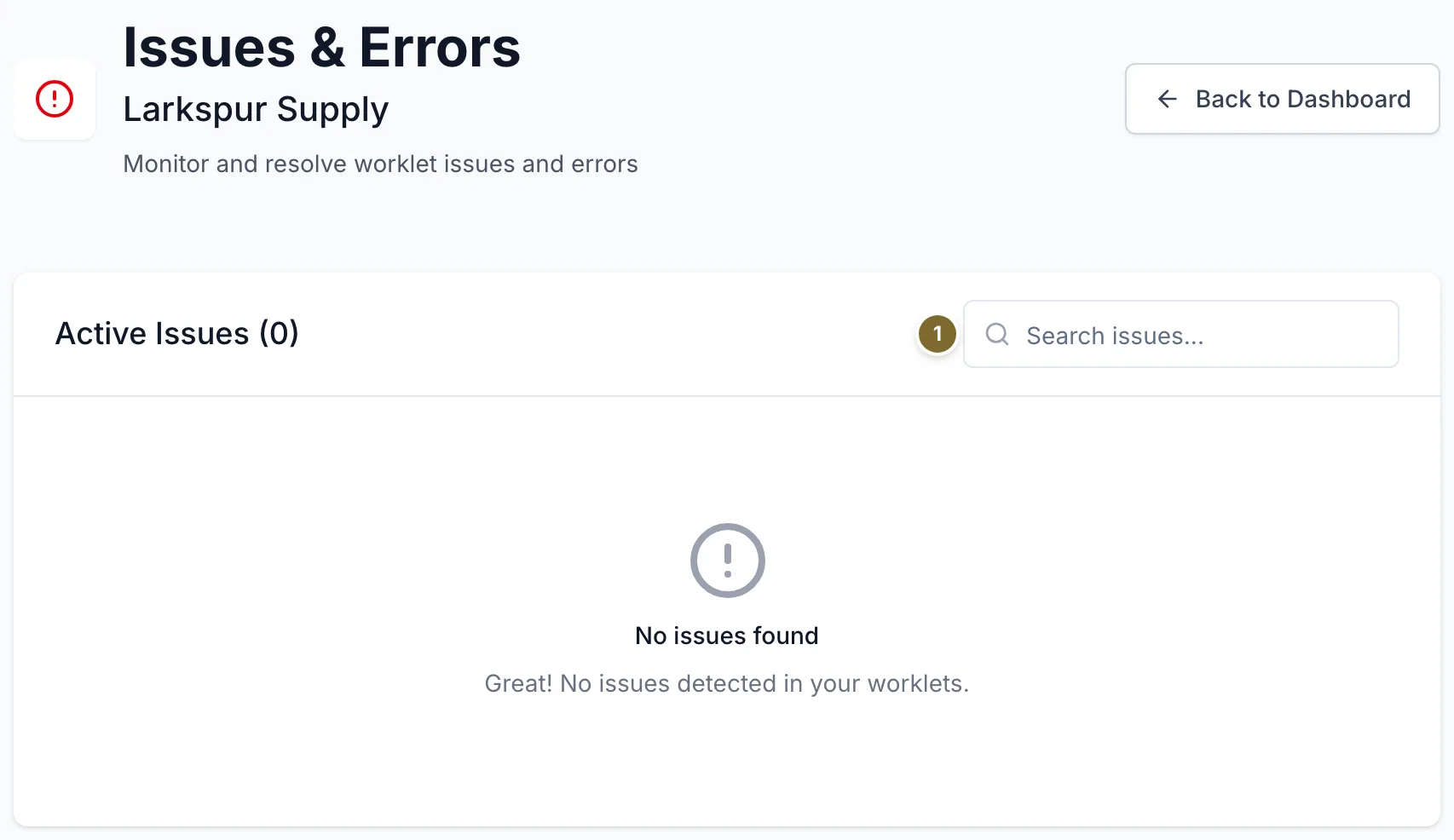
After Resolve or Ignore, the card leaves the list and the count in Active Issues drops by one. With no open cards, the page says "No issues found" and "Great! No issues detected in your worklets." Back to Dashboard returns to Home.
Important
Only admins and managers can resolve or ignore an issue. The buttons appear for every member, but when another member clicks them, nothing changes.
15.3Notifications
Notifications tell you when a run finishes or fails. They can reach you:
- by email
- in Slack channels
- in Microsoft Teams channels
- on phones with the Autoworklet mobile app
The organization has one set of notification settings for all of its automations. Only admins and managers can change them. Other members see "Only organization admins and managers can manage notification settings."
Important
Run emails go only to the addresses on this list. Nobody gets them automatically, not even the person who built the automation.
Get run emails
Click Menu.
Click Organization.
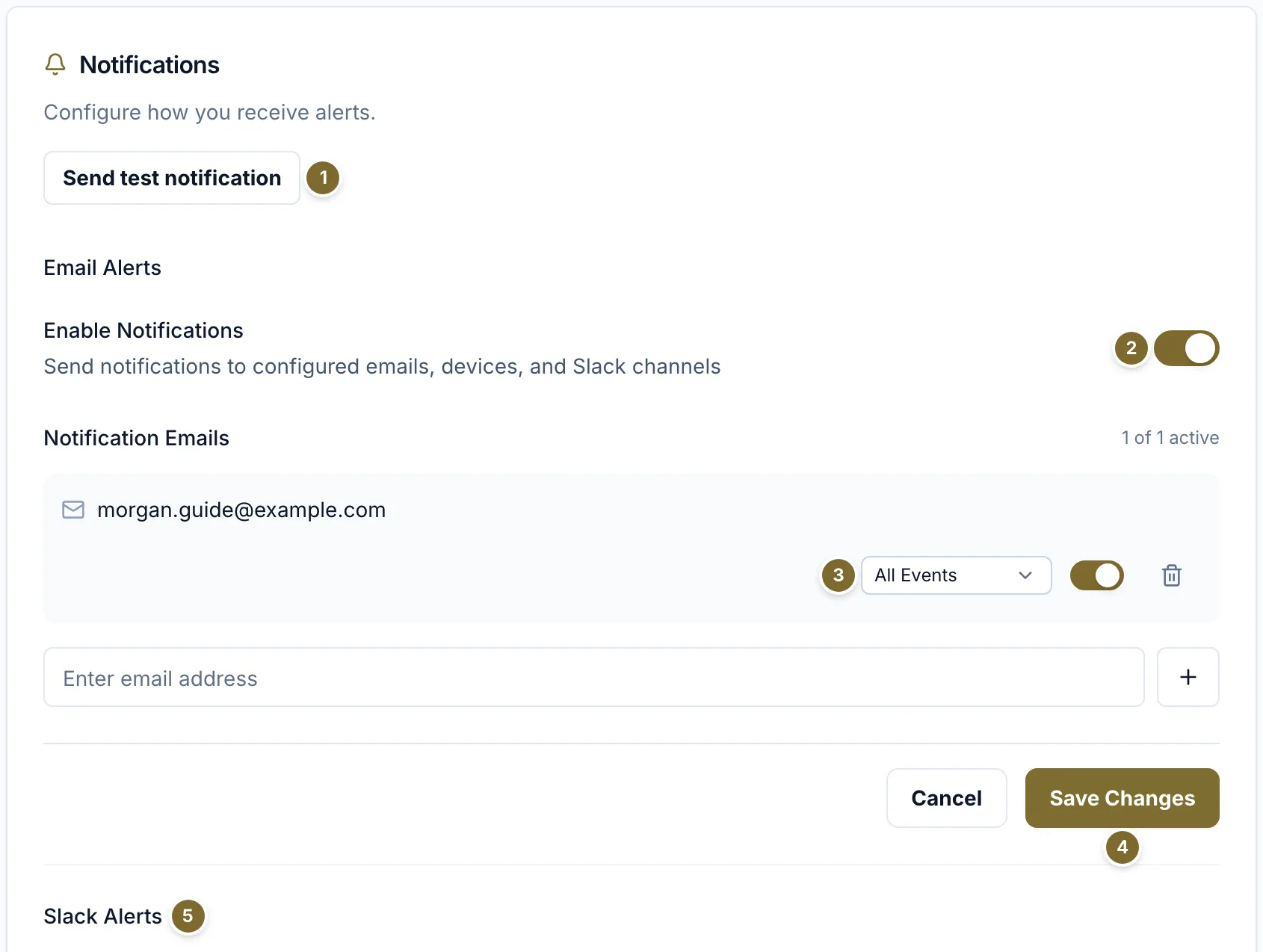
Find the Notifications card ("Configure how you receive alerts."). The Send test notification button 1 at the top of the card is for the last step.
Under Email Alerts, click Edit.
Turn on Enable Notifications 2. This switch turns email, push, Slack and Microsoft Teams notifications on or off together.
Type an address in Enter email address.
Click +.
Select which runs that address gets an email for 3:
- All Events: every finished and failed run
- Errors: failed runs only
- Success: finished runs only
The switch beside it pauses the address, and the trash can removes it.
Click Save Changes 4.
Click Send test notification to check that the message arrives.
Slack Alerts and Push Notifications are set further down the same card 5.
After you save, an active address shows its setting and Active. Outside Edit, the setting reads one of these:
- All Events
- Error (failed runs only)
- Finished (finished runs only)
A paused address shows only Inactive.
Tip
Set most people to Errors. All Events sends one email for every finished run, which adds up fast on a busy schedule.
Post to Slack channels
Connect Slack to your organization first (Connect Google, Slack and GitHub).
- Make sure Enable Notifications is on under Email Alerts (steps 4, 5 and 9 of "Get run emails" above). It also turns Slack alerts on, even if you list no email address.
- Under Slack Alerts, click Edit.
- Turn on Send to Slack.
- If your organization has more than one Slack workspace connected, select the Workspace.
- Click Add channel. The Add a Slack channel dialog lists the channels. To narrow the list, type in Filter channels.... A public channel marked "not joined - we'll join automatically" is fine. If a private channel is marked "invite @Autoworklet first", invite the Autoworklet app in Slack, then select the channel.
- For each channel, select All Events, Errors or Success.
- Click Save Changes.
If the card says "This Slack workspace stopped accepting messages", click Reconnect workspace.
Post to Microsoft Teams channels
Connect a Microsoft Teams team to your organization first (Connect a Microsoft Teams team).
- Make sure Enable Notifications is on under Email Alerts (steps 4, 5 and 9 of "Get run emails" above). It also turns Teams alerts on, even if you list no email address.
- Under Microsoft Teams Alerts, click Edit.
- Turn on Send to Microsoft Teams.
- If your organization has more than one team connected, select the Team.
- Click Add channel. The Add a Microsoft Teams channel dialog lists the team's standard channels. To narrow the list, type in Filter channels....
- For each channel, select All Events, Errors or Success.
- Click Save Changes.
Each alert is a new post in the channel, with the title on its first line and a link to the run. If the section says the team is not connected, or that the app was removed from it, connect the team again under Integrations. Its channels are kept, and alerts start again after you connect the same team again.
Send alerts to phones
- Make sure Enable Notifications is on under Email Alerts (steps 4, 5 and 9 of "Get run emails" above). It also turns phone alerts on, even if you list no email address.
- Under Push Notifications, click Edit.
- Turn on Enable Push Notifications.
- Under Add Member to Push Notifications, add the people who should get alerts.
- Click Save Changes.
People you add here get alerts for failed and finished runs. Members can also turn on alerts for themselves in the mobile app (Notifications). They show as "Self-managed" and start with these alerts on:
- Failures
- Prompts and messages
- Callbacks
Successes (finished runs) is off at first.
A member who is not an admin or manager sees "Turn on your own push notifications in the Autoworklet mobile app."
What is sent, and when
| Where | When a run finishes | When a run fails |
|---|---|---|
Subject Your worklet "<name>" has completed, with links to the run details and report |
Subject Worklet "<name>" run failed, with the error and a link to the report |
|
| Phone | <name> finished |
<name> failed |
| Slack channel | A message that the run finished | A message with the error |
| Microsoft Teams channel | A message that the run finished | A message with the error |
A message is sent after every finished or failed run, when any automatic retries are used up. Nothing is sent for test runs, such as a test of the draft, or for a Teach build you stopped. Telegram groups connected to an automation get a message for each of its runs (Slack, Microsoft Teams and Telegram). The same email and Slack recipients also hear when a trigger turns itself off after repeated failures (Webhooks and other connections).
In a HIPAA organization, the links go to the run's page instead of the report. Messages outside the app must not carry health information, so keep automation names free of it.
If something goes wrong
- No email arrives. Check that:
- Enable Notifications is on.
- The address shows Active.
- The address's setting matches the run. Outside Edit, the address shows Error (failed runs only), Finished (finished runs only) or All Events.
- The test reaches nobody. Test messages reach only addresses set to All Events. The result line says so.
- "No recipients are configured yet. Add an email address, Slack channel or Microsoft Teams channel above, then try again." Add an address or a channel and save it first.
- "Please enter a valid email address" or "This email address is already in the list". Correct the address, or leave it out.
15.4Retries
Some failures are temporary, for example a website that was slow for a minute. Retries try again without you. There are two settings, and they work on different things.
| Setting | Where | What it does | Who can change it |
|---|---|---|---|
| If a row fails | Run tab | Retry automatically runs a failed grid row up to 3 times in all, counting the first try, waiting 1 hour and then 6 hours between tries | The automation's owner, admins and managers |
| Retry settings | Settings tab | Starts a failed run again, up to 10 times, a few seconds after each failure | The automation's owner, admins and managers |
For the row setting, see When a row fails. A row that waits for its next try shows Retrying. A row out of tries shows Failed.
To retry whole runs:
- Open the automation.
- Click the Settings tab.
- Under Retry settings, click Edit.
- In Number of Retries, type a number from 0 to 10. 0 turns retries off.
- Click Save. A message confirms "Retry settings saved".
The section then reads "If a run fails, it will automatically retry up to N times."
Each failed try still uses minutes. Earlier tries are kept under Previous Attempts on the run's details page. Notifications and the issue card wait until the last try fails.
Retries you do not set
If a machine cannot start, for example because your plan's run slot is busy, the run stays Queued ("Waiting for a machine") and tries again by itself. It tries up to 7 times, waiting 1 minute at first and doubling the wait each time (1, 2, 4, 8, 16, 32 and 64 minutes), about 2 hours in all. After that it fails with "Max retries (7) exceeded. Last error: ...".
A run refused because the month's minutes are used up, or because billing is inactive, fails immediately and is not retried.
15.5Triage a failed run
When a run fails, use this checklist. It takes you from the first alert to a fix, and makes it less likely to happen again.
- Notice it. A failed run appears in several places:
- a Run failed row on Home
- a card on the Issues page
- a failure email or phone alert
- a Slack or Telegram message
- a Failed row in the grid
- Error in the Runs tab
- Read the sentence. On Home or the Issues page, read the plain sentence about what went wrong. Check the table below for the common ones.
- See what happened. On Home, click See what happened. The Results tab opens that run's report. Step through it to find the step where it went wrong (The run report).
- Open the run details. On the Runs tab, set the status filter to Error. Then click the eye icon (View details) on the run. The red Error box has the full message. Previous Attempts shows earlier tries, and Run Logs shows what the run wrote (One run in detail).
- Decide what kind of failure it is. Match the message with the table below.
- Fix the cause. If the inputs were wrong, run it again with corrected inputs. If a website changed or a step broke, ask AI to fix the script (Ask AI to fix a run). Or edit it yourself (Open the script). If you reached a plan limit, upgrade or wait for the month to reset (When you reach a limit).
- Run it again. On Home, click Run again to open the Run tab. Or click Restart Run on the run's details page. The automation's owner and admins can do this. The earlier try is kept under Previous Attempts.
- Close the loop. On the Issues page, click Resolve (an admin or manager). On Home, dismiss the Run failed row.
- Stop it from happening again. Turn on retries for a site that is sometimes slow (Retries). Make sure someone gets an email set to Errors (Notifications).
Common failure messages
| Message | What it means | What to do |
|---|---|---|
| "This organization has used this month's free execution minutes." with Upgrade plan | The Free plan's monthly minutes are used up | Upgrade, or wait until the month resets |
| "This organization's billing is inactive, so runs and cloud computers are paused." with Manage billing | The organization's billing is not active | An admin clicks Manage billing (Plans and billing) |
| "This automation has nothing to run yet. Publish it, then run it again." | There is no published version to run | Publish it (Publish, review and restore versions) |
| "The run could not reach a website or service it needed." | A site was down or could not be reached | Check that the site works, then run again. If it happens often, turn on retries. |
| "Never started: the platform did not dispatch a machine for this run. It was closed automatically after waiting too long." | The run waited in the queue for 6 hours | Restart it |
| "Paused for longer than 7 days: its saved machine expired, so it can no longer resume. Restart it to run it again." | The run was paused too long | Restart it |
| "Max retries (7) exceeded. Last error: ..." | A machine could not be started | Check whether another run or cloud computer was using your run slot, then restart it |
| A step error, such as a button that could not be found | The website changed, or the script has a problem | Ask AI to fix it (Ask AI to fix a run) |
Tip
To see where a failed run went a different way, open the Results tab and select a run in the Compare with list. It puts another run's report beside this one, for example the last run that worked.