Chapter 10
Write scripts: commands and examples
Write or change an automation's Python script by hand. You will read inputs, drive the browser, sign in with saved logins and record results. The chapter has excerpts from real ready-made scripts and a quick reference of the commands.
10.1Read inputs and publish outputs
This chapter is for people who write or change scripts by hand. It assumes you know basic Python. To open the editor and save your work, see Read and edit the script.
How a script runs
- The script runs from top to bottom on a cloud computer, with Python 3.12.
- The commands in this chapter are already defined when the script starts.
Call them by name, for example
browser_goto(url). Never import or create the automation API yourself: that makes a second copy that runs outside self-healing (Background repair and self-healing). You can import Python's own modules, such asre,jsonanddatetime, as usual. - Each line at the top level of the script is one step of the run, and each step adds about 0.75 seconds.
The run report shows each top-level step, with its screenshot.
Lines inside a function (
def) are not separate steps, so a loop inside a function costs one step. - Timeouts are in seconds everywhere:
timeout=20means 20 seconds.
Read the inputs
A run's inputs are in a dictionary called params.
PARAMS is the same dictionary under another name.
- The automation's default inputs (see Inputs, outputs and default values) are at the top level of
params. - A run started from the Inputs and results table also gets
params["rows"]. It is a list of the rows the run should work on, up to 5 per run by default. Each row looks like{"recordId": "...", "data": {column key: value}}. - The script reads each input by its column key, such as
license_number, not by the label people see, such as License number.
The ready-made scripts read every input through one small helper. It takes the value from the row, and falls back to the default input when the cell is empty:
def input_value(data, key, fallback=""):
    """One input cell, falling back to the worklet's default params."""
    value = data.get(key)
    if value is None or str(value).strip() == "":
        value = params.get(key)
    if value is None or str(value).strip() == "":
        return fallback
    return str(value).strip()
Call it with a row's data and a column key, for example input_value(data, "license_number").
To loop over the rows, the same scripts start from rows = params.get("rows") or [{}].
A run that comes without rows then runs one time, on the default inputs.
Annotated examples shows the whole loop.
Record outputs
Record each result on purpose with set_output or set_outputs:
price = browser_get_element_text("#total")[0]
set_output("price_eur", price)
set_outputs({"updated_date": stamp, "reference": ref})
Here stamp and ref stand for values the script read earlier.
- The first time a run records a new output name, the Inputs and results table gets a column for it.
Names that start with
__never become columns. - A table holds at most 64 columns. Outputs past that limit get no column.
- Name an output after the value it holds, for example
updated_date, notupdated. - Record a list as a list, not as one JSON string. On an engine older than 0.78.10, a text value longer than 1,500 bytes is cut short, so keep each one under that size there. All outputs of one run together can be up to 256 KiB.
Finish each row
For a run that came from the table, call complete_row one time for each row:
for row in params["rows"]:
    summary = browser_get_text_content()
    complete_row(row, {"summary": summary})
complete_row writes the row's results next to its inputs and marks the row done.
A row the script never completes does not count as done, however well the run went, and it is tried again.
complete_row works only in a run that came from the table, so the ready-made scripts call it only when params has datasetId and runId.
They call set_outputs too, one time at the end, so the table gets its result columns.
Important
When a script records outputs, a run that succeeds publishes only those outputs. A run that fails also publishes every top-level variable of the script, to help whoever fixes it. A script that never records outputs publishes every top-level variable on every run. Everyone in your organization and every API caller can read what a run publishes. So never keep a password, a key or other private data in a top-level variable. In a HIPAA organization, a run publishes only the outputs it recorded.
10.2Work in the browser
Most scripts open a website, find something, and read a value. These rules come from the authoring guide Autoworklet's own AI follows. They prevent the most common failures.
Open the browser and go to a page
- Call
open_browser(timeout=60)one time, at the start of the run. It raises an error if the browser never becomes usable. Do not pass a web address as its first argument. The address is its third parameter, soopen_browser("https://...")puts the address intimeout. - Call
browser_goto(url, timeout=30)to open a page. It returnsFalseif the page did not load, so check the result. - Wait for something that proves the page is ready, instead of sleeping:
browser_wait_for_text(text, timeout=10)waits for text on the page.browser_wait_for(selector, condition="visible", timeout=10)waits for an element. The condition isvisible,clickable,presentorgone.browser_wait_for_navigation(timeout=30, url_pattern=None)waits for the address to change.
Each of these returns True or False.
browser_goto can return before a page that builds itself with JavaScript has shown anything, so always wait before you read.
Type and submit
Selectors are CSS selectors only.
Forms such as text=Foo, xpath=... or :contains() raise an error.
To type into a field and submit the form, end the text with [enter]:
browser_type_text_element("#q", "Santa Barbara[enter]") # types AND submitsA "\n" at the end does not submit.
It types a line break.
For drop-down lists and checkboxes, use browser_select_option(selector, value=None, text=None, index=None) and browser_check(selector).
Click
Click by what a person sees first, and fall back step by step:
browser_click_text("Continue")clicks a label that is visible on screen right now. It raises an error when the label is not there, so do not test its result withif not.click_text("Continue")reads the whole desktop, including a frame inside the page.browser_vclick(describe="the blue gear icon in the top-right")clicks what you describe. Say where the target is as well as what it is.browser_click_element(selector)clicks an element by CSS selector. Use it last. Its result is false when the click was refused.
try:
    browser_click_text("Pay now")
except RuntimeError as click_miss:
    if {kind.__name__ for kind in click_miss.__class__.__mro__} & {"InputMayHaveLandedError", "HealingBudgetExhausted"}:
        raise
    try:
        click_text("Pay now")
    except (RuntimeError, ValueError) as click_miss:
        if {kind.__name__ for kind in click_miss.__class__.__mro__} & {"InputMayHaveLandedError", "HealingBudgetExhausted"}:
            raise
        browser_vclick(describe="the Pay now button")
if not browser_wait_for_text("Payment received"):
    raise RuntimeError("payment confirmation never appeared")
The two if lines stop the chain when the click might already have gone through, or when the run has used up its AI budget.
Without them the next way of clicking could click a second time.
The last two lines check that the click worked. Keep a check like that after every click that matters.
Do not use the visual clicks (the first three) for text that changes from run to run. Examples are a search result or a name from the inputs. The next run's value might not be on screen. Read the links instead, and go to the one you want:
for link in browser_extract_links("a"):
    if "Santa Barbara" in link["text"]:
        browser_goto(link["url"])
        break
Read values
| Command | What it reads |
|---|---|
browser_get_main_text() |
The main text of the page, as a person reads it. Start here. |
browser_get_element_text(selector) |
A list with the text of each matching element. Best for one heading, link or cell. |
browser_get_text_content() |
All text on the page, including menus. A word you look for might appear in a menu first. |
browser_get_page_info() |
A dictionary with the page's url and title. |
browser_run_js(script) |
Runs JavaScript in the page and returns its result, for example a list of cards with their titles and prices. |
browser_detect(mode="text") |
Reads text from a screenshot. Use it only when the value is drawn as an image and no other read finds it. |
Read the value live on every run. A number you saw while writing the script is an example of where to look, not a value to compare with.
Download a file
browser_download_asset downloads a file and returns the full path where it landed.
Open that path, not the name you passed:
saved = browser_download_asset(url, "report.csv")
if not saved:
    raise RuntimeError("the report did not download")
with open(saved, newline="") as f:
    rows = list(csv.DictReader(f))
Add import csv at the top of the script.
When a click in the page starts the download, call browser_wait_for_download() after the click and open the path it returns.
Note
In a HIPAA organization, commands that ask an AI model fail, including browser_vclick(describe=...) and llm().
The run stops with The model ... is not available in a HIPAA organization. Remove this model call from the worklet.
10.3Use saved logins and one-time codes
Never type a password, an API key or a token into a script or into a run's inputs. Save logins in Secrets instead (see Add a login), and let the script read them while it runs.
| Command | What it returns |
|---|---|
get_password(website, email) |
The password of the login saved for that website and username. |
generate_otp(website, email) |
The current one-time code for that login, made from the authenticator key saved with it. |
Both look the login up by its website and username.
They must match the saved login exactly, character for character.
If they do not, the run fails with Password not found for the specified website and email or MFA secret not found for the specified website and email.
A login saved from a ready-made dialog is stored under the site's address in the form https://opensource-demo.orangehrmlive.com.
Pass the result straight into the command that types it, as an argument. Never store it in a variable first.
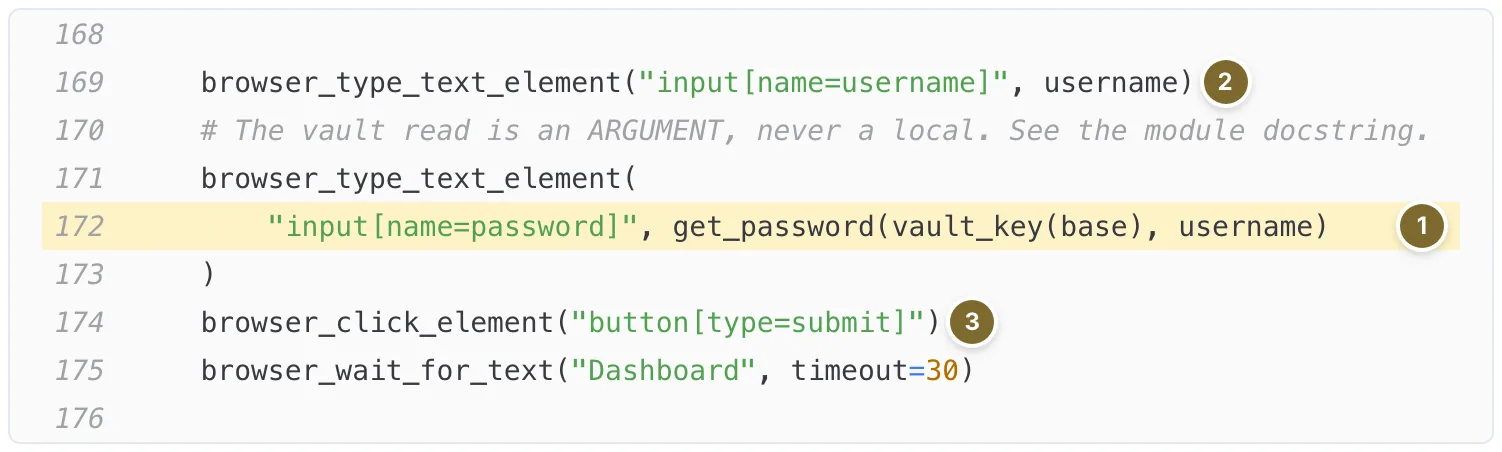
In this ready-made script:
- The highlighted line 1 types the password.
get_password(...)runs inside the typing command, so the password is never kept in a variable. - The line above it 2 types the username, which comes from the run's Account input.
- The line below 3 clicks the sign-in button.
Read the whole function in Annotated examples.
Warning
Do not write a line such as pw = get_password(...).
It keeps the password in a variable.
If the run fails, or if the script records no outputs, every top-level variable is published with the run.
Everyone in your organization and every API caller can then read it.
Use generate_otp the same way: pass it straight into the typing command.
To call another web service with an API key, store the key as an HTTP connection (see HTTP connections).
The script names the connection, and Autoworklet adds the key for you.
For example, conn = get_connection("stripe") returns the connection's base address but never its key, and integration_get(url=conn["base_url"] + "/v1/charges", connection="stripe") makes the call.
Never build an Authorization header yourself, and never record a whole reply, because some services send the key back.
See Call other APIs from a script.
10.4Save rows, files and records
A script can keep data in several places. Which one to use depends on who needs the data and for how long.
| Where | Use it for |
|---|---|
Outputs and complete_row |
Results people read in the Inputs and results table. See Read inputs and publish outputs. |
| A dataset | Records you build up over many runs, or share with other automations and dashboards. |
| A file | A report, an export or a download. |
| Automation memory | A small value the next run of the same automation needs, such as the last ID it handled. |
Datasets
A script finds a dataset by its name, or by the Dataset ID shown on the dataset's page (see Datasets). These lines add, list and change records:
result = createRecord("dataset1", {"rate": 10, "price": 20})
result = listRecords("dataset1")
result = updateRecord("dataset1", "P0pNLyxR7i99MDlxgpge", {"rate": 10, "price": 20})
Replace dataset1 with your dataset's name or ID.
createRecord returns the new record's ID as result["recordId"].
listRecords returns the records under result["records"].
updateRecord takes a record ID and replaces all of that record's data, so include every field, not only the ones you change.
Three more commands manage datasets and records:
createData(dataName, fields=[])creates a dataset.deleteRecord(dataName, recordId)deletes a record.deleteData(dataName)deletes a dataset. It refuses a run grid, which is deleted with its automation. It also refuses a dataset that a workflow connection passes rows into or takes rows from. A dataset that holds the review records of a workflow is refused until you delete that workflow. The error message says what to do, and nothing is deleted.
Important
Do not use updateRecord on the automation's own Inputs and results table.
Use complete_row, which keeps the row's inputs and marks the row done.
Files
- Save files the run makes in the run's output folder.
save_text(text, "summary.txt")saves there and returns the full path. Foropen()or thecsvmodule, build the path withget_output_dir(). A plainopen("summary.txt", "w")writes somewhere else, and the file can be lost. upload_file(file_path='image.jpg', destination_path='profile.jpg')stores a file with this run in your organization's storage and returns a short download link. It returns empty text when the upload failed, so check the result. Record the link as an output so people can open it from the table. Treat the link like the file itself.- Your organization's shared files are in the folder
/home/headless/shared_fileson the run's cloud computer. Open them like any other file (see Your organization's files).
Automation memory
Memory keeps a value from one run of this automation to the next:
seen = memory_get("seen_ids", default=[])
memory_set("seen_ids", seen + new_ids)
Here new_ids stands for the IDs this run found.
memory_get returns the default when nothing was saved under that key.
memory_delete(key) removes a key.
A key can be up to 1,500 bytes, and a value up to 256 KiB as JSON.
Memory needs engine 0.76.14 or newer (see Settings).
This is not the Memory page under Data & files, which holds notes that AI repair learned about websites.
Logs, messages and questions
log("info", "Process started successfully")writes a line to the automation's log. The first argument isdebug,info,warn,errororcritical. The latest lines are under Recent logs on the Runs tab (see Run history).send_email("[email protected]", "Report", "Attached.", attachments=["report.csv"])sends an email to the addresses you list, separated by commas. It allows up to 20 addresses and up to 5 attachments with 6 MiB in total.send_notification("Checkout is failing", severity="error")reaches the people and Slack channels your organization set up for notifications (see Notifications). The severity isinfo,errororsuccess. Each recipient's frequency setting decides whether they get it:errorreaches All Events and Errors.successreaches All Events and Success.inforeaches All Events only.
To ask a person a question and wait for the answer, use ask_user_confirmation:
answer = ask_user_confirmation(
    "Approve the refund for order 1042?",
    confirmationOptions=[
        {"label": "Approve", "value": "approve"},
        {"label": "Reject", "value": "reject"},
    ],
    timeout=900,
)
if answer != "approve":
    raise RuntimeError(f"refund not approved: {answer!r}")
The question appears in the run, and the mobile app gets a notification (see When a run asks you something).
The default wait is only 30 seconds, so give a person on a phone at least timeout=600.
The run keeps its cloud computer while it waits, which uses minutes.
If nobody answers in time, the command raises a timeout error and the run fails, so the refund is never approved.
ask_user_form(message, formSchema, timeout=120) asks for several values at the same time.
10.5Annotated examples
These excerpts come from the scripts of three ready-made automations (see Start from a ready-made automation). When you add one, your automation gets its own copy of the script. You can open it on the Script tab and read it in full.
Example 1: Check every row, then record the totals
From Verify license status (Florida).
This is the part that works through the rows.
It is shortened: the function's description is left out, and the lines marked ... count the outcomes and add a source-evidence column.
def run_rows():
    rows = params.get("rows") or [{}]
    last, errors, done, verified, attention, incomplete = None, [], 0, 0, 0, 0
    for row in rows:
        data = row.get("data") or {}
        try:
            outputs = check(data)
            ...
            if row.get("recordId") and params.get("datasetId") and params.get("runId"):
                complete_row(row, outputs)
        except Exception as exc:
            errors.append(f"Row {row.get('recordId', len(errors) + done + 1)}: {exc}"[:2000])
            continue
        last, done = outputs, done + 1
        ...
    set_outputs({**(last or {}), "rows_checked": len(rows), "rows_done": done,
                 "rows_verified": verified, "rows_needing_attention": attention,
                 "rows_incomplete": len(errors) + incomplete, "errors": errors})
    if done == 0:
        raise RuntimeError(errors[0])


open_browser(timeout=60)
run_rows()
params.get("rows") or [{}]takes the rows the table handed this run. A run without rows runs one time, with an empty row, so every input falls back to the default inputs.row.get("data")holds the row's inputs by column key:state,license_numberandname.check(data)is a function earlier in the file. It searches the Florida license site for one license and returns a dictionary of outputs, such asverification_outcomeandlicense_status.complete_row(row, outputs)writes this row's results and marks it done. Theifbefore it makes sure this happens only in a run that came from the table.- The
exceptblock keeps one bad row from stopping the others. It saves the error message, cut to 2,000 characters, and moves on to the next row. set_outputs(...)runs one time, after the loop. It records the last row's outputs plus the counts, and the errors as a list.raise RuntimeError(errors[0])fails the run when no row worked, so the run shows as failed instead of finished.- Only the last two lines run at the top level. They open the browser one time, then work through every row.
Example 2: Wait for the page and fail with a clear reason
From Competitor price watch. This is the start and the end of the function that checks one row. The middle that reads the price is left out.
def check(data):
    pricing_url = input_value(data, "pricing_url")
    plan_name = input_value(data, "plan_name")

    if not pricing_url:
        raise RuntimeError("read the inputs: no pricing page address was given")
    if not plan_name:
        raise RuntimeError("read the inputs: no plan name was given")


    if not browser_goto(pricing_url, timeout=30):
        fail("open the pricing page", f"navigation to {pricing_url} returned False")

    if not browser_wait_for_text(plan_name, timeout=30):
        fail("open the pricing page", f"the plan name {plan_name} never appeared")

    dismiss_banner("Accept all cookies")
    dismiss_banner("Close announcement bar")
    ...
    page_title = str(info.get("title") or "").strip()
    if not page_title:
        fail("read the page title", "the pricing page reported no title")

return {"price": price, "page_title": page_title}input_valuereads the Pricing page address and Plan to watch inputs by their keys,pricing_urlandplan_name.- If an input is missing, the script raises an error immediately. The message says which step failed and why, and it becomes the run's error.
browser_gotoreturnsFalsewhen the page does not load.fail(...)is defined earlier in the file. It adds the page's address and the first 2,000 characters of its text to the message. Then it raises the error. Whoever fixes the run sees what the page showed.browser_wait_for_text(plan_name, timeout=30)waits up to 30 seconds for the plan name to appear.dismiss_banner, also defined earlier, callsbrowser_click_text(label)insidetryandexcept.browser_click_textraises an error when the label is not on screen, and a page without a cookie banner is fine.- The left-out middle reads the price.
On one site it uses
browser_run_jsto read each plan card's title and price as structured data.infoholds the result ofbrowser_get_page_info(). - The returned dictionary holds the outputs.
Their keys,
priceandpage_title, are the output columns Price and Page title.
Example 3: Sign in with a saved login
From Verify employment record (OrangeHRM). This function signs in with the login saved in Secrets.
def sign_in(base, username):
    """Sign in once. Later rows reuse the session this leaves behind."""
    if not browser_goto(f"{base}/web/index.php/auth/login", timeout=30):
        raise RuntimeError("open the sign-in page: navigation returned False")
    if not browser_wait_for("input[name=username]", timeout=30):
        raise RuntimeError("open the sign-in page: the sign-in form never appeared")

    browser_type_text_element("input[name=username]", username)
    # The vault read is an ARGUMENT, never a local. See the module docstring.
    browser_type_text_element(
        "input[name=password]", get_password(vault_key(base), username)
    )
    browser_click_element("button[type=submit]")
    browser_wait_for_text("Dashboard", timeout=30)

    if browser_wait_for("input[name=username]", timeout=5):
        # A refusal is the site's answer about the saved login, not a bug here.
        raise RuntimeError(
            f"sign in as {username}: OrangeHRM stayed on the sign-in page, so "
            "the saved password was not accepted"
)baseis the OrangeHRM address input andusernameis the Account input.- The script opens the sign-in page and waits up to 30 seconds for the username field before it types anything.
- It types the username.
- It types the password.
get_password(...)runs inside the typing command, so the password is never kept in a variable.vault_key(base)is defined earlier in the file. It turns the address into the form the ready-made dialog saved the login under, such ashttps://opensource-demo.orangehrmlive.com. - It clicks the sign-in button and waits for the word "Dashboard".
- If the username field is still there after 5 seconds, the site refused the password. The run fails with a message that points at the saved login. That means the fix is in Secrets, not in the script.
- The browser stays signed in, so later rows in the same run skip this function.
10.6Command quick reference
These are the commands most scripts need. The editor suggests the full list for your automation's engine version as you type.
Inputs and results
| Command | What it does | Example call |
|---|---|---|
params (also PARAMS) |
The run's inputs, as a dictionary. | rows = params.get("rows") or [{}] |
set_output(key, value) |
Records one output. | set_output("price_eur", price) |
set_outputs(values) |
Records several outputs in one call. | set_outputs({"updated_date": stamp, "reference": ref}) |
complete_row(row, outputs) |
Writes one table row's results and marks the row done. | complete_row(row, {"summary": summary}) |
Browser
| Command | What it does | Example call |
|---|---|---|
open_browser(timeout=60) |
Opens the browser. Call it one time per run. | open_browser(timeout=60) |
browser_goto(url, timeout=30) |
Opens a page. Returns False if it did not load. |
browser_goto(pricing_url, timeout=30) |
browser_wait_for_text(text, timeout=10) |
Waits for text on the page. Returns True or False. |
browser_wait_for_text("Dashboard", timeout=30) |
browser_wait_for(selector, condition="visible", timeout=10) |
Waits until an element is visible, clickable, present or gone. |
browser_wait_for("input[name=username]", timeout=30) |
browser_click_text(text) |
Clicks a label visible on screen. Raises an error if it is not there. | browser_click_text("Continue") |
browser_vclick(describe=...) |
Clicks what you describe. | browser_vclick(describe="the blue gear icon in the top-right") |
browser_click_element(selector) |
Clicks an element by CSS selector. Use it last. | browser_click_element("button[type=submit]") |
browser_type_text_element(selector, text) |
Types into a field. [enter] at the end submits the form. |
browser_type_text_element("#q", "Santa Barbara[enter]") |
browser_extract_links(selector="a") |
Lists links, each with its url and text. |
browser_extract_links("a") |
browser_get_main_text() |
Returns the main text of the page. | text = browser_get_main_text() |
browser_get_element_text(selector) |
Returns the text of each matching element, as a list. | browser_get_element_text('[role="main"] h3', timeout=5) |
browser_get_text_content() |
Returns all text on the page, menus included. | raw = browser_get_text_content() |
browser_get_page_info() |
Returns the page's url and title. |
info = browser_get_page_info() or {} |
browser_detect(mode="text") |
Reads text from a screenshot of the page. | seen = browser_detect(mode="text") |
browser_download_asset(url, path) |
Downloads a file and returns where it landed. | saved = browser_download_asset(url, "report.csv") |
Logins and other services
| Command | What it does | Example call |
|---|---|---|
get_password(website, email) |
Returns a saved login's password. Pass it straight into a command. | browser_type_text_element("input[name=password]", get_password(vault_key(base), username)) |
generate_otp(website, email) |
Returns the current one-time code for a saved login. Pass it straight into a command. | Used the same way as get_password. |
integration_get(url=..., connection=...) |
Calls a web service with the key stored in an HTTP connection. | integration_get(url=conn["base_url"] + "/v1/charges", connection="stripe") |
Data, files and messages
| Command | What it does | Example call |
|---|---|---|
createRecord(dataName, data) |
Adds a record to a dataset and returns its recordId. |
createRecord("dataset1", {"rate": 10, "price": 20}) |
listRecords(dataName) |
Returns a dataset's records. | listRecords("dataset1") |
updateRecord(dataName, recordId, data) |
Replaces a record's data. | updateRecord("dataset1", "P0pNLyxR7i99MDlxgpge", {"rate": 10, "price": 20}) |
save_text(text, file_path) |
Saves text to a file in the run's output folder and returns the full path. | saved = save_text(text, "summary.txt") |
upload_file(file_path, destination_path) |
Stores a file with this run and returns a short download link. | upload_file(file_path='image.jpg', destination_path='profile.jpg') |
memory_get(key, default=None) |
Reads a value an earlier run of this automation saved. | seen = memory_get("seen_ids", default=[]) |
memory_set(key, value) |
Saves a value for later runs of this automation. | memory_set("seen_ids", seen + new_ids) |
log(type, message) |
Writes a line to the automation's log. | log("info", "Process started successfully") |
send_email(to, subject, body, attachments=None) |
Emails the addresses you list. | send_email("[email protected]", "Report", "Attached.", attachments=["report.csv"]) |
send_notification(message, severity="info") |
Notifies your organization's notification recipients. | send_notification("Checkout is failing", severity="error") |
Safety, people and other automations
| Command | What it does | Example call |
|---|---|---|
dry_run_stop(reason=None) |
Stops a dry run immediately before an irreversible step. Does nothing in a normal run. | dry_run_stop("Place order") |
is_dry_run() |
Returns True during a dry run. |
if is_dry_run(): |
ask_user_confirmation(message, confirmationOptions=None, timeout=30) |
Asks a person to select an answer and waits for it. | See Save rows, files and records. |
spawn_worklet(worklet_id, params_obj=None) |
Starts a run of another automation and returns its run ID without waiting. | run_id = spawn_worklet("worklet123", {"variable": "value"}) |
llm(prompt) |
Sends a prompt to an AI model and returns its answer as text. | response = llm("What is the capital of France?") |
To connect automations without code, link their tables in a workflow instead (see What a workflow is).
10.7Good practice
These rules keep a script safe, readable and reliable. Most of them come from failures Autoworklet has seen in real runs.
Keep secrets out of the script
- Never type a password, an API key or a token into a script or a run's inputs. Save logins in Secrets and API keys in HTTP connections.
- Never store the result of
get_passwordorgenerate_otpin a variable. Pass it straight into the command that types it. - Record only the fields you need from a web service's reply, never the whole reply.
- Never build an
Authorizationheader yourself. Name the HTTP connection withconnection=instead.
Fail loudly
- Fail with
raise RuntimeError("..."), and say which step failed and why. Never end a script withsys.exit(): the run is then recorded as a clean finish. - Never record a made-up or placeholder value when the page did not give you one. Raise an error, or mark the row for review and say what was missing.
- Report "no record" only when the site itself says so, for example with its own "No records found" message. A page that did not load, a sign-in page or an error page is not "no record".
Write steps that hold up
- Wait for the page to show what you need before you read it.
- Read values live on every run, from a stable place such as a label or a CSS selector.
- Write timeouts in seconds:
timeout=20, nevertimeout=20000. - Submit with
[enter]at the end of the typed text, not with"\n". - To type text into whatever has focus, use
type_keys(...), nottype(...).typeis also the name of a Python built-in. - Do not let an AI model decide what the script does next while it runs. Decide the steps when you write the script.
- Put loops over page text inside a function. Each top-level line is a step, so a top-level loop over hundreds of lines makes the run very slow. Keep browser actions and their checks at the top level where you can. A line inside a function gets no self-healing of its own and no step in the run report.
Make repeats and tests safe
A row can be handed to a script more than one time, for example after a run timed out. Before you send, create or order something, check whether it was already done.
Put
dry_run_stop("...")on the line immediately before every step that cannot be undone:- Paying.
- Ordering.
- Sending.
- Submitting a form for good.
- Deleting.
- Accepting terms.
In a test, the run stops cleanly there. For a step that is harmless to repeat, such as sending a summary, write
dry_run_stop("Send summary", duplicate_tolerant=True). Fix tests from AI repair and dry runs an agent starts still stop there. The test run of an engine upgrade can let it run. That way, the test also checks the steps after it (see Settings).Write results to the automation's table with
complete_row. If the table is linked to a spreadsheet, never write to the spreadsheet directly.
In a HIPAA organization
- Never put patient information in any of these:
- A script.
- An output.
- A log message.
- Automation memory.
- A dataset record.
- Do not use
llm()orbrowser_vclick(describe=...). Both fail in a HIPAA organization.
If something goes wrong
| The run error says | What to do |
|---|---|
| Password not found for the specified website and email | Make the website and username in the script match the login in Secrets exactly. |
| ...stayed on the sign-in page, so the saved password was not accepted | The site refused the password. Update the login in Secrets. |
| text '...' not found among detected labels | The label was not on screen when browser_click_text ran. Wait for the page first, scroll the label into view, or use the next way to click. |
| Unknown connection '...'. Add it under the organization's Integrations, then use that exact name. | Add the HTTP connection, or fix the name in the script. |
| The model ... is not available in a HIPAA organization. Remove this model call from the worklet. | Remove llm() and browser_vclick(describe=...) from the script. |
| The run fails before its first step | The script has a syntax error that was saved anyway. Open the editor and fix it (see Fix syntax errors before you save). |