Chapter 9
Read and edit the script
Read the Python script behind an automation, change it in the browser with help from AI, and catch mistakes before they reach a run. You will also learn how to try a change safely before it goes live.
9.1What a script is
Every automation runs a script. A script is a short program, written in Python, that drives a web browser on a cloud computer.
- The script lives in a project folder.
Its main file is
main.py. A project can also hold helper files that end in.py. - The script uses built-in commands, such as
browser_gototo open a page,browser_click_textto click a label andset_outputsto record results. The commands are always available, so a script never imports them. - The script reads the run's inputs, for example a license number from a row of the Inputs and results table. It records outputs, which fill the result columns of that table.
- Each line at the top level of the script is one step of the run.
The run report shows these steps one by one.
Lines inside a function (a block that starts with
def) do not appear as steps of their own.
In script code, in the API and in the awl command line, an automation is called a "worklet". A few labels on the Script and Settings tabs say "worklet" too. Both words mean the same thing.
The script you edit is the automation's draft. Before the first publish, every run uses the draft, so a saved change affects the very next run. After the first publish, schedules, triggers, the API and the Run tab use the published version until you publish again. See Draft and published versions.
| What you want to do | Who can do it |
|---|---|
| Read the script and download it | Everyone in the organization |
| Edit script, save, and Publish on the Script tab | The automation's owner (the person who created or added it), admins and managers |
| Publish and History under Edit this automation on the Results tab | The owner, admins and managers |
| Edit on a cloud computer | The owner, admins and managers |
To learn the commands and see real examples, read Write scripts: commands and examples.
9.2Open and read the script
Open the script when you want to see what an automation does, step by step, or before you change it.
In the header, click Automations.
Click the automation. Its page opens on the Run tab.
Click the Script tab. A card titled Script opens, with the line "Inspect or edit the automation's script."
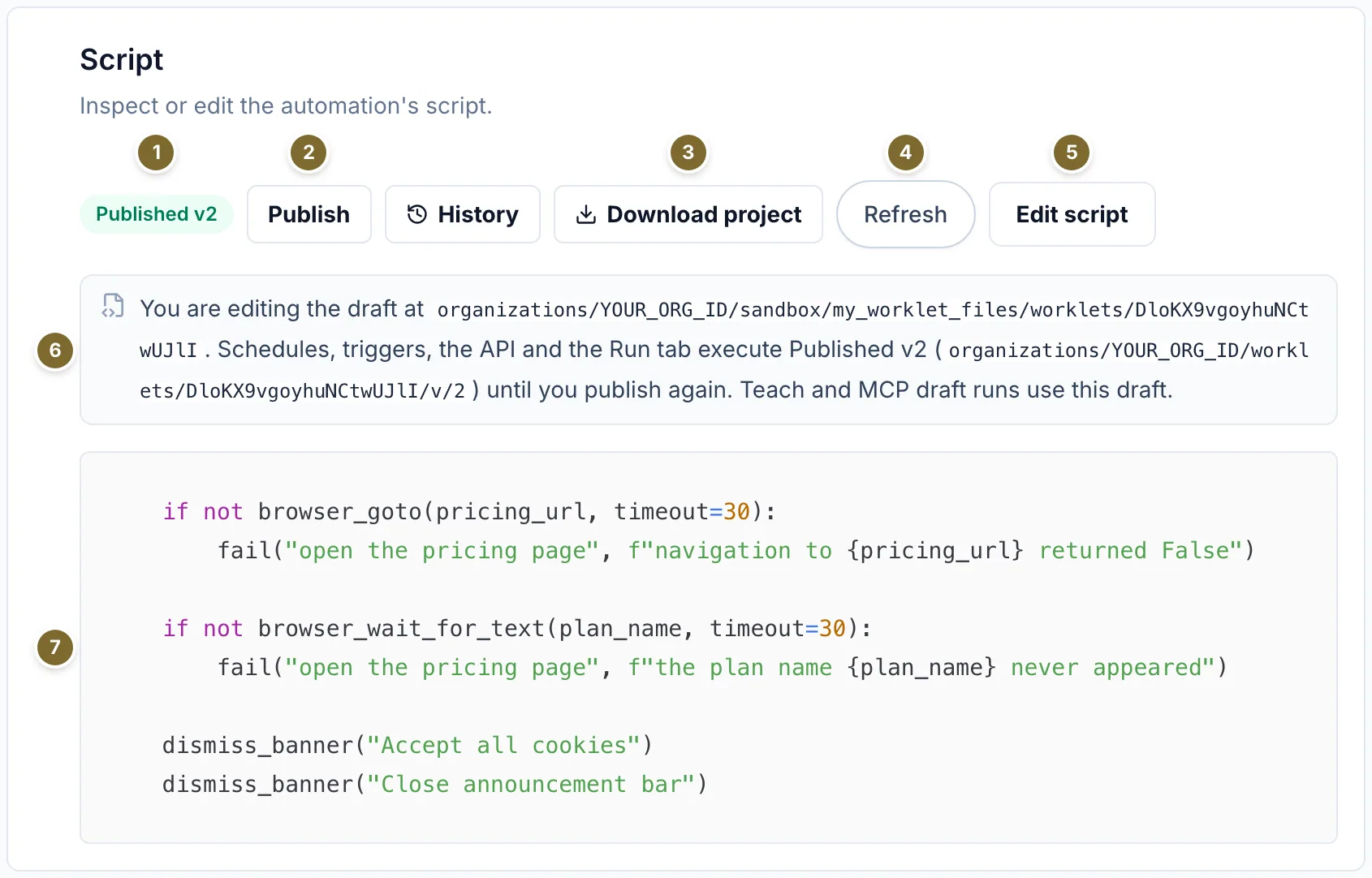
Read the badge at the start of the row of buttons 1. Not published yet means the automation has no live version. Published v2 (for example) means version 2 is live.
Next to the badge are the buttons you are allowed to use:
- Publish 2
- Download project 3
- Refresh 4
- Edit script 5
Refresh reads the stored script again, for example after a teammate saved a change. After the first publish, the owner, admins and managers also see History. When the draft differs from the published version, they also see Unpublished changes and Review changes (see Publish, review and restore versions).
Read the notice under the buttons 6. It says which folder runs use, and whether saving changes the next run. The table below explains each notice.
Read the script in the box below 7. It is read-only, with Python colors. Scroll inside the box to see the rest.
If the project has more than one file, a row of buttons with the file names appears above the script.
main.pycomes first. Click a name to show that file.
| The notice says | What it means |
|---|---|
| Not published yet. Every run executes this folder directly (...), so saving changes the next run. | The automation has never been published. The next run uses whatever you save. |
| You are editing the draft at ... Schedules, triggers, the API and the Run tab execute Published v2 (...) until you publish again. Teach and MCP draft runs use this draft. | Your saves go to the draft. Everything else keeps running version 2 until you publish. |
| Runs execute Published v2 (...). There is no editable draft; open it on a cloud computer to create one. | There is nothing to edit in the browser yet. Use Edit on a cloud computer on the Results tab (see Edit and save). |
| An amber notice that starts v2 is published, but every run executes the draft folder | Runs use the draft, not the published version. Publish again to freeze the draft as the next version. |
| This automation is a single file at ... | The automation uses an older storage format. See Draft and published versions. |
The Run tab shows a short form of the same notice above the table, for example Runs execute the draft folder directly (not published yet). Its Script tab link opens this tab.
Open the line a run used
A run report can take you straight to a line of the script.
- In the run report, turn on Show the code that ran (see The run report).
- In the code panel, click Open main.py at line 12 (the number varies). The Script tab opens with that line highlighted in amber and line numbers on.
If the script has changed since that run, the link reads Open the script, followed by "the editor shows the current draft, which is not what ran." The code panel in the report still shows the line that ran.
Download the project
Download the project to keep a copy, to read it in your own editor, or to run it on your own computer.
- Click Download project 3.
- A message confirms the download, for example "Downloading competitor_price_watch-draft.zip". It also says how many project files the zip holds, "plus RUN.md, which explains how to run it locally with awl."
- Open the zip file.
It holds the project files and
RUN.md.
The zip holds the draft. If a published automation has no draft, it holds the published version. The owner, admins and managers can download a particular published version with Download on its row in History. Saved logins, API keys and connections are never in the zip. To run the project with the awl command line, see The awl command line.
If something goes wrong
| What you see | What to do |
|---|---|
| "Loading script..." with a spinner | Wait. Edit script stays greyed out until the script has loaded, so an empty editor can never replace the stored script. |
| Could not load the script (...). The stored script is unchanged - press Refresh to try again. | Click Refresh. |
| This automation has no script yet. Teach one, or open it on a cloud computer to write it. | Teach the task (Teach a new automation). Edit on a cloud computer cannot open an automation that has no script. |
| This worklet has no script yet. | The project exists but main.py is empty. If you are the owner, an admin or a manager, click Edit script and write it. Otherwise ask one of them. |
| There is no Edit script button | Only the owner, admins and managers can edit here. Ask one of them. |
| Download failed | Try again. |
In a HIPAA organization, you must be signed in with two-factor authentication to read the script.
9.3Edit and save
Edit the script in the browser when you want to change what the automation does. For example, you can make it wait longer for a slow page or read one more value. Only the automation's owner, admins and managers see Edit script.
- On the Script tab, click Edit script. "Loading editor..." appears for a moment.
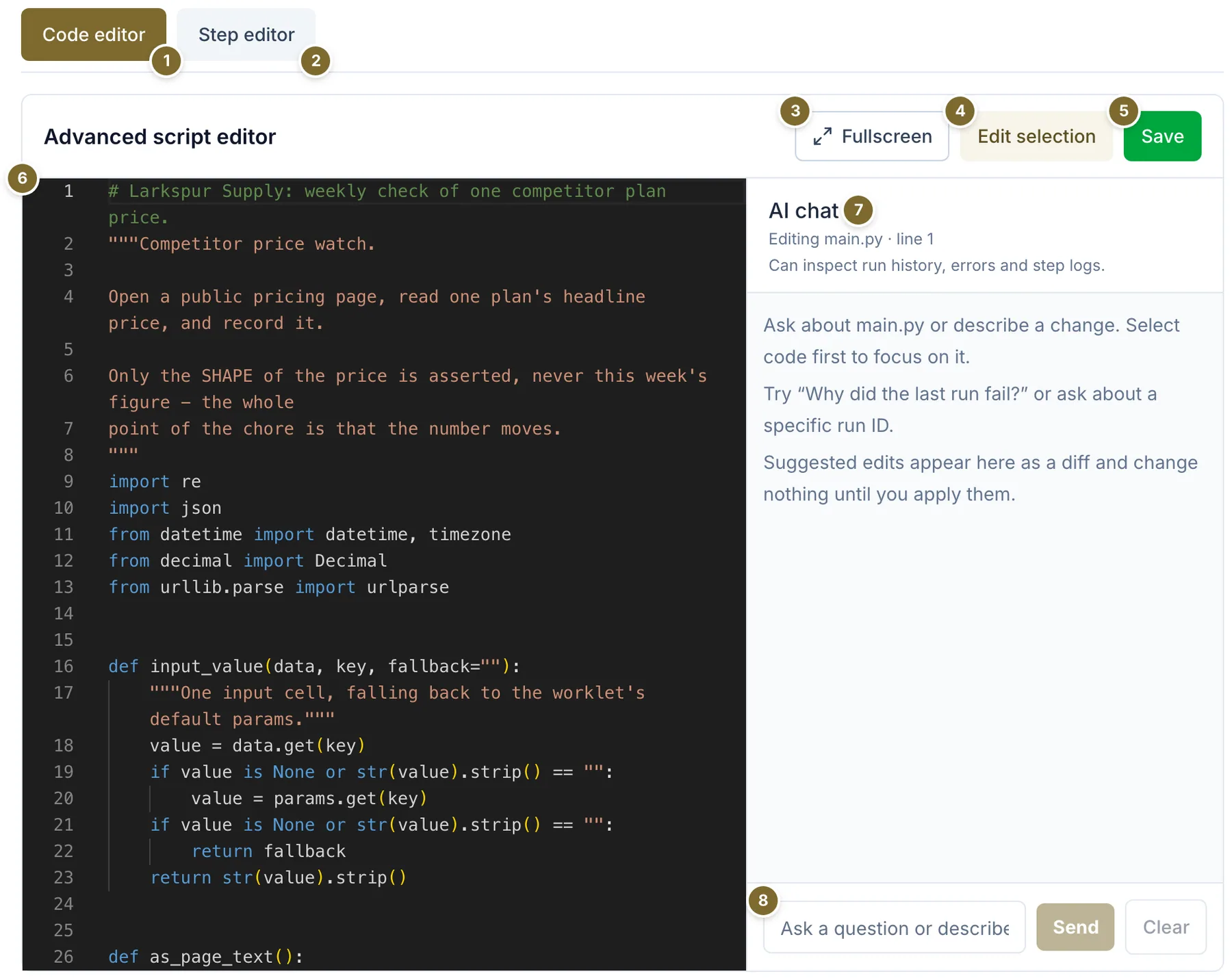
- Two buttons appear above the editor: Code editor 1, which is selected, and Step editor 2. This section covers the code editor. For the step list, see The Step editor.
- The card titled Advanced script editor opens. Its header has Fullscreen 3, Edit selection 4 and a green Save button 5. Fullscreen fills the browser window. Click Exit fullscreen to go back. Edit selection asks AI to change the code you selected (see Get help from AI in the editor).
- The code is on the left 6. The AI chat panel is on the right 7, with a box for your message at the bottom 8. On a narrow screen the chat panel sits under the code.
- Click in the code.
- Make your change. When you type the start of a command name, the editor suggests matching commands for this automation's engine version. Each suggestion has a short description.
- An amber dot and Unsaved changes appear next to the card title.
- Click Save 5, or press Cmd+S on a Mac or Ctrl+S on Windows. The editor checks the file for syntax errors first (see Fix syntax errors before you save).
- A message confirms Saved main.py, and Unsaved changes disappears. On a published automation, Unpublished changes next to the badge might appear only after you reload the page.
- To go back to the read-only view, click Close editor.
Save writes the file you have open. Other files in the project stay as they are. A file can hold up to 1,000,000 characters.
If you have unsaved changes, the page asks before you lose them:
- Closing the editor: "Close the editor? Unsaved changes to main.py will be lost."
- Opening another file: "Open helpers.py? Unsaved changes to main.py will be lost."
- Switching to the step list: "Switch to the Step Editor? Unsaved changes to main.py will be lost."
- Leaving the page or changing tabs: "Leave main.py? Unsaved changes will be lost."
To stay, click Cancel in that question. Then save.
When someone else saved first
If a teammate saved the same file after you opened it, your save is refused and your edits stay in the editor.
- An amber bar says Not saved: someone else changed main.py after you opened it. Your edits are still here. Reload to see their version before you save.
- Click Reload their version.
- The bar changes to A different version of this script was saved while you were editing. Save replaces it with yours.
- Decide:
- To keep your version, click Save. It replaces your teammate's version.
- To keep theirs, click Discard my edits and load it.
Edit on a cloud computer
You can also open the script on a cloud computer, a full desktop in the cloud. Use this when you prefer to work on a desktop, or when the automation has no draft to edit in the browser. The owner, admins and managers can do this.
- Open the Results tab.
- Expand Edit this automation.
- Click Edit on a cloud computer. The button reads "Starting cloud computer…", and a message says Starting a sandbox with "The script will be open in the desktop once it finishes starting." If one is already running, the message says Opening your running sandbox instead.
- The Cloud Computers page opens on its Computers tab. Open the computer when it is running (see Cloud computers).
- Edit the script there.
- Save it. Saving on the cloud computer writes to the draft, the same as saving in the browser.
Important
A cloud computer uses your minutes while it runs, and it takes one of the runs your plan allows at the same time. Stop it when you are done.
If the button reads Cloud editor unavailable, hover over it to see why:
| The reason | What to do |
|---|---|
| This automation is not pinned to a sandbox image yet. Run it once, which pins it to the current engine, then edit it here. | Run the automation one time, then try again. |
| This automation is pinned to sandbox image ... Editing in a sandbox needs 0.71.3 or newer, because older images run the draft as the published version. | Move the automation to a newer engine (see Settings). |
A plan limit shows a note with an upgrade button under the row instead. Any other failure shows Could not open a sandbox.
Other ways to change the script
- Ask AI to fix a run that went wrong: Ask AI to fix a run.
- Teach the task again from scratch: Teach a new automation.
- Let an AI agent edit the draft for you through MCP: What MCP gives an agent.
The Edit button on a file in the Files tab of the Cloud Computers page opens a general file editor. It has no syntax check and no publish controls. Edit automation scripts on the Script tab instead.
If something goes wrong
| Message | What to do |
|---|---|
| This automation's script moved to a new folder while you were saving, so your save was not applied. Save again. | Click Save again. |
| This script is too large to save. | Move part of the code into a helper file. |
| Script file names must be a plain name ending in .py. | Rename the file, for example helpers.py. |
| This automation is published but has no editable draft. Open it in a sandbox to create one, then save. | Use Edit on a cloud computer. |
| This automation still uses the older single-file format, so saving here would change its storage format. Use "Convert to project" first - it keeps the script and lets you edit and publish it. | On the Script tab, click Convert to project, then Convert. |
| Failed to save script | Try again. |
9.4Fix syntax errors before you save
A syntax error is a typing mistake that stops Python from reading the file at all, such as a missing bracket or quote. A script with a syntax error fails before its first step, every time. The editor checks for these errors in your browser, with the same Python version the cloud computer uses.
While you type, a red wavy line appears under an error a moment after you stop.
Hover over it to read the message, for example SyntaxError: '(' was never closed.
When you save a file that has an error, a dialog opens instead:
- The dialog title is main.py has a syntax error.
- Read where the error is 1, for example "Line 203, column 8: SyntaxError: expected ':'".
- The dark box 2 shows that line as you wrote it. The dialog explains: "Python will not start this file, so every run of it fails before its first step until the error is fixed."
- Click Go to line 203 3 (the number varies). The dialog closes and the cursor goes to the line with the error.
- Fix the line.
- Save again.
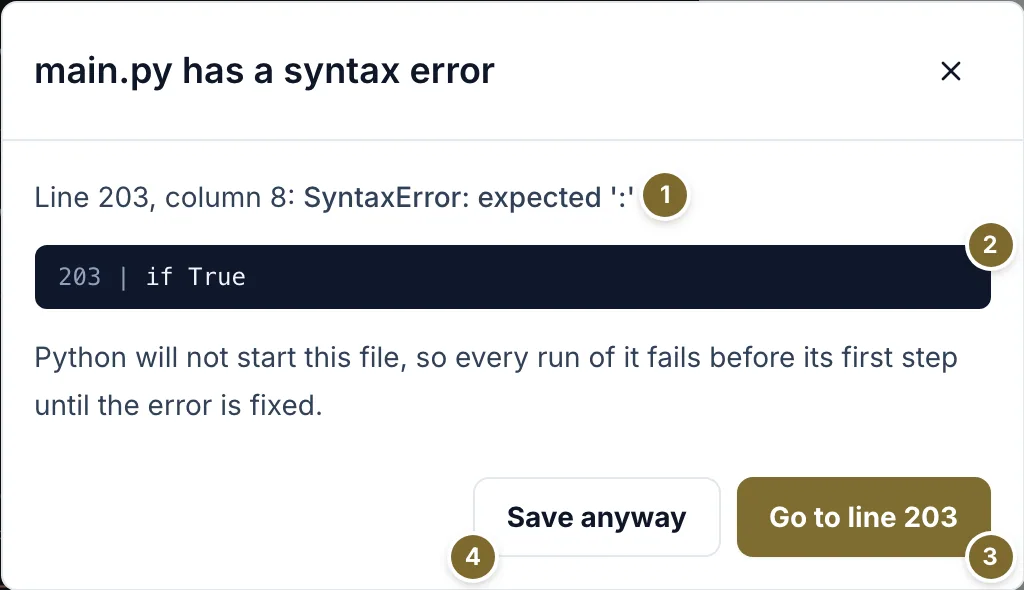
Save anyway 4 saves the file with the error. Clicking outside the dialog does not close it.
Warning
Avoid Save anyway. On an automation that was never published, the next run fails immediately, including scheduled runs. On a published automation, publishing that draft makes every run fail.
The check does not catch every mistake. A misspelled command name, a wrong argument or a page that changed appears only when the script runs. When you publish, Autoworklet also refuses a script that calls a command your automation's engine version does not have. The Publish failed message names the command and the engine version it needs.
If the checker cannot load, or has not loaded after 3 seconds, Save goes ahead without the check.
9.5Get help from AI in the editor
The AI chat panel next to the code answers questions about the script and suggests changes. It can also look at the automation's runs, errors and step logs. Nothing changes in your file until you apply a suggestion and save.
Before your first message, the panel reads "Ask about main.py or describe a change. Select code first to focus on it." Its header says what it is looking at, for example "Editing main.py · line 12".
Ask a question or request a change
- Optional: select some lines of code first. The header then reads, for example, "lines 12-18 selected", and the AI focuses on them.
- Click the box at the bottom of the panel, which reads "Ask a question or describe a change".
- Type your question or the change you want, up to 4,000 characters. For example: "Why did the last run fail?", or ask about a run by its ID.
- Press Enter or click Send. "Thinking..." appears while the AI works, and Send becomes Stop.
- The answer appears after "AI:".
- If the AI suggests a change, a card titled Suggested edit to main.py shows it line by line. The card also shows the number of lines added and removed. Click Apply to put the change in the editor, or Dismiss to ignore it.
- After Apply, the card says Applied to the editor. Save to keep it. If you change your mind, click Revert.
- Click Save to keep the change.
To start a new conversation, click Clear. A message confirms "Conversation cleared".
A suggestion can also add a helper file, shown as New file helpers.py (for example), or change several files at the same time.
With several files, Apply puts the change to main.py in the editor and saves the other files to the draft straight away.
Change selected code
- Select the code you want to change.
- Click Edit selection in the editor header. Or right-click the selection and select Edit selection with AI.
- A box titled "Instruction for selected text" opens over the code. Type what to change, for example "Wait up to 30 seconds for the results table".
- Press Enter or click Apply. To stop, press Esc or click Cancel.
- The changed code replaces your selection, and a message says "AI edited selection".
- Read the change.
- Save the change.
Messages you might see
| Message | What it means |
|---|---|
| No changes needed: the file already does this. | The script already does what you asked. |
| The file changed after this suggestion, so it can no longer be applied. | You edited the file after the AI wrote its suggestion. Click Retry for a new one. |
| Not applied: followed by a reason | The AI's change did not fit the file. Click Retry. |
| These edits are for helpers.py. Open helpers.py to change it; only main.py can be edited here. | Open that file with the file buttons, then ask again. |
| "The selection is too long for the AI. Select a smaller part." | Select fewer lines. |
The agent version
If Autoworklet has turned on the agent for your organization, the panel is titled Agent instead of AI chat. It can also read these parts of your organization:
- Other automations.
- Runs.
- Datasets.
- Workflows.
- Dashboards.
It shows each thing it looks up.
- The message box reads "Ask, or @ to attach".
Type
@to attach up to 10 items to your message. You can attach:- A project file.
- A run.
- A dataset.
- An automation, listed under Worklets.
- One of the reference docs API signatures and Authoring guide.
- Before the agent does something that changes anything, such as starting a run, it shows a card with Approve and Deny.
- Everyone working on the same automation shares one conversation. While a teammate is asking, the panel says, for example, "Sam is asking the agent. You can send when they are done."
The agent has a monthly allowance of AI tokens for the whole organization:
| Plan | Agent tokens per month |
|---|---|
| Free | 300,000 |
| Starter | 3,000,000 |
| Pro | 15,000,000 |
| Enterprise | No limit |
When the allowance is used up, the panel says so and names the date it resets.
Important
In a HIPAA organization, never put patient information in a script or in a message to the AI. The agent's conversation is not shared between members there.
9.6The Step editor
The Step editor shows the script as a list of steps instead of code. Use it to do these tasks without reading the whole script:
- Find a step.
- Change one step in plain words.
- Add a step.
- Remove a step.
- On the Script tab, click Edit script.
- Click Step editor.
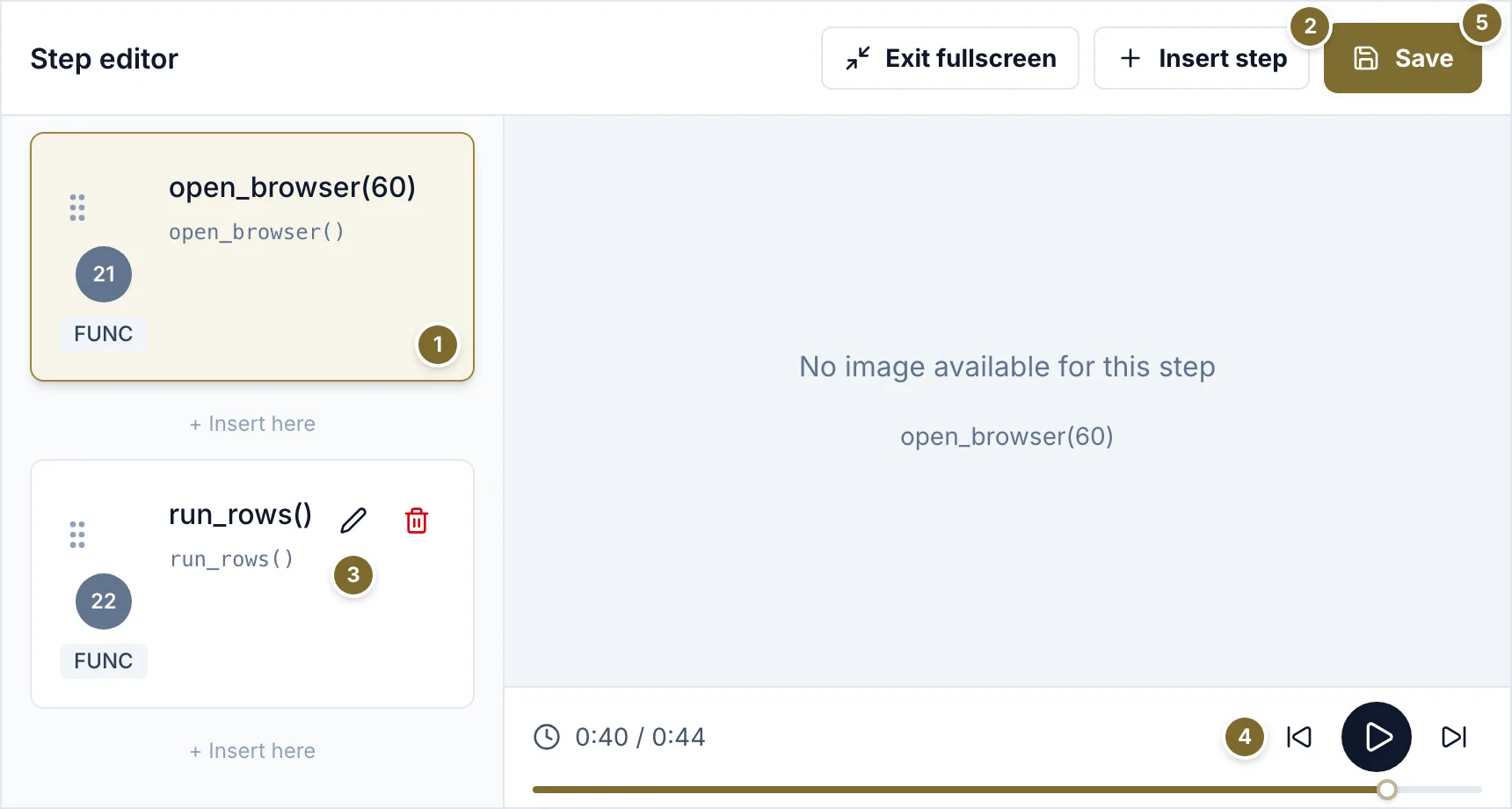
- The card titled Step editor opens. To give the list and the screenshot the whole window, click Fullscreen. The button then reads Exit fullscreen. The steps are listed on the left 1. Drag a step to move it.
- To add a step:
- To add it at the start, click Insert step 2. To add it after a step, including the last, click + Insert here under that step. A dialog titled Insert new step(s) with AI opens.
- Under "Describe what you want to insert:", type the step in plain words.
- Click Generate preview. Read the code in the preview.
- Click Insert code, or Regenerate for another try.
- To change a step:
- Click its Edit step icon 3. A dialog titled Edit step with AI shows the "Current step:" code.
- Under "Describe how you want to modify this step:", type the change.
- Click Generate preview.
- Click Apply changes, or Regenerate for another try. A message confirms "Step updated".
- To remove a step:
- Click its Delete step icon.
- Confirm the removal.
- The right side shows the screenshot for the selected step, with Previous step, Play and Next step buttons 4. If the project has no screenshot for that step, it reads "No image available for this step".
- When you are done, click Save 5. Your changes stay in the editor until you save. The same syntax check runs first. Here its dialog offers Keep editing instead of Go to line. Then a message confirms "Script saved".
Tip
In both dialogs, Cmd+Enter or Ctrl+Enter runs the next action, and Esc cancels.
An empty script shows "No steps found in script" with an Add first step button.
9.7Try a change safely, then publish
The editor has no run button. How you try a change depends on whether the automation has been published.
| Automation | How to try a change |
|---|---|
| Never published | Save, then start one run on the Run tab with New run (see Start one run). That run uses what you saved. So do schedules and triggers, from their next run. |
| Published | The Run tab, schedules, triggers and the API keep running the published version. A developer can run the draft first, on their own computer with the awl command line (The awl command line). A developer can also run it through an AI agent connected with MCP (Tools reference). If your organization has the agent (see Get help from AI in the editor), ask it in the editor to run or dry-run the draft, then click Approve on its card. Otherwise publish and run it one time. If the run goes wrong, restore the earlier version from History. |
A good routine for any change:
- Save the change.
- Run the change one time, on one row with inputs you know. Never published: start a run on the Run tab. Published: run the draft with awl, MCP or the agent, or publish first and keep History ready to restore.
- Watch the run (Watch a run live).
- Read its report (The run report). Check that each step did what you expected and that the outputs are right.
- When it works, publish it, if you have not already.
Make tests safe with a dry-run barrier
A test run acts for real. If the script sends, pays, submits or deletes something, a test run does it too. To stop a test before such a step, put a dry-run barrier on the line immediately before it:
dry_run_stop("Place order")
browser_click_text("Place order")
dry_run_stop does nothing in a normal run.
In a dry run, the run stops cleanly at the barrier and the next line does not run.
Dry runs include:
- A fix test from AI repair.
- A dry run an AI agent starts through MCP.
Change the text in quotes to name the step that follows. More on this in Good practice.
Check that the script reads its rows
The owner, admins and managers can check that the script reads the rows the table hands it. On the Run tab, open Configure inputs and connections and click Check script. It checks the script that runs use. On a published automation, that is the published version, not your draft, so publish first if you want to check a change. See Inputs, outputs and default values.
Publish the draft
When the draft works, publish it so schedules, triggers, the API and embedded widgets use it. Publishing creates a numbered version that you can compare, download and restore later. See Publish, review and restore versions.