Chapter 23
Plans and billing
Compare the plans, learn how execution minutes are counted, and check how many your organization has used. Then change or cancel the plan, keep the card up to date, download invoices, and know what to do when you reach a limit.
23.1Plans at a glance
Every organization is on one plan: Free, Starter, Pro or Enterprise. The plan belongs to the organization, not to you, and everyone in the organization shares it. It sets:
- How many execution minutes the organization gets each month.
- How many runs can go at the same time.
- How many new automations you can build with Teach.
- Which features you can use.
An execution minute is a minute that a cloud computer spends working for you, for example running an automation or building one with Teach. Minutes are the only thing that is metered. Runs are counted, but no plan limits or bills the number of runs.
| Free | Starter | Pro | |
|---|---|---|---|
| Price | $0/month | $29/month | $99/month |
| Execution minutes included each month | 30 | 150 | 600 |
| After the included minutes | New runs stop until the month resets or you upgrade | $0.20 per minute | $0.15 per minute |
| Runs at a time | 1 | 1 | 3, plus $20/month for each extra |
| Teach sessions each month | 3 | 10 | Unlimited |
| Storage included | Not billed | 10 GB, then $0.25 per GB-month | 50 GB, then $0.25 per GB-month |
| Storage packs | Not offered | $2/month per 10 GB | $2/month per 10 GB |
| External Run API, shares, embed widgets and client sites | No | No | Yes |
A Teach session is one new automation that you approve to build in Teach (Approve and build).
Every plan includes:
- Teach, schedules, notifications and a cloud computer.
- Unlimited members.
- An AI agent such as Claude Code or Cursor, connected over MCP (Connect an AI agent (MCP)). Runs an agent starts use minutes like any other run.
Pro adds these features:
- The External Run API, so your own code can start runs (The External Run API).
- Sharing an automation with a partner outside your organization (Share an automation with someone).
- Widgets that put an automation on your own web page (Embed an automation on a web page).
- Client sites published from a dashboard (Publish a client site).
- Extra runs at a time, at $20/month each.
Enterprise is sold on an annual contract and starts at $990/month. It includes:
- Unlimited execution minutes and runs.
- Unlimited runs at a time.
- Unmetered storage.
- Everything in Pro.
- Registered machines, which run automations on your own computers (Your own machines).
- Priority support.
- Custom contract terms.
Autoworklet can also build automations for you, with implementation from $2,000 one-time.
The Free plan needs no credit card. Each account gets one free organization. Your own workspace, created when you signed up, is that free organization, even after you upgrade it. So a new organization you create is on Starter or Pro, or on Enterprise through sales (Create an organization).
See the plans on the website
- To open the pricing page, click Pricing at the top of the Autoworklet website, or go to autoworklet.com/pricing.
- The plans show side by side, each with its price and what it includes. When you are signed in, the Current plan badge 1 marks the plan of your current workspace. That is the workspace that the workspace switcher shows.
- The button under Starter or Pro 2 opens the page for creating a new organization on that plan, for example Create another Starter organization. There you still name the organization and pay (Create an organization). It never changes the plan of a workspace you already have. To change your current plan, use the Change Plan page instead (Change your plan).
- The note under the plans says how minutes are rounded (How minutes are counted).
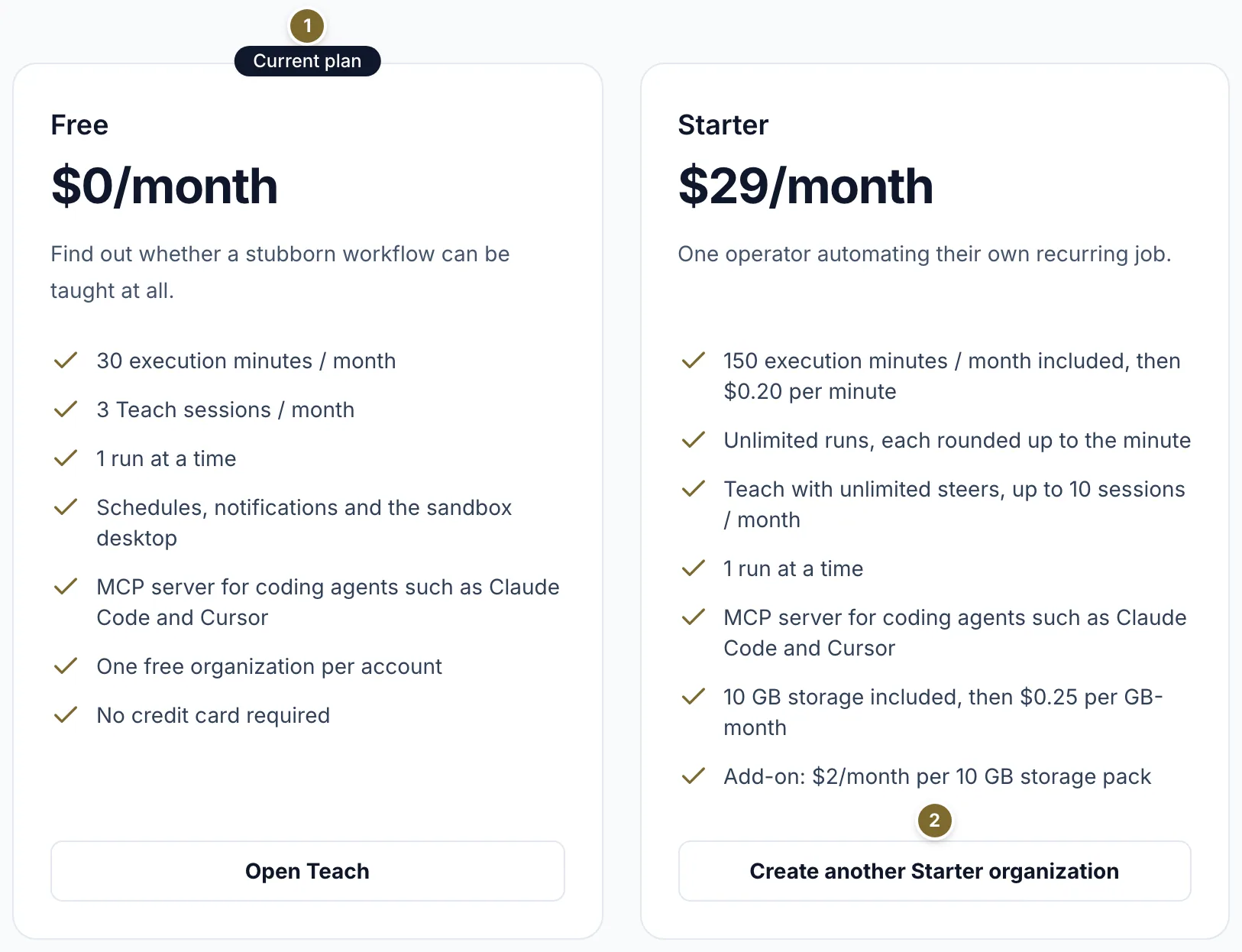
When you are signed out, the buttons read Start free, Choose Starter, Choose Pro and Talk to us. Talk to us under Enterprise opens the Book a Demo form, where you describe what you want to automate.
Important
A paid plan counts only after it is paid for. If you create a Starter or Pro organization and leave Stripe Checkout without paying, that organization cannot start runs, cloud computers or Teach builds. To use it, pay for a plan on the Change Plan page (Change your plan). When a paid subscription ends, the organization moves to Free or becomes inactive (Cancel, resume or return to Free).
23.2How minutes are counted
Read this section to predict your bill on Starter and Pro, or to know when the Free plan will stop. Minutes are counted per organization, never per person.
These things use minutes:
- Every run of an automation, however it starts:
- by hand
- on a schedule
- from a trigger
- from the API
- from an AI agent
- from the mobile app
- Every try of a Teach build, including the tries you steer.
- Every cloud computer, for as long as it is on, including one you use to record for Teach (Cloud computers).
This is how they are counted:
- Time is rounded up to the whole minute for each run and for each restart. The pricing page puts it this way: "Minutes are rounded up per run and per restart: a 90-second run uses 2 minutes, and restarting it for another 90 seconds uses 2 more."
- Each restart and each automatic retry is counted on its own. The same stretch of time is never counted twice.
- Time a run spends paused is not counted.
- One run attempt counts at most 120 minutes, the limit of one cloud computer session. If the run's start and end times could not be trusted, its details page says "Capped at the sandbox ceiling; the run timestamps could not be trusted."
- A cloud computer that is on takes one of your runs at a time. A run that cannot get one waits as Queued and tries again by itself at growing intervals, for up to about 2 hours (Minutes and limits).
To see what one run used, look at the Minutes column on the automation's Runs tab. You can also look at the Minutes billed box on the run's details page (One run in detail). After a restart, that box reads Minutes billed, this attempt.
When the month resets
The monthly counters follow your organization's own period, not the calendar month.
- On Starter and Pro, they reset at the end of each billing period of your subscription.
- On Free, they reset one month after the current usage period started.
The Usage this period card on the Billing page shows the date, for example "Resets on November 9." (Check your usage).
What happens past the included minutes
- Starter and Pro. Nothing stops the next run. Each extra minute is charged at your plan's rate on the next invoice: $0.20 on Starter, $0.15 on Pro. Usage received after an invoice closes might appear on a separate usage invoice, including after you cancel.
- Free. There is no card to charge, so new runs stop when the 30 minutes are used (When you reach a limit).
- Enterprise. Minutes are not limited.
Storage
On Starter and Pro, storage is an allowance, not a cap. Nothing blocks an upload. Your allowance is the plan's included storage plus 10 GB for each storage pack you bought. Storage above that allowance is charged at $0.25 per GB-month. A GB-month is 1 GB kept for a whole month. So each extra GB costs $0.25 a month, and less if you keep it for only part of the month.
The storage that counts is the files kept for runs and for cloud computers. The Organization page shows them in the Run Artifacts and Sandbox Storage cards (Your organization's files).
23.3Check your usage
You can see the minutes your organization has used in four places. The Billing & Usage page has the full picture and is open to admins and managers. Everyone in the organization sees the usage on the Organization page and on an automation's Run tab.
On the Billing & Usage page
- Open Menu.
- Under Workspace, click Billing. The Billing & Usage page opens.
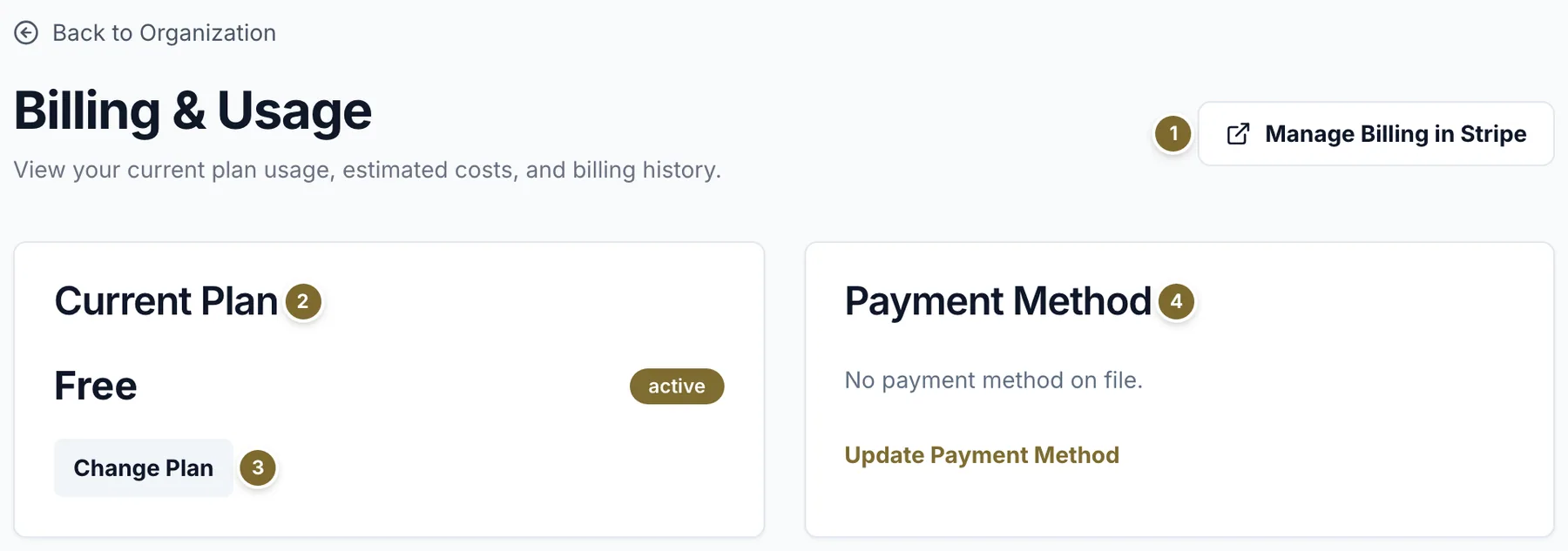
- At the top right, Manage Billing in Stripe 1 opens Stripe, where your card and subscription are kept. Only admins see it, and it works after the organization has paid for a plan (Payment method and invoices).
- The Current Plan card 2 shows the plan name and its status, for example "active". On a paid plan it also shows the dates of the current period, for example "Current period: 10/9/2026 - 11/9/2026".
- Change Plan 3 opens the plan choices (Change your plan).
- The Payment Method card 4 shows the card on file, or "No payment method on file." Admins see Update Payment Method under it.
Read the Usage this period card
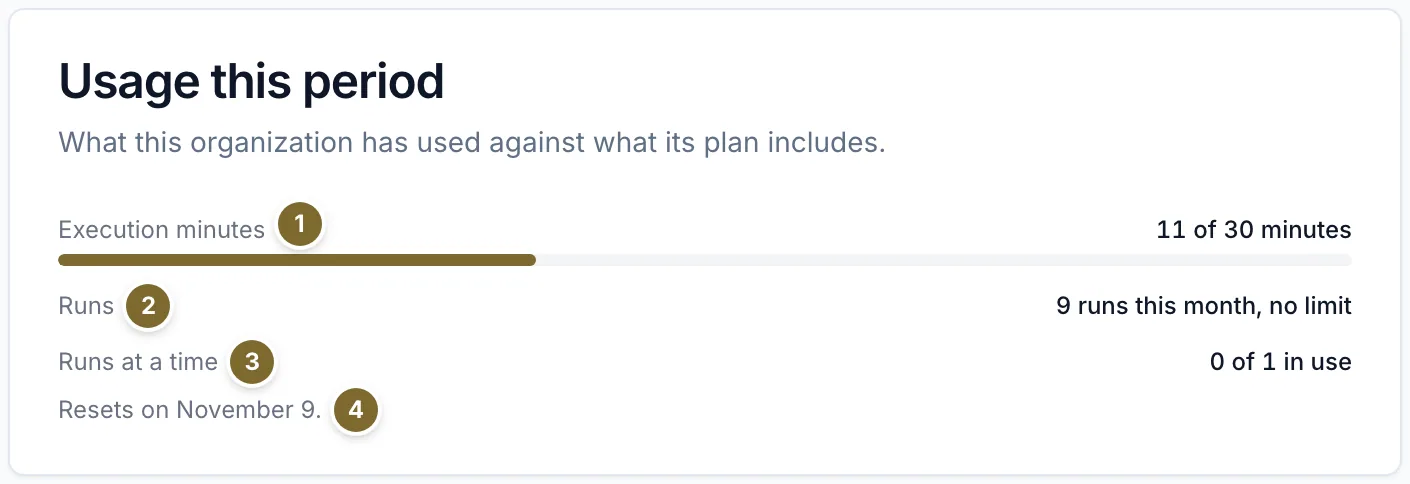
Scroll down to Usage this period. It shows what the organization has used against what its plan includes.
- Execution minutes 1 reads, for example, "11 of 30 minutes". The bar turns amber at 80% and red at 100%. On Enterprise it reads, for example, "250 minutes this month, no limit".
- Runs 2 reads, for example, "9 runs this month, no limit". Runs are counted but never billed.
- Runs at a time 3 shows how many of your plan's runs at a time are in use now, for example "0 of 1 in use". A running cloud computer counts as one.
- The last line 4, for example "Resets on November 9.", says when the monthly counters start again.
On Starter and Pro, the Current Usage & Estimated Cost card below it shows the next invoice so far: each line and the Total Estimated. Final charges might differ. Until Stripe has data for the period, it reads "No upcoming invoice data is available yet."
On the Organization page
Open Menu and click Organization. The Current Plan card shows:
- The plan.
- Its status: "Active", "Past Due", "Canceled" or "Inactive".
- Its price.
- The same usage rows.
When 80% or more of the minutes are used, admins and managers also see Upgrade for more, which opens the Change Plan page. Extra runs at a time that you bought show as Concurrency: with the number, for example "+2".
On an automation's Run tab
The line at the top of the Run tab shows the month's minutes, for example "4 of 30 included minutes used this month · Free includes 30 minutes a month and stops there until the month resets or you upgrade". On Starter the second half reads "$0.20 per minute past the 150 included each month", and on Pro "$0.15 per minute past the 600 included each month" (Minutes and limits).
Before a Teach build
The card where you approve a build estimates its minutes, for example "A try usually takes 2 to 9 minutes of sandbox time, which counts like any run, so up to about 27 minutes with 3 tries. You have 26 of 30 minutes left this month." (Approve and build).
If something goes wrong
| What you see | What it means and what to do |
|---|---|
| "You do not have permission to view billing details." | The Billing & Usage page is for admins and managers. Read the usage on the Organization page, or ask an admin or manager. |
| "Failed to load billing information." | The page could not load. Reload it. |
| The usage rows are missing on a new organization | The plan's limits are still being set up. Reload the page after a moment. |
23.4Change your plan
Upgrade from Free to Starter or Pro, switch between Starter and Pro, or buy add-ons. The plan applies to the whole organization.
Important
Only an admin, or the person who created the organization, can change the plan. Everyone else sees "View Only (Admin required)" on the Change Plan page, and its button stays gray.
Note
If the organization requires two-factor, set it up before you change the plan (When your organization requires two-factor). Without it, the change is refused with "This organization requires two-factor authentication. Set up an authenticator app to continue."
- Open the Change Plan page in one of these ways:
- Open Menu, click Billing, then click Change Plan.
- Open Menu, click Organization, then click Upgrade Plan (on Free) or Manage Subscription (on a paid plan).
- Click Upgrade plan on any notice that says you reached a limit.
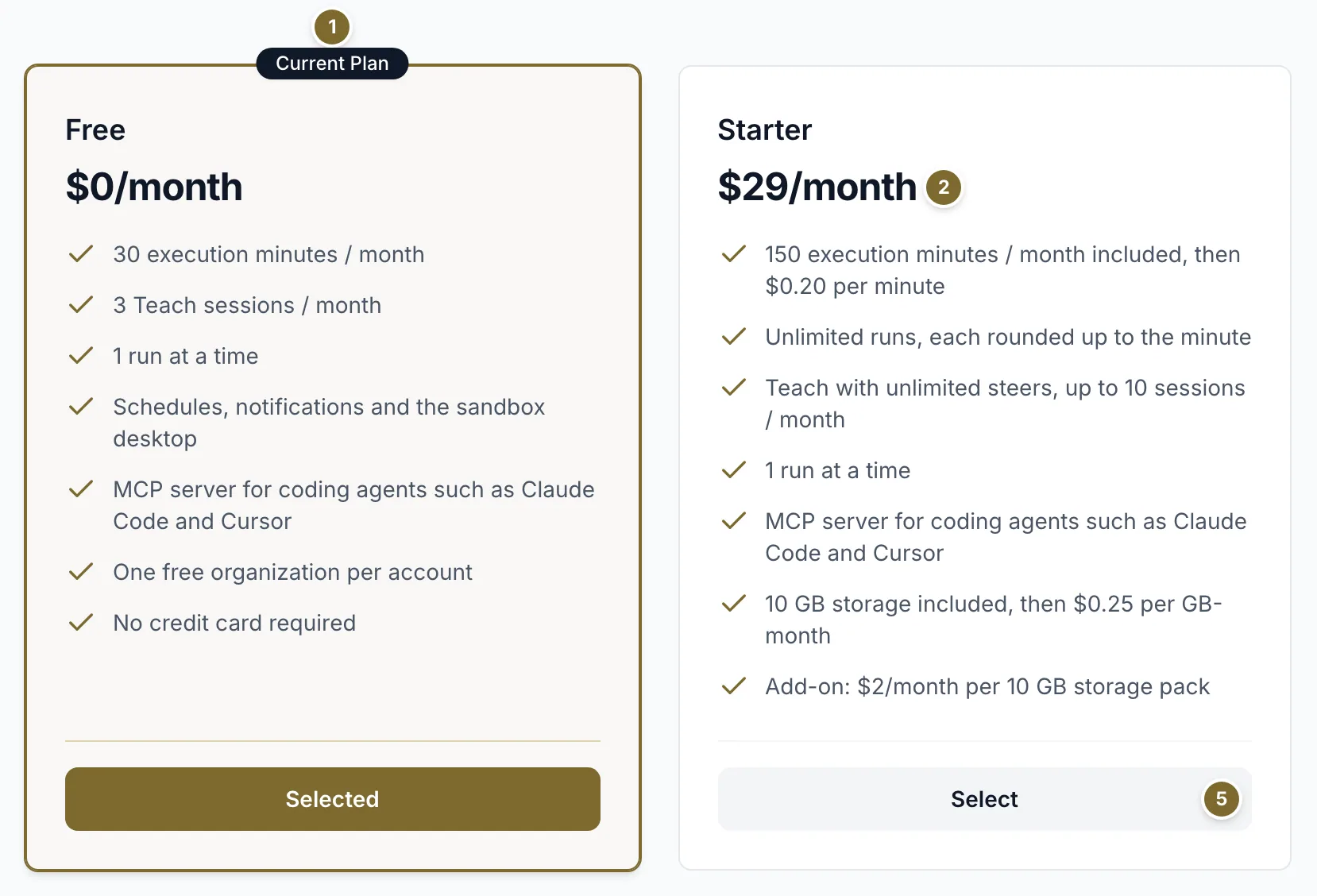
- The page shows four plan cards. The Current Plan badge 1 marks your plan. Each card shows its price, for example Starter's "$29/month" 2, and what it includes. Pro shows "600 execution minutes / month included, then $0.15 per minute", and Enterprise shows "From $990/month".
- Click the card of the plan you want. The strip at the bottom of the card 5 changes from Select to Selected. A card you cannot select shows the reason in that strip instead, for example Max 1 Free Org.
Add more runs at a time or storage
When you select Starter or Pro, an Add-ons section appears under the cards.
- Extra Concurrent Sessions costs $20/month for each session and is sold on Pro only. On Starter the card has no box and reads "Available on the Pro plan. Starter runs one worklet at a time." On Pro, type how many you want. Each one adds one run at a time, and the line under the box shows the total, for example "4 runs at a time".
- Storage Packs cost $2/month for each 10 GB. They are cheaper than paying for the same storage per GB-month. Type how many you want. The line under the box shows your total storage, for example "60 GB included".
- Check the Summary: the Base Plan, each add-on, and the Total Monthly Cost.
Pay and confirm
- Click Continue to Checkout.
- What happens next depends on whether the organization already pays for Starter or Pro.
- Not paying yet. Stripe Checkout opens. Enter your card details and pay. Stripe then returns you to the organization's page.
- Already on Starter or Pro. No checkout page opens. The change is made right away on the card on file. Stripe prorates the difference for the rest of the period and invoices it immediately. An upgrade takes effect only after that payment succeeds. You return to the organization's page.
- Check the Current Plan card on the organization's page. No confirmation message appears, so the card is how you know the new plan is in place. If it still shows the old plan, wait a few seconds and reload the page.
To leave the page without changing anything, click Cancel.
For Enterprise, click the Enterprise card, then click Contact Sales. Your email app opens a message to [email protected] with the subject "Enterprise plan inquiry".
To move to Free, see Cancel, resume or return to Free. You select the plan of a new organization when you create it (Create an organization).
If something goes wrong
| What you see | What it means and what to do |
|---|---|
| "Failed to update billing plan:" followed by a reason | The change did not go through. If the reason says the organization requires two-factor authentication, set it up first (When your organization requires two-factor). Otherwise check the card on file (Payment method and invoices), then try again. |
| Max 1 Free Org on the Free card | Another of your organizations is already your one free organization. |
| Couldn't check - reload on the Free card | The page could not check whether Free is available. Reload the page. |
| You left Stripe Checkout without paying | Nothing was charged, and the plan did not change. Start again from the Change Plan page. |
23.5Cancel, resume or return to Free
Cancel a Starter or Pro plan when the organization no longer needs it. A canceled plan stops renewing at the end of the current billing period, and your paid benefits continue until then. Only an admin, or the person who created the organization, can cancel or resume. In an organization that requires two-factor, resuming needs it, but canceling does not (When your organization requires two-factor).
Cancel from the Organization page
- Open Menu.
- Click Organization.
- Scroll down to Danger Zone. Under Cancel Subscription it says "Stop renewal at the end of this billing cycle. If your free organization is already elsewhere, this organization becomes inactive."
- Click Cancel Subscription.
- The dialog Cancel the subscription? says "It stops renewing at the end of the current billing period. Your paid benefits continue until then." Click Cancel Subscription to confirm, or Keep Subscription to change your mind.
Or switch to Free on the Change Plan page
- Open the Change Plan page (Change your plan).
- Click the Free card. This works only when the strip at the bottom of the Free card reads Select. If it reads Max 1 Free Org, read the warning below first, then use Cancel Subscription on the Organization page instead.
- Click Update Plan.
- Your browser asks you to confirm, for example "Downgrading to Free means cancelling your Pro subscription. You will remain on Pro until the end of your billing period, at which point your plan will switch to Free. Continue?" Click OK.
- A message confirms: "Your subscription has been scheduled for cancellation. You will effectively become Free at the end of the billing cycle."
What happens next
- The Current Plan card on the Organization page shows Canceling Soon and the end date, for example "Your plan will end on December 9, 2026."
- At the end of the period, the organization moves to Free if the person who created it has no other free organization.
- Otherwise it becomes inactive, and its status on the Organization page reads "Canceled". An inactive organization cannot start runs, cloud computers or Teach builds.
- You keep the automations you built either way. To use an inactive organization again, select Starter or Pro on the Change Plan page and pay.
- A last usage invoice might still arrive (How minutes are counted).
Warning
Before you cancel, check whether this organization can return to Free. When an organization becomes inactive, every run stops, including runs from schedules and triggers. Each account has one free organization, and the one that counts here belongs to the person who created this organization. If you created it and the Free card on the Change Plan page reads Max 1 Free Org, it will become inactive.
Resume before the period ends
- Open Menu.
- Click Organization.
- In the Current Plan card, under Canceling Soon, click Resume Subscription.
- The dialog Resume the subscription? says "It renews again, and you continue to be billed at the start of the next cycle." Click Resume Subscription.
- The page reloads, and the Canceling Soon notice is gone.
Delete an organization on a paid plan
You cannot delete an organization while its paid plan still renews. Cancel the plan first. Then the person who created the organization can delete it from its Danger Zone (Organization settings).
If something goes wrong
| What you see | What it means and what to do |
|---|---|
| "Your subscription is already scheduled for cancellation. You will switch to Free at the end of the period." | The plan is already canceled. To keep it, resume it instead. |
| "Failed to resume subscription:" followed by a reason | The plan was not resumed. If the reason says the organization requires two-factor authentication, set it up first. Otherwise check the card on file and try again. |
| "Free is not available for this account. Billing has been set to canceled for this organization." | This organization was never paid for, or its plan had ended, and you already have a free organization elsewhere. The organization is now inactive. Select Starter or Pro to use it. |
23.6Payment method and invoices
Autoworklet takes payments through Stripe. Your card is kept in Stripe, and Stripe sends the invoices. Only an admin, or the person who created the organization, can change the card. In an organization that requires two-factor, opening Stripe's billing page needs it too (When your organization requires two-factor). Admins and managers can see the invoices.
Update the card
- Open Menu.
- Click Billing.
- Under Payment Method, click Update Payment Method. Manage Billing in Stripe at the top of the page opens the same place.
- Stripe's billing page opens in the same browser tab. Change the card there.
- Use the link back on Stripe's page to return to Billing & Usage. The Payment Method card shows the new card's brand, its last four digits and its expiry date, for example "Expires 8/2029".
Download an invoice
- Open Menu.
- Click Billing.
- Scroll down to Invoice History. It lists the last 12 paid invoices, with Date, Amount, Status and Invoice.
- Click PDF to download an invoice, or View to open it on Stripe's invoice page. Both open in a new tab.
With no invoices yet, the card reads "No invoices found."
Add crew credits
The Crew Credits card holds a prepaid balance that your automations spend when they post tasks for human crew workers. A hold is placed on the balance when a task posts, and it is refunded if the task is canceled. Admins and managers can see the balance and add funds.
Note
If the organization requires two-factor, set it up before you add funds (When your organization requires two-factor). Without it, the payment is refused with "This organization requires two-factor authentication. Set up an authenticator app to continue."
- On the Billing & Usage page, click Add funds.
- In the Add crew credits dialog, click $25, $100 or $500, or type an amount in Custom amount (USD). The amount must be from $10 to $10,000.
- Click the pay button, for example Pay $100 with Stripe. Stripe charges your card one time.
- When you return, a message says "Payment received" and "Your crew credits will appear in a few seconds." If you left Stripe without paying, it says "Checkout canceled" and "No charge was made."
If something goes wrong
| What you see | What it means and what to do |
|---|---|
| "Could not open the billing portal" with "No billing account found for this organization." | The organization has never paid for a plan, so Stripe has nothing to show. Pay for a plan first (Change your plan). |
| "Could not open the billing portal" with "This organization requires two-factor authentication. Set up an authenticator app to continue." | Set up two-factor (When your organization requires two-factor), then try again. |
| "Could not open the billing portal" with "Please try again." | Stripe's billing page could not open. Try again. |
| "Could not start checkout" with "This organization requires two-factor authentication. Set up an authenticator app to continue." | Set up two-factor (When your organization requires two-factor), then try again. |
| "Could not start checkout" when you add crew credits | Stripe could not start the payment. Read the reason under it and try again. |
| The Crew Credits card says "Could not load the crew balance." instead of the balance | The balance could not be read, for example because the connection dropped. Reload the page to try again. |
23.7When you reach a limit
- Free minutes. When the month's 30 minutes are used, new runs, restarts, Teach builds and cloud computers are refused until the month resets or you upgrade. The check happens when something starts. A run that is already going finishes, so the last run of the month can take you past 30.
- Starter and Pro minutes. Nothing stops, and the extra minutes go on the next invoice (How minutes are counted).
- Runs at a time. An extra run waits as Queued and tries again by itself, first after 1 minute and then at longer gaps. So it can start some time after the other run or cloud computer ends. If it still cannot start after about 2 hours, it ends with an error (Minutes and limits).
- Teach sessions. When the month's sessions are used, Build it is refused until the month resets or you upgrade.
- Pro features. On Free and Starter, each Pro feature tells you it needs Pro:
- Sharing an automation shows a notice with Upgrade plan instead of the share form.
- API access keeps its key form, because a key also connects an AI agent over MCP. Above the form it reads "Keys minted here connect a coding agent over MCP on every plan. External Run API calls need the Pro plan or above." with Upgrade plan.
- Client sites show "Shared dashboards need the Pro plan or above." without a link.
- Create Token for an embed widget fails with "Embed widgets need the Pro plan or above."
- AI help in the script editor. It has a monthly allowance that depends on the plan (Get help from AI in the editor).
- Billing inactive. Each of these stops every run until an admin fixes it:
- a canceled paid plan
- a paid plan whose payment is not active
- a new Starter or Pro organization whose Checkout was never finished
Important
On Free, runs that start by themselves use the same 30 minutes. A schedule or a trigger can use up the month's minutes, and then your own runs are refused too.
| What you see | What it means | What to do |
|---|---|---|
| "This organization has used this month's free execution minutes." with Upgrade plan, on a failed run | The Free plan's 30 minutes for this month are used up. | Upgrade, or wait for the reset date shown on the Organization page or the Billing page. |
| Run not restarted or Run not resumed with the same sentence | A restart or a resume was refused for the same reason. | Same as above. |
| Cloud computer not started or Cloud computer not resumed with the same sentence | A cloud computer was refused for the same reason. | Same as above. |
| "This organization has used its 30 free execution minutes for this month. Upgrade to Starter or Pro to keep building." | A Teach build was refused because the Free minutes are used up. | Upgrade, or wait for the reset date. |
| "This organization has used its 3 Teach sessions for this month. Upgrade to keep teaching new workflows." | The month's Teach sessions are used up. Starter shows 10. | Upgrade, or wait until the month resets. |
| "This organization's billing is inactive, so runs and cloud computers are paused." with Manage billing | The paid plan is canceled, its payment is not active, or its Checkout was never finished. | An admin clicks Manage billing, then fixes the card, resumes the plan, or selects a plan again. |
| "This organization's billing is inactive. Update the payment method or resume the subscription to keep building." | The same, when you build with Teach. | Same as above. |
| A notice such as "Worklet shares need the Pro plan or above." with Upgrade plan | The feature needs Pro or Enterprise. | An admin upgrades to Pro (Change your plan). |
| "This organization has used its 300,000 AI agent tokens for October 2026. The allowance resets on November 1, 2026." (the numbers and dates vary) | The month's AI help in the script editor is used up. | Wait for the date it gives, or upgrade. |
| A run stays Queued | All of your plan's runs at a time are in use. | Wait, or stop another run or cloud computer. On Pro, buy extra sessions. |
| "Your organization's limits don't allow this right now." or "Minutes limit reached" in the mobile app | A plan limit refused the action on the phone. | Check the plan and usage on the website. |
23.8Who can manage billing
What you can do with billing depends on your role in the organization (Roles).
| Task | Member | Manager | Admin |
|---|---|---|---|
| See Billing in the Menu | Yes, but the page refuses | Yes | Yes |
| Open Billing & Usage: usage, estimated cost and invoices | No | Yes | Yes |
| See plan usage on the Organization page | Yes | Yes | Yes |
| See Upgrade Plan or Manage Subscription on the Organization page | No | Yes | Yes |
| Change the plan or the add-ons | No | No, the page is view only | Yes |
| Cancel or resume the plan | No | No | Yes |
| Update the card or open Stripe | No | No | Yes |
| See the crew balance and add crew credits | No | Yes | Yes |
The person who created the organization can open Billing & Usage, change the plan, resume it, update the card and open Stripe, whatever their role. If their role is Member, the Organization page still hides Upgrade Plan, Manage Subscription and Cancel Subscription. They open Change Plan from the Billing & Usage page instead. The Billing & Usage page does not show them the Crew Credits card.
The mobile app has no billing screens, prices or upgrades (What stays on the web).